Your account and team
Sign in to Sayvara, keep your account safe, choose your language and theme, and give your teammates the right access.
Everything about you and the people you work with in Sayvara: how you sign in, what each role may do, and how to bring your team on board.
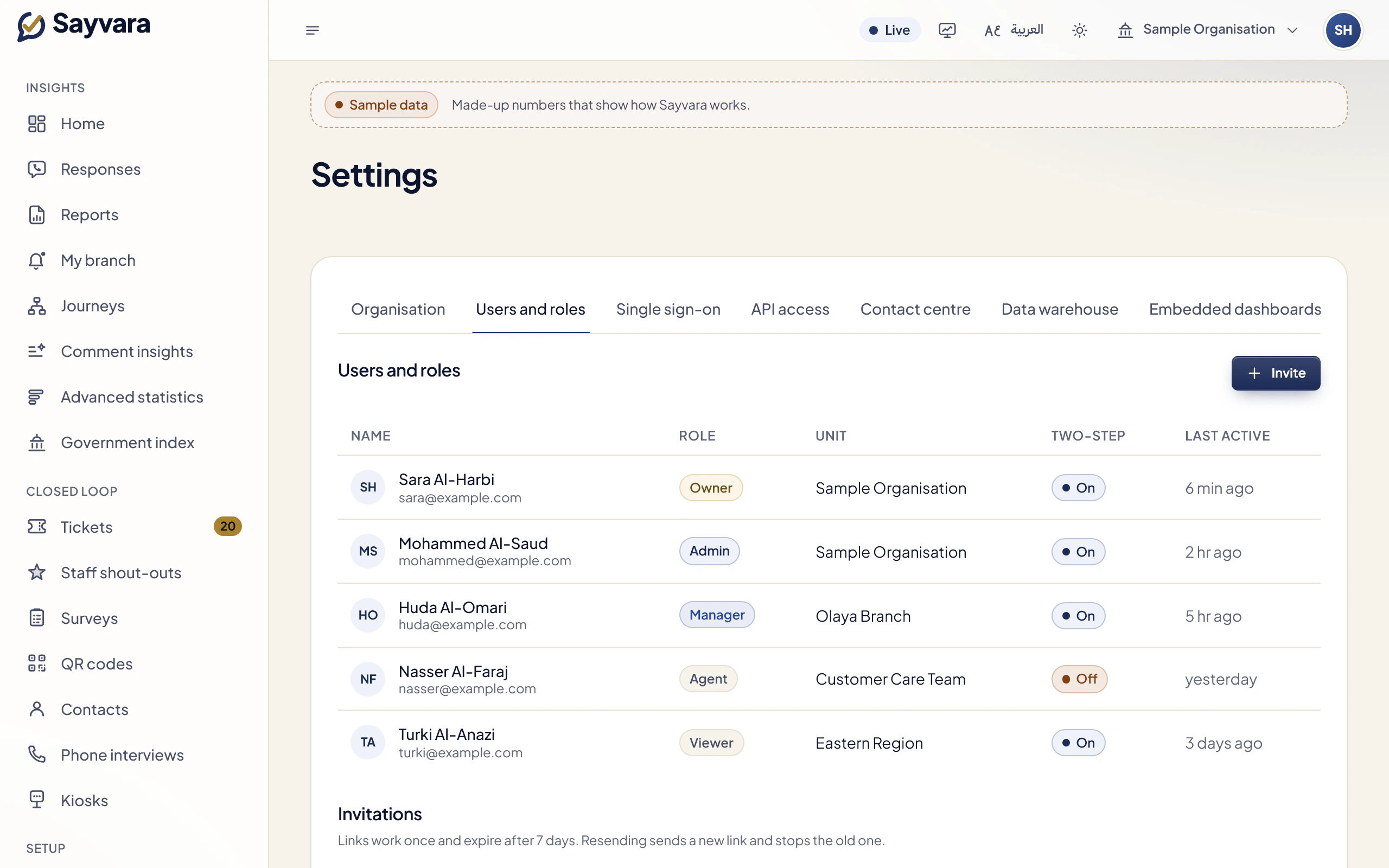
Pages in this topic
| Page | What you learn |
|---|---|
| Sign in | Sign in with your work email and password, a sign-in link or two-step verification |
| Reset your password | Choose a new password when you forget the old one |
| Roles and permissions | What an owner, admin, manager, agent, analyst and viewer can do |
| Invite teammates | Send invitations, resend them and revoke them |
| Profile, language and theme | Arabic or English, light or dark, and your account menu |
| Work in more than one organisation | Switch between the organisations you belong to |
| Single sign-on | For admins: let your team sign in with your company's identity provider |
Quick answers
Which email do I use? Use the work email your organisation invited. Each invitation is for one address.
I belong to two companies. Do I need two accounts? No. One Sayvara account can belong to several organisations. See Work in more than one organisation.
Who can add people? Owners and admins. See Invite teammates.
Can I use Sayvara in Arabic? Yes. Arabic and English are equal in the whole app. Switch at any time with the language button in the top bar. See Profile, language and theme.
Why can't I see some pages? Pages follow your role. A viewer, for example, sees dashboards but not individual answers. See Roles and permissions.
Getting help
If you cannot sign in and the pages here do not help, ask an owner or admin of your organisation first: they can see your invitation and your role. You can also write to support@sayvara.com.
Your first day in Sayvara
- Accept your invitation and sign in. See Sign in.
- Choose your language and theme. See Profile, language and theme.
- Check your role, so you know what you can do. See Roles and permissions.
- Open Home to see how your customers feel today.
- If you work tickets, open Tickets and pick up the oldest one. See Closed loop.
Related pages
Was this page helpful?
Thanks. Need more help? Email support@sayvara.com