Languages and translation
Every Sayvara survey has English and Arabic texts. Translate with machine suggestions, approve each text and keep a glossary.
Every Sayvara survey is bilingual. Each question, option, title and thank-you message has an English and an Arabic text, and both are required. Each customer sees the survey in their own language.
Write both languages yourself
In the question editor, every text has two fields side by side, for example Question (English) and Question (Arabic). The Arabic field is right to left.
Use Preview language in the Preview to see the survey as an Arabic or an English speaker sees it.
Translate with machine suggestions
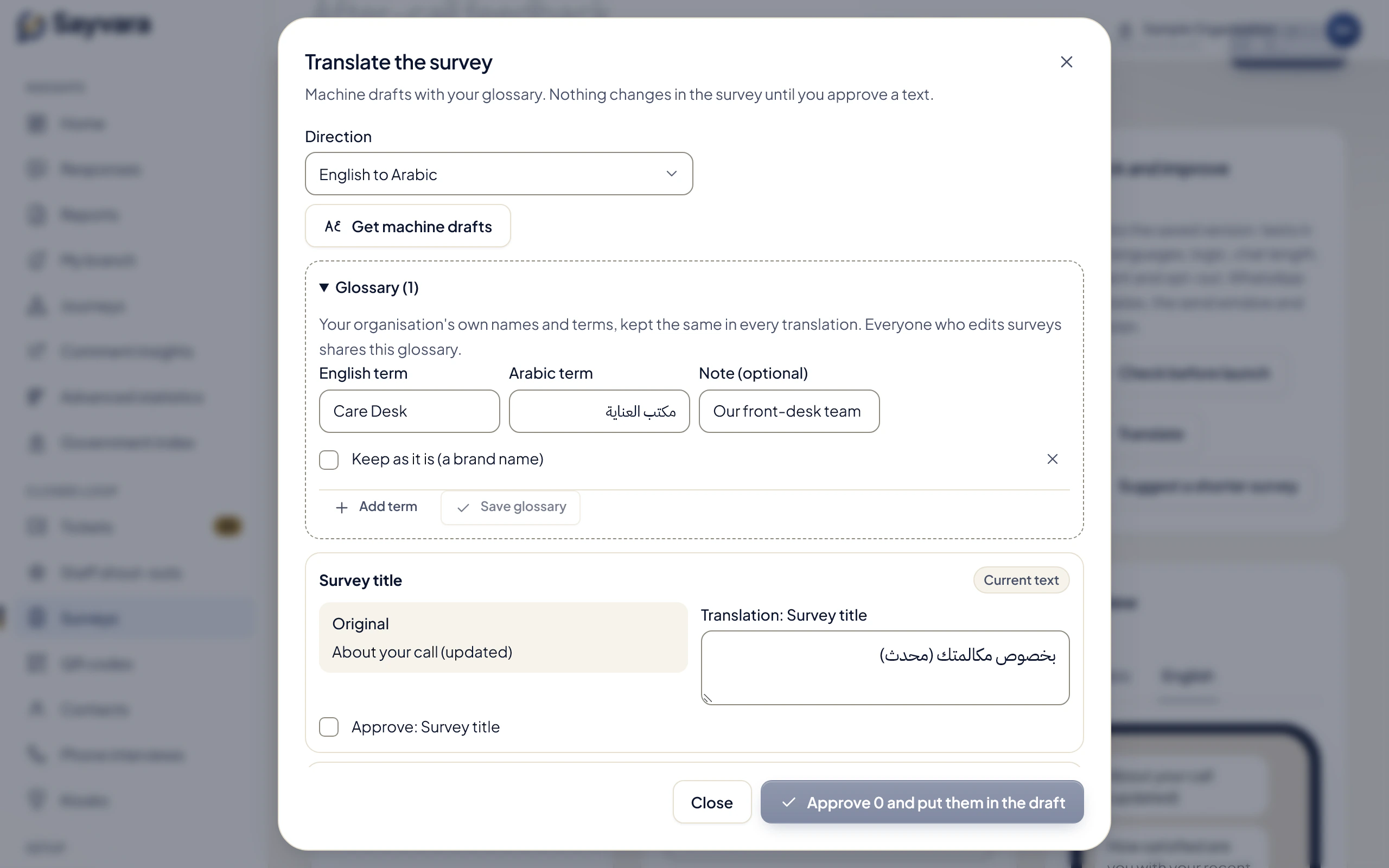
The Translate tool fills in one language from the other. Nothing changes in the survey until you approve a text.
- In Check and improve, select Translate. The window Translate the survey opens.
- Choose the Direction: English to Arabic or Arabic to English.
- Select Get machine suggestions.
- Each text shows the Original and the Translation, with a state: Current text, Machine suggestion, Edited or Approved.
- Read each suggestion. Edit it if needed, then select Approve.
- Select Approve and put them in the working copy (the button shows how many).
- Select Save changes to keep the texts.
The tool marks suggestions that need care, for example Glossary term not used or a text that looked like an instruction and was not sent to the AI. When there is no usable suggestion, write that text yourself.
Your glossary
The glossary keeps your own names and terms the same in every translation: your brand, product names, branch names. Everyone who edits surveys shares it.
- In the Translate the survey window, open Glossary.
- Select Add term.
- Type the English term and the Arabic term. Add a Note (optional).
- Tick Keep as it is (a brand name) for names that must not be translated.
- Select Save glossary.
Fill in both the English and the Arabic term of every row before you save.
More survey languages
A survey started from a patient experience template also has Urdu, Hindi, Tagalog (Filipino) and Bengali texts. See Create a survey. They are listed in the builder on the card Survey languages.
For each language the card shows:
Its name and its direction: Right to left for Urdu, Left to right for the others.
Its review state:
State What it means Machine translation, needs review A machine translation nobody in your team has checked Not reviewed, needs review A text nobody in your team has checked Reviewed by your team A native speaker in your team has checked it Whether it is On the survey page, and how many texts are translated, for example 8 of 10 texts translated. The other texts show in English (or in Arabic for a survey written in Arabic only).
A language that needs review never shows on the survey page.
Mark a language reviewed
- Ask a native speaker in your team to check every question in that language.
- On the card Survey languages, set Review state of that language to Reviewed by your team.
- Save the working copy and publish it.
Owners, admins and managers can do this. To take a language off the survey, select Remove with its name, for example Remove Urdu, then save and publish.
If you change the English or Arabic wording of a question, its translation is dropped and that question shows in the survey's own language.
What respondents see
Respondents choose their language from the menu on the survey page. In these languages the questions are translated. The page's buttons and notices stay in English, or in Arabic for a survey written in Arabic only.
The language of the survey page
- Web survey page: customers can switch between Arabic and English on the page.
- QR codes and kiosks: you choose the First language of the page when you make the code or kiosk.
- WhatsApp, SMS and email: the survey uses the customer's language from their contact record, when it is known.
Accessible wording
Every question also has an optional Simple wording for accessible mode in each language. See Survey look and access.
Tips
- Run Check before launch after translating. It reports missing texts in either language.
- Have a native speaker read the final Arabic before you publish an important survey.
- Add your brand name to the glossary first, so it is never translated.
Related pages
Was this page helpful?
Thanks. Need more help? Email support@sayvara.com