Manage phone campaigns
Read the list of phone interview campaigns, create a campaign, start or pause it, and open its set-up, console, caller desk or report.
A phone campaign is one survey run by phone over a list of people. The Phone interviews list shows every campaign in your organisation.
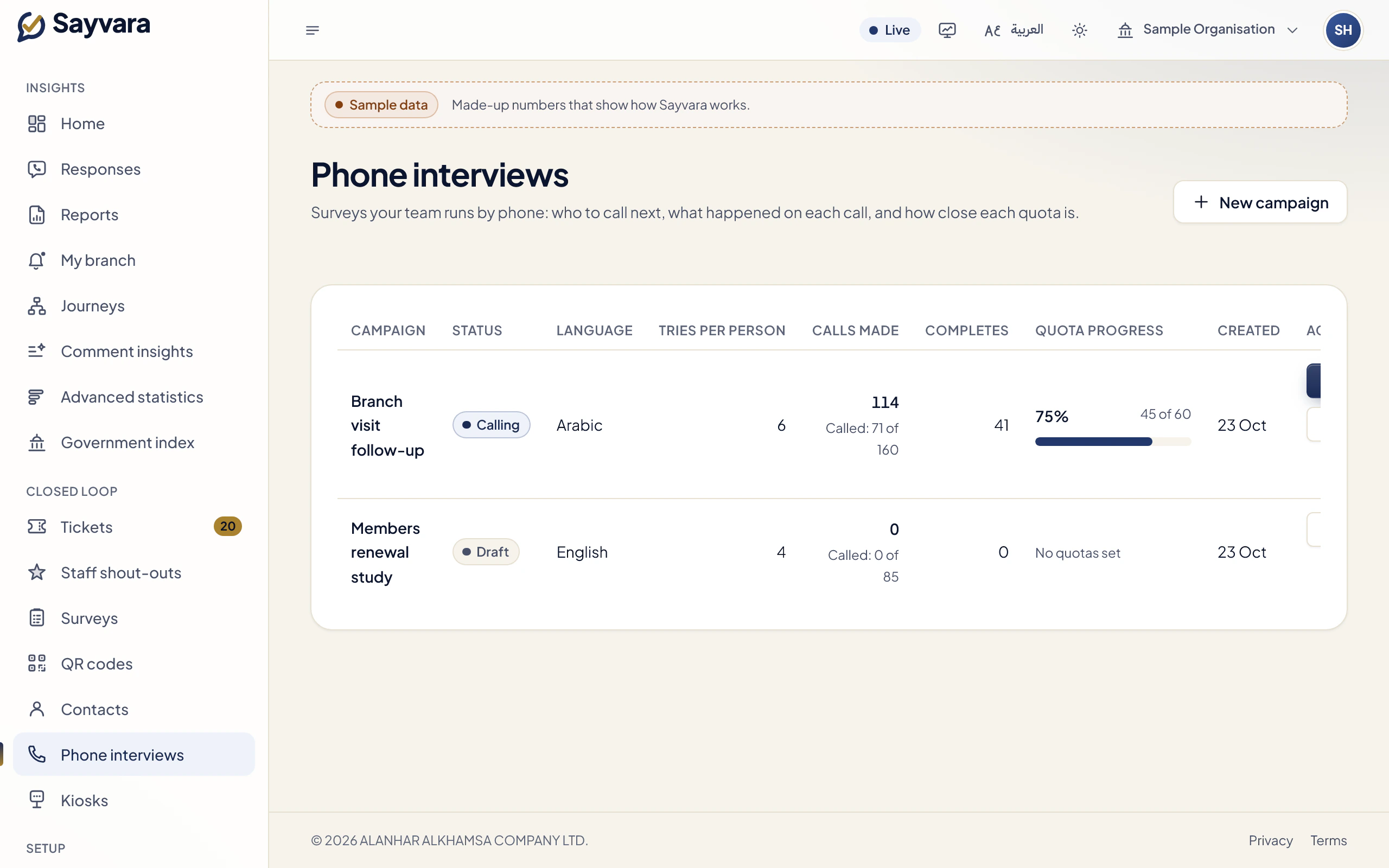
Read the campaign list
- In the side menu, select Phone interviews.
- Each row shows:
| Column | What it shows |
|---|---|
| Campaign | The campaign name. |
| Status | In set-up, Calling, Paused or Closed. |
| Language | Arabic or English: the language of the interview. |
| Tries per person | How many times a person is called before they leave the list. |
| Calls made | Calls made in the campaign. Below it, Called: 120 of 400 means 120 of the 400 people on the call list were called at least once. |
| Completes | Completed interviews. |
| Quota progress | Completed interviews against the quota targets, as a share and a bar. No quotas set means the campaign has no quotas. |
| Created | When the campaign was created. |
| Actions | What you can do now. |
If the list is empty, you see No phone campaigns.
For how the figures are counted, see Call count, Completed interview count and Quota progress.
The actions on a row
| Action | When it shows | What it does |
|---|---|---|
| Start calling | While the campaign is calling. | Opens the caller desk. See Use the caller desk. |
| Report | Always. | Opens the campaign report. See Read the campaign report. |
| Set up | For members who manage campaigns, unless the campaign is closed. | Opens Campaign set-up, where you build the call list. See Build the call list. |
| Supervise | For members who manage campaigns. | Opens the console. See Supervisor console. |
| Start | On a campaign in set-up or paused. | Starts calling. You see Campaign is now Calling. |
| Pause | On a calling campaign. | Stops calling for a while. You see Campaign is now Paused. |
Callers can only take people from a campaign that is calling. On a paused campaign, the caller desk says This campaign is not calling.
Create a campaign
- Select New campaign. The New phone campaign dialog opens.
- Enter the Campaign name.
- Choose the Survey. Only live surveys are listed. If there is none, you see There is no live survey. Publish a survey first.
- Choose the Interview language.
- Set Tries per person, a whole number from 1 to 20. It starts at 6.
- Switch on Record calls if you want recordings. It is off unless you switch it on, and a recording starts only after the person agrees on the call.
- Select Create campaign. You see Campaign created. It is in set-up.
The new campaign has the standard retry rules. Build its call list and choose its callers, then select Start.
Add people to a campaign
- On the campaign's set-up screen, from a CSV file, a pasted list or your contacts. See Build the call list.
- On the campaign's set-up screen, one person at a time from a number you type, with the Add by phone number card. See Add a person by phone number.
- From Contacts, Responses or Tickets, with Add to phone campaign. See Add people from other screens.
Add a person by phone number
On a campaign's Set up page, the Add by phone number card puts one person on the call list from a number you type.
- In Phone number, type the number. A number without its country code is read as a number in your organisation's country.
- Optionally type a Name, and pick the Language for this person. The language is used only when the person is new to your contacts.
- If you work in some branches only, pick the Branch. A new person is saved to the contacts of that branch.
- Select Add this person.
Someone already in your contacts with this number is reused (This number was already in your contacts.). Anyone else is saved as a new contact (Saved as a new contact.). The call list then shows where the person came from, and the usual checks apply: people who opted out, are marked do not call or are already on this list are never added. The result says how many were added and why anyone was left out.
The card appears only for people who may both set up phone campaigns and change contacts. A role that hides phone numbers cannot add people by their number; pick them from your contacts instead.
Who can use it
Everyone with access to Phone interviews sees the list. New campaign, Set up, Supervise, Start and Pause need permission to manage phone campaigns, which owners, admins, managers and supervisors have. Start and Pause show to everyone who opens the list, but for a member without that permission the change is refused.
Related pages
Was this page helpful?
Thanks. Need more help? Email support@sayvara.com