Settings
A map of the Sayvara Settings tabs, who can see each one, and where to find each task in this manual.
Settings in the side menu holds everything about your organisation: its structure, people, sign-in,
connections, records, plan and look. Each section is a tab across the top. The address changes with the tab, for
example /settings/plan, so you can bookmark a tab.
Most tabs are for owners and admins. Other roles can open them, but a tab they cannot manage says so, for example Only owners and admins can manage the data warehouse.
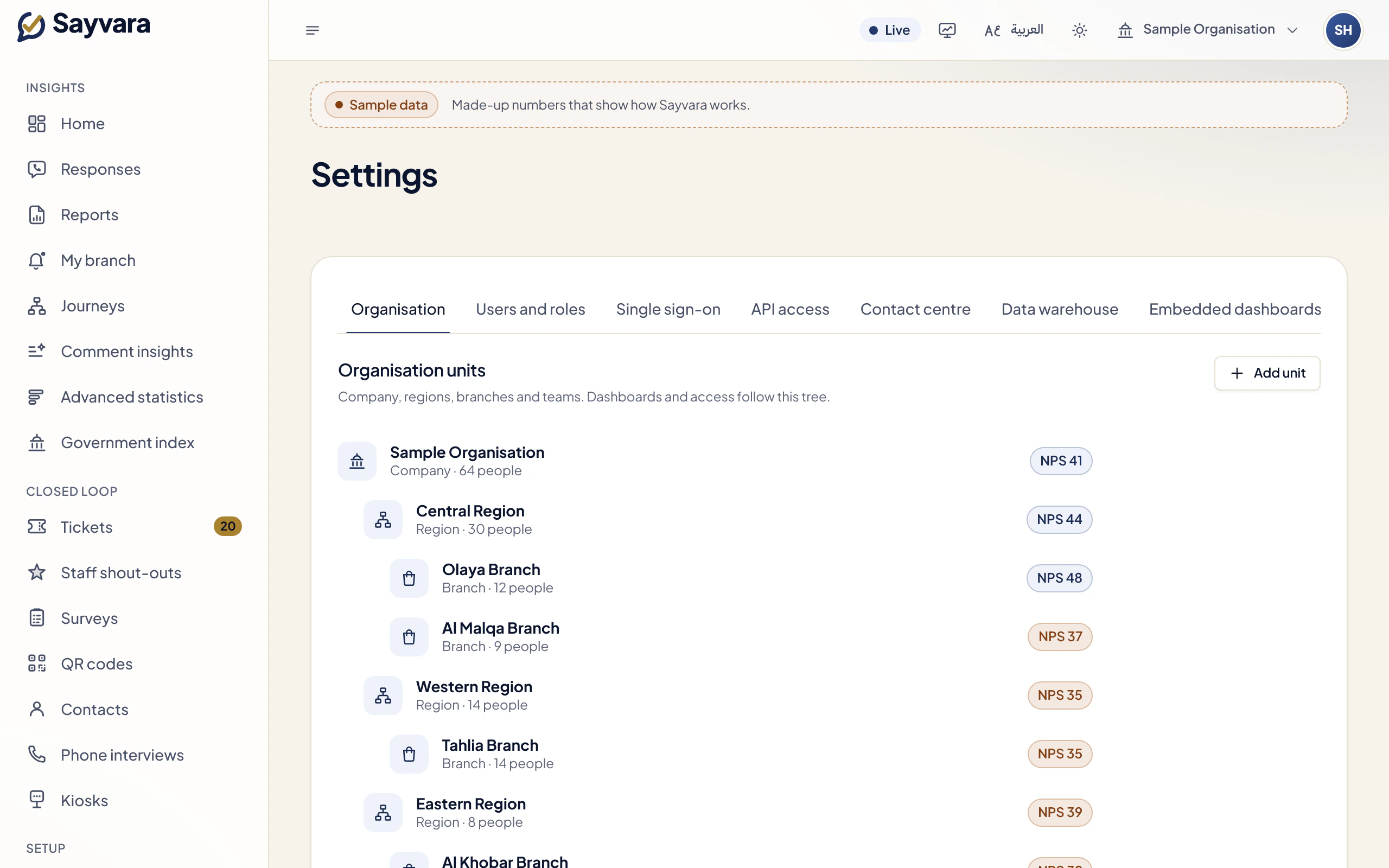
The tabs
| Tab | What it is for | Help page |
|---|---|---|
| Organisation | Your tree of company, regions, branches and teams | Organisation and units |
| Users and roles | Who is in your organisation, invitations, roles | Invite teammates, Roles |
| Single sign-on | Sign-in with your company account | Single sign-on |
| API access | API clients and automations | Integrations overview |
| Contact centre | Surveys after contact-centre conversations | Integrations overview |
| Data warehouse | Scheduled export to your own storage | Scheduled exports and embeds |
| Embedded dashboards | Read-only dashboards on your own sites | Scheduled exports and embeds |
| Reconciliation | Daily counts for each connection | Integrations overview |
| Audit log | Who did what, and when | Audit log |
| Privacy centre | Security incidents that concern you | Privacy centre and legal |
| Organisations | Switch between organisations you belong to | Organisations |
| Plan | Your plan, limits and use | Plan and limits |
| Preferences | Your language, theme and sidebar | Language and theme |
| Legal | Privacy notice, terms and data processing agreement | Privacy centre and legal |
| AI | The AI route, allowed models and your own Claude key | AI settings |
| Branding | Sender name and the Sayvara mark | Branding |
The AI and Branding tabs show only to owners and admins.
Other setup pages in the side menu
Some setup pages sit in the side menu instead of Settings:
- Channels: how you reach customers. See Channels.
- Integrations: connect other systems. See Integrations overview.
- Developer: API keys. See Integrations overview.
- Your data: export or delete your organisation's data. See Data export and deletion.
Move around with the keyboard
The tab row works with the arrow keys. Press Tab to reach it, then use the left and right arrows to move between tabs.
Related pages
Was this page helpful?
Thanks. Need more help? Email support@sayvara.com