Surveys
Build bilingual surveys in Sayvara, add logic and quotas, check them before launch, publish versions and share them.
A survey in Sayvara is written once, in English and Arabic, and works on every channel: the survey web page, WhatsApp, SMS, email, QR codes and kiosks. Sayvara shows you how each question will look in a chat before you publish.
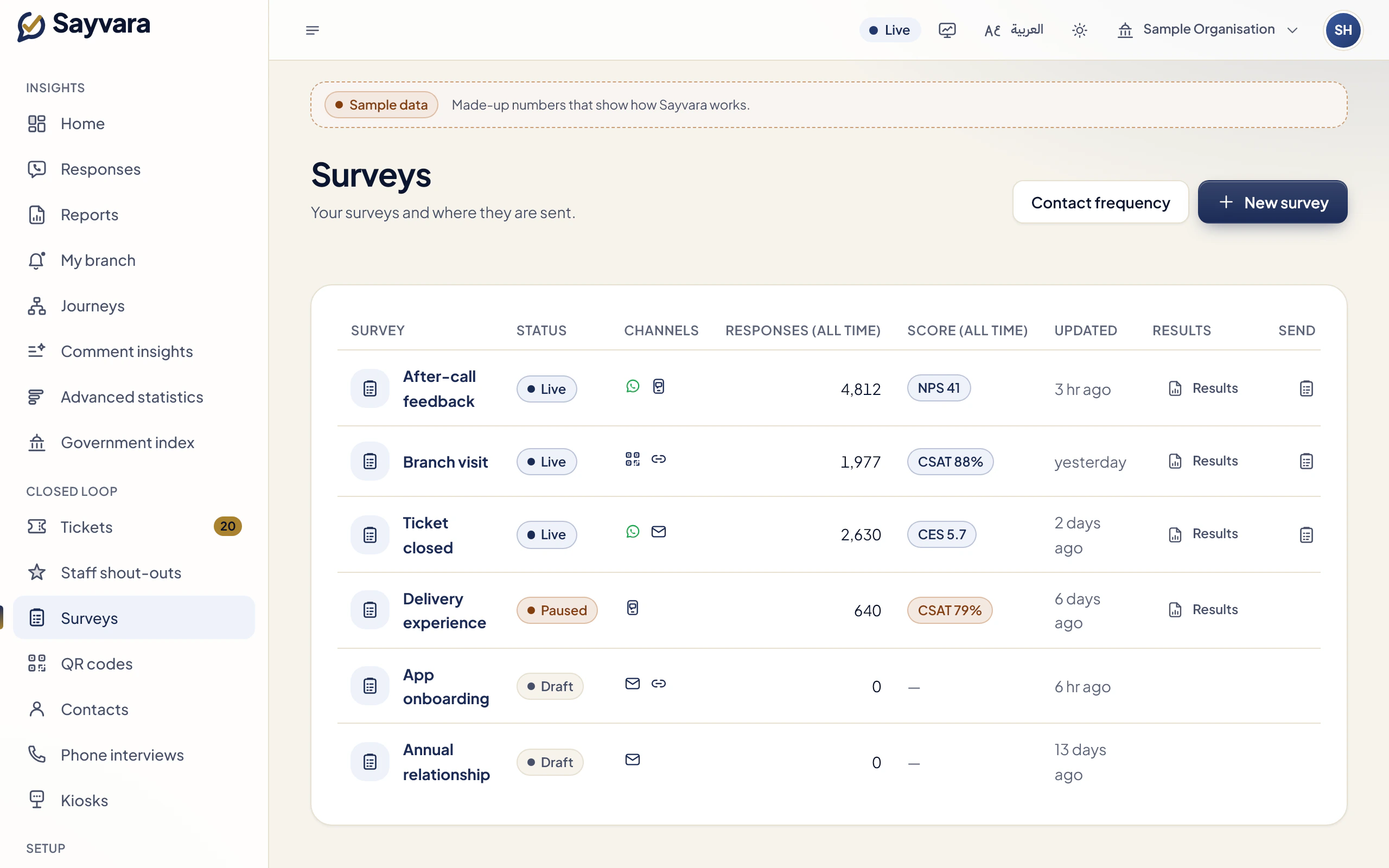
Go to Surveys in the side menu. The list shows each survey's Status (Live, In set-up or Paused), the Channels it runs on, its Responses, its main Score and when it was Updated.
Who can build surveys
Owners, admins and managers can create and edit surveys. Agents, analysts and viewers can open a survey to read it, but cannot change it.
Pages in this topic
| Page | What you learn |
|---|---|
| Create a survey | Start from a ready survey or let AI write one |
| Organise and share surveys | Folders, stars, sharing and the My / Shared with me / All views |
| The survey builder | Add, edit, reorder and remove questions, and save the working copy |
| Question types | Every question type and when to use it |
| Logic, jumps and repeats | Show questions only when needed, skip ahead, carry answers forward |
| Random order and quotas | Shuffle options and stop collecting when a group is full |
| Languages and translation | English and Arabic texts, machine suggestions and your glossary |
| Survey look and access | Logo, colours, accessible mode, password and human check |
| Check, publish and versions | The pre-launch check, publishing, version history and a shorter survey |
| Send and share a survey | How a live survey reaches your customers |
| Contact frequency | Stop asking the same person too often |
How a survey moves from idea to answers
- Create a survey from a template or with AI. It starts as a working copy.
- Edit the questions, logic and texts. Save the working copy as often as you like.
- Check before launch to find missing translations, broken logic and questions that are too long for a chat.
- Publish. The working copy becomes a numbered version and goes live.
- Send it through a QR code, a kiosk, your own systems or an integration.
- Read the answers in Responses and Reports. Low scores open tickets automatically. See Closed loop.
Good to know
- Published versions never change. Editing a live survey makes a new working copy; customers keep getting the live version until you publish again.
- Answers always keep the version they were given on, so reports stay correct.
- Every question has a Question key that stays the same across versions, so reports can compare them.
Related pages
Was this page helpful?
Thanks. Need more help? Email support@sayvara.com