Random order and quotas
Shuffle answer options or groups of questions, and stop collecting answers from a group once you have enough.
The card Random order and quotas in the builder applies to the whole survey. It is saved with the working copy.
Random order
Shuffling reduces bias: people tend to pick the first option they see. Each person gets their own order and keeps it on every visit, on the web page and in chat.
Shuffle the options of a question
- Under Random order, select Shuffle the options of a question.
- In Question, choose a choice question.
- In Keep at the end, choose None, or keep the last options in place, for example "Other" or "None of these".
To stop, select Stop shuffling.
Ask a group of questions in random order
- Select Add a random group.
- Choose From question and To question.
Questions in a random group cannot jump or depend on each other, because their order changes. Without a random group, the builder shows Questions are asked in the order you set.
Quotas
A quota stops collecting answers from a group once you have enough. Only completed answers count.
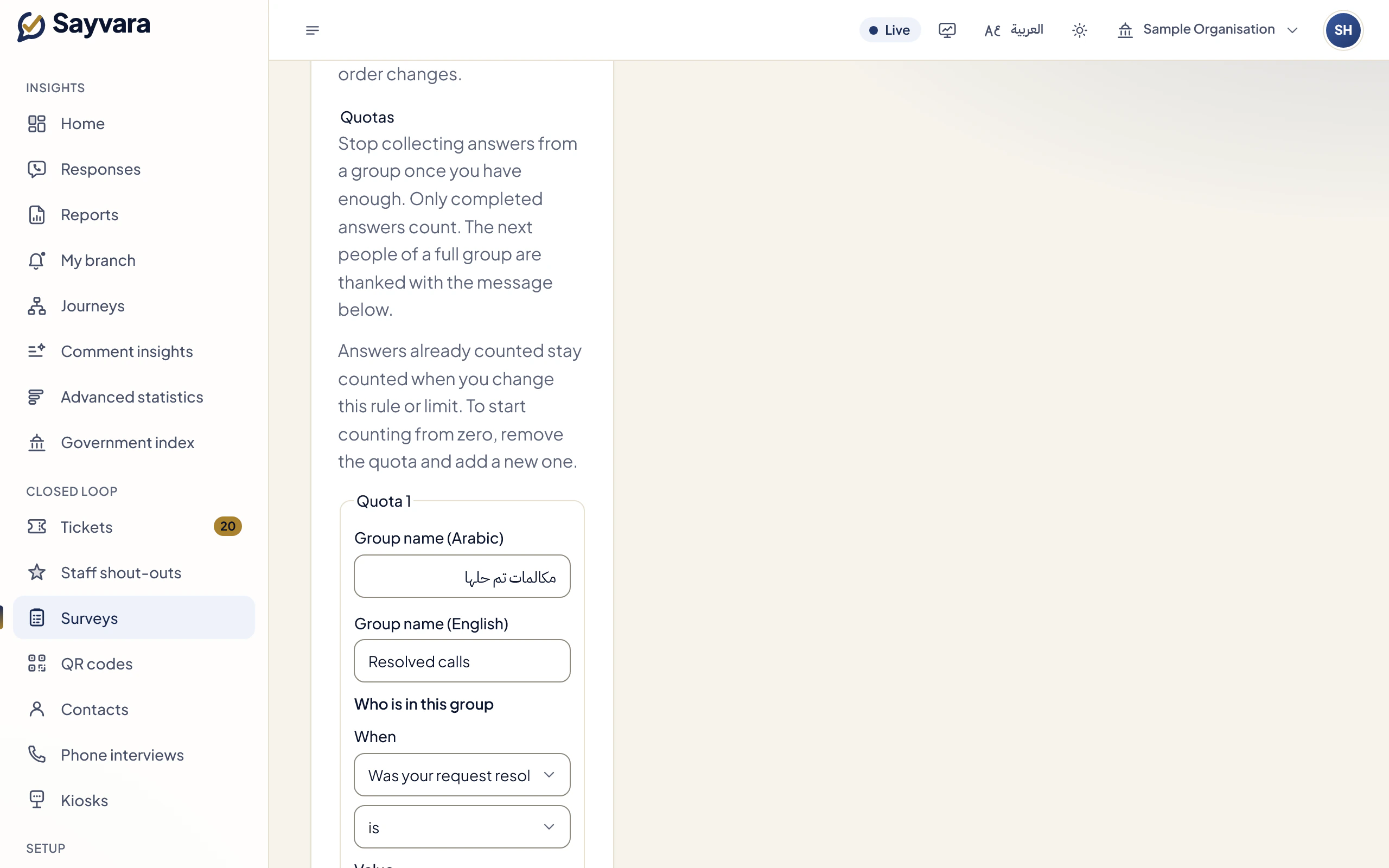
Example: you need 200 answers from Riyadh and 200 from Jeddah. When Riyadh is full, the next people from Riyadh are thanked and stopped, while Jeddah keeps collecting.
Add a quota
- Under Quotas, select Add a quota.
- Write the Group name (English) and Group name (Arabic).
- In Who is in this group, set the rule, for example the answer to "Which city?" is Riyadh.
- In Completed answers needed, type the target, from 1 to 1,000,000.
- In When it is full, choose:
- Stop the next people of this group: only this group is stopped.
- Close the survey: the whole survey closes for everyone.
- Optionally write the Message for people who are stopped in English and Arabic. Leave it empty to use Sayvara's message.
Without quotas, the card shows No quotas. Everyone can answer.
Changing a quota
Answers already counted stay counted when you change a rule or limit. To start counting from zero, remove the quota with Remove quota and add a new one.
Where quotas apply
Quotas apply to chat (WhatsApp and SMS), to web survey pages, including email and QR links, and to phone interviews. In a phone interview campaign, a person whose group is full gets the call result Quota already full (see Call results), and the campaign report shows how full each quota is.
Follow quota progress
Open Reports > Quit and screen-out and choose the survey. The Quotas card shows each group's Completed answers, how many are Needed, and the state: Open, Full or Full, survey closed. It counts since the survey started, not only for the chosen period. See Question results and drop-off.
Related pages
Was this page helpful?
Thanks. Need more help? Email support@sayvara.com