Audit log
See who did what in Sayvara and when, check the log has not been changed, download it, and stream it to your SIEM.
The audit log records important actions in your organisation: sign-ins, role changes, published surveys, exports, API keys, closed tickets, changed ticket rules and shared dashboard links. Go to Settings > Audit log.
The tab has three parts: Tamper evidence, the log itself, and Stream to your SIEM.
Read the log
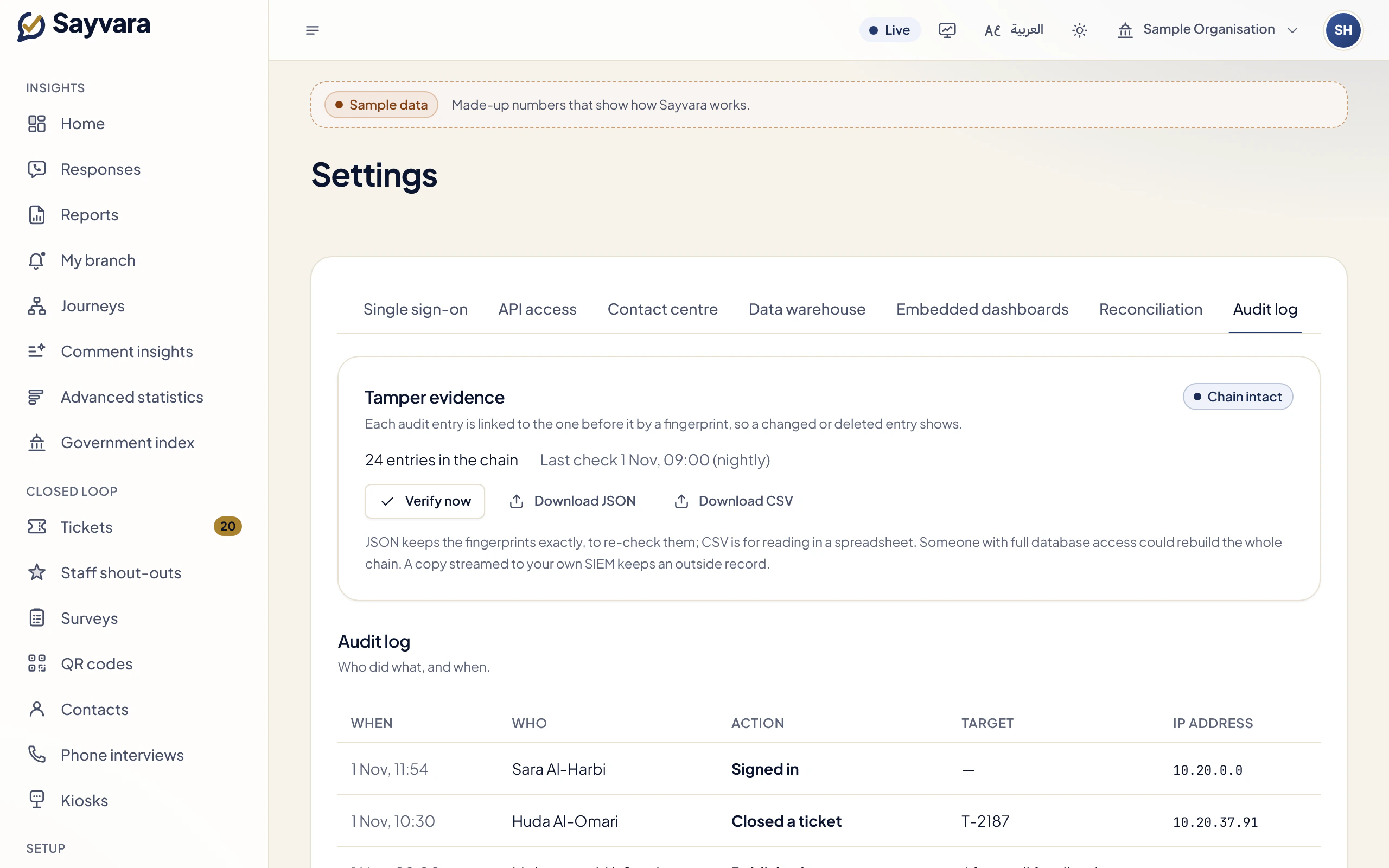
The table shows each entry with:
| Column | What it shows |
|---|---|
| When | Date and time |
| Who | The person, or Sayvara staff, Sayvara (automatic), API key, Integration or Public visitor |
| Action | What was done, for example Published a survey or Exported answers |
| Target | What it was done to |
| IP address | Where the action came from |
Shared dashboard links leave a trail: Created a shared dashboard link, Opened a shared dashboard link, Wrong passcode on a shared dashboard link and Turned off a shared dashboard link. See Shared dashboard links.
Tamper evidence
Each audit entry is linked to the one before it by a fingerprint, so a changed or deleted entry shows.
The card shows:
- Chain intact, Chain broken or Not checked yet.
- When it was last checked: nightly or on request.
- How many entries are in the chain.
Select Verify now to check the whole chain at once. You can verify a few times an hour.
If the chain is broken, the card shows where the first break is and what kind it is, for example an entry was changed. Tell Five Rivers support at support@sayvara.com and keep your SIEM copy.
Download the log
On the Tamper evidence card:
- Download JSON keeps the fingerprints exactly, so you can re-check them.
- Download CSV is for reading in a spreadsheet.
The page shows Preparing the file… while it builds the download.
Stream to your SIEM
New audit entries can go to your Microsoft Sentinel or Splunk every few minutes, with their fingerprints. Only people who manage integrations can see and change this.
- Under Stream to your SIEM, select Set up next to Microsoft Sentinel or Splunk.
- Fill in the connection details from your SIEM. For Splunk this is the HTTP Event Collector URL, an optional Index, the Source type and the HEC token. For Sentinel it is the data collection details and the app registration from your Microsoft admin.
- Tick Send new entries.
- Select Save.
The stored key or token is never shown again. When you change the stream afterwards, leave it empty to keep it. It is needed again when you change the address.
Each stream shows On, Paused or Failing, how many entries were sent, when it last sent, and the last error if any. Select Change to edit it, or Remove to stop streaming and delete its stored key.
Who can see the audit log
The audit log is for owners and admins. Ask one of them if you need an entry checked.
Related pages
Was this page helpful?
Thanks. Need more help? Email support@sayvara.com