Scheduled exports and embeds
Send Sayvara feedback data to your own storage on a schedule, and show read-only dashboards on your intranet or wall screens.
Besides the CSV export in Responses, Sayvara can keep your data flowing to other places on its own. Only owners and admins can set these up, in Settings.
Scheduled export to your storage (Data warehouse)
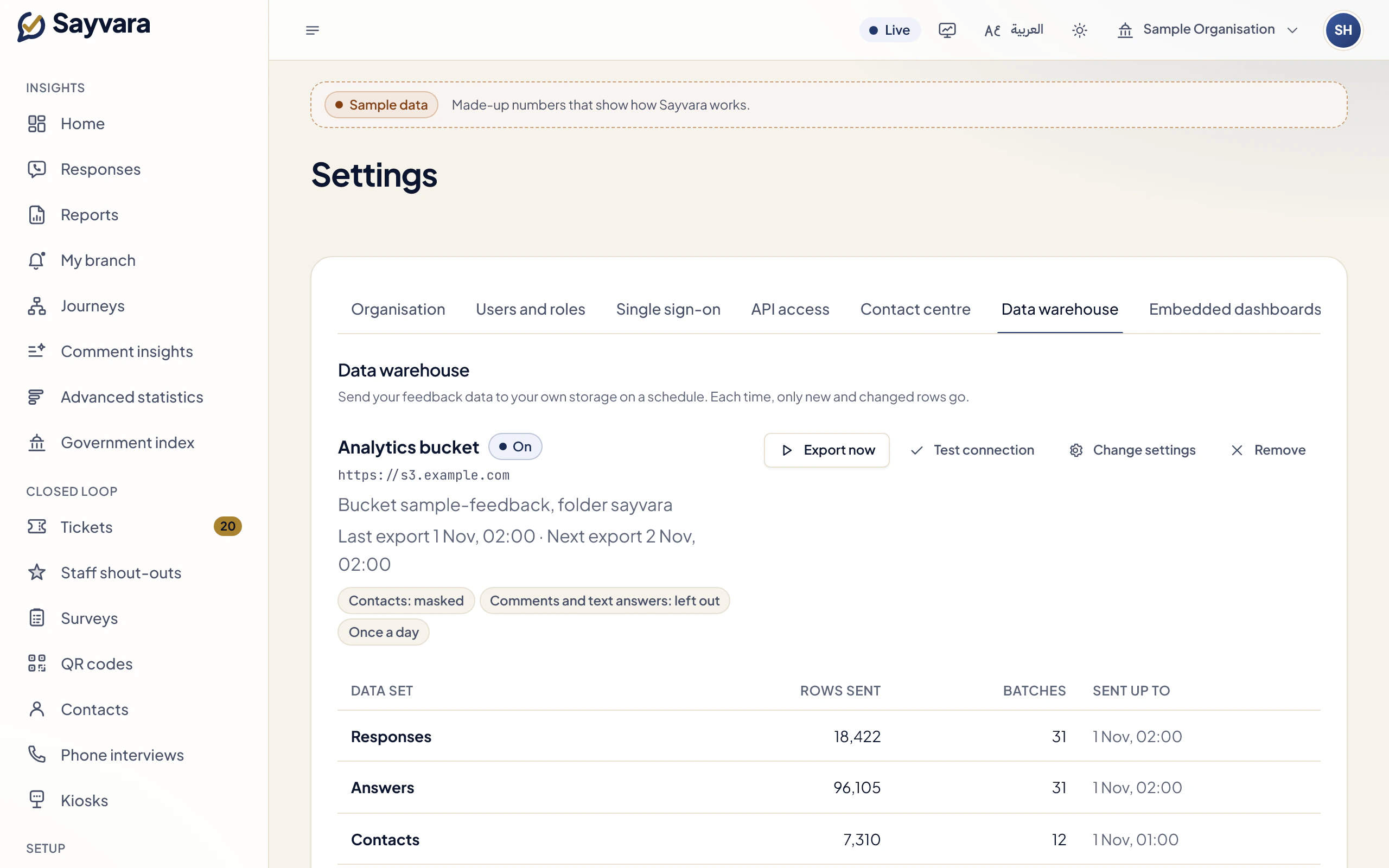
Send your feedback data to your own S3-compatible storage (Amazon S3, MinIO and similar) on a schedule. Each time, only new and changed rows go. Your plan must include data integrations.
- Go to Settings > Data warehouse and select Set up.
- Give it a Name, for example "Data lake".
- Fill in the Storage address (https only), Bucket, Region and Folder, and the access key details from your storage provider. Tick Bucket name in the path for most S3-compatible stores.
- Under Data to send, choose the data sets: Responses, Answers, Contacts, Follow-ups and Follow-up actions.
- Under Contact details, choose Ids only or Masked name, phone and email.
- Leave Include comments and text answers off unless your privacy notice covers it.
- Choose How often: from Every hour to Once a day.
- Tick Send on the schedule and select Save.
Select Test connection to write a test file to the bucket, and Export now to start an export at once.
The page then shows the Next export, the Last export, the Export position for each data set and the Last runs with their result. Files are gzip NDJSON with a manifest for each batch.
Every export is recorded in the access log. Records deleted afterwards are not removed from files already sent.
Embedded dashboards
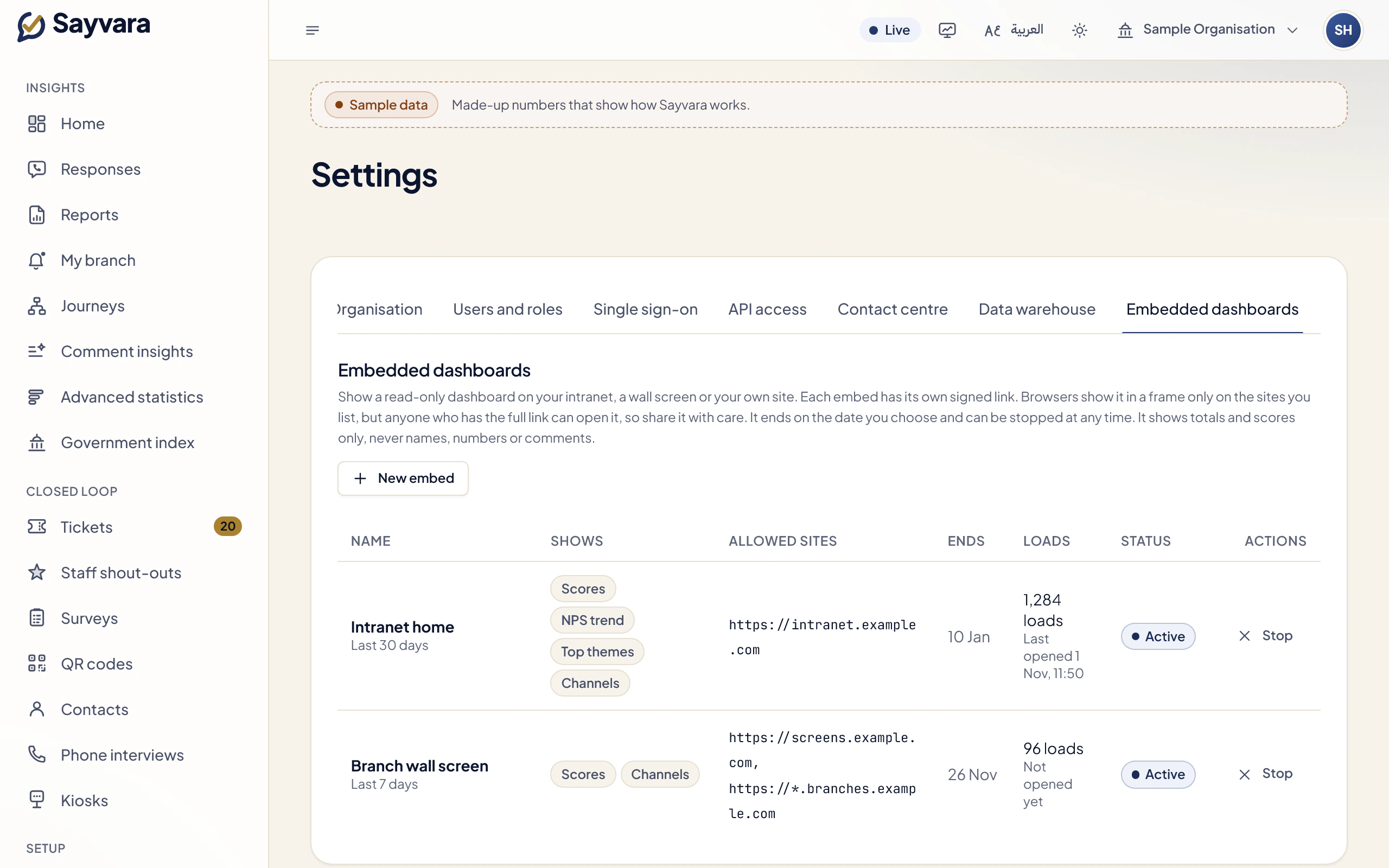
Show a read-only dashboard on your intranet, a wall screen or your own site. It shows totals and scores only, never names, numbers or comments. Your plan must include embedded dashboards.
- Go to Settings > Embedded dashboards and select New embed.
- Type a Name, for example "Intranet home".
- Under What it shows, tick Scores, NPS trend and/or Channels.
- Choose the Period.
- In Allowed sites, type one https address per line, for example https://intranet.example.com. Use https://*.example.com for every sub-domain.
- Choose Data from: Whole organisation or one of your units.
- Choose Ends after: 30 days to 1 year.
- Save it. The window Copy the embed code now shows the Embed code and Embed link.
- Copy the code and paste it into a page on one of the allowed sites. Select I have copied it.
The code is shown only once. Browsers show the dashboard in a frame only on the sites you list, but anyone who has the full link can open it, so share it with care.
To end an embed early, select Stop and confirm. It stops showing data at once on every site.
Which one should I use?
| Need | Use |
|---|---|
| A one-off file of answers | Export CSV in Responses |
| A board member or auditor should see the numbers | Shared dashboard links |
| Numbers on your intranet, always up to date | Embedded dashboards |
| All data in your own warehouse or BI tool | Data warehouse |
| A wall screen in a branch | TV mode |
Related pages
Was this page helpful?
Thanks. Need more help? Email support@sayvara.com