Signing in
Accept your invitation, sign in to the Sayvara app, use two-step verification and reset a forgotten password.
The Sayvara app is at app.sayvara.ai. You join an organisation by invitation from someone in it.
Accept an invitation
Someone in your organisation invites you by email. The invitation is in Arabic and English.
To accept it:
- Open the link in the invitation email. The link works once and expires after 7 days.
- Check the organisation and role shown on the page.
- If you are new to Sayvara, enter Your full name and Choose a password (at least 12 characters).
- Select Accept and continue.
If you already have a Sayvara account with that email address, sign in first, then accept. The new organisation is added to your account.
Sign in with your email and password
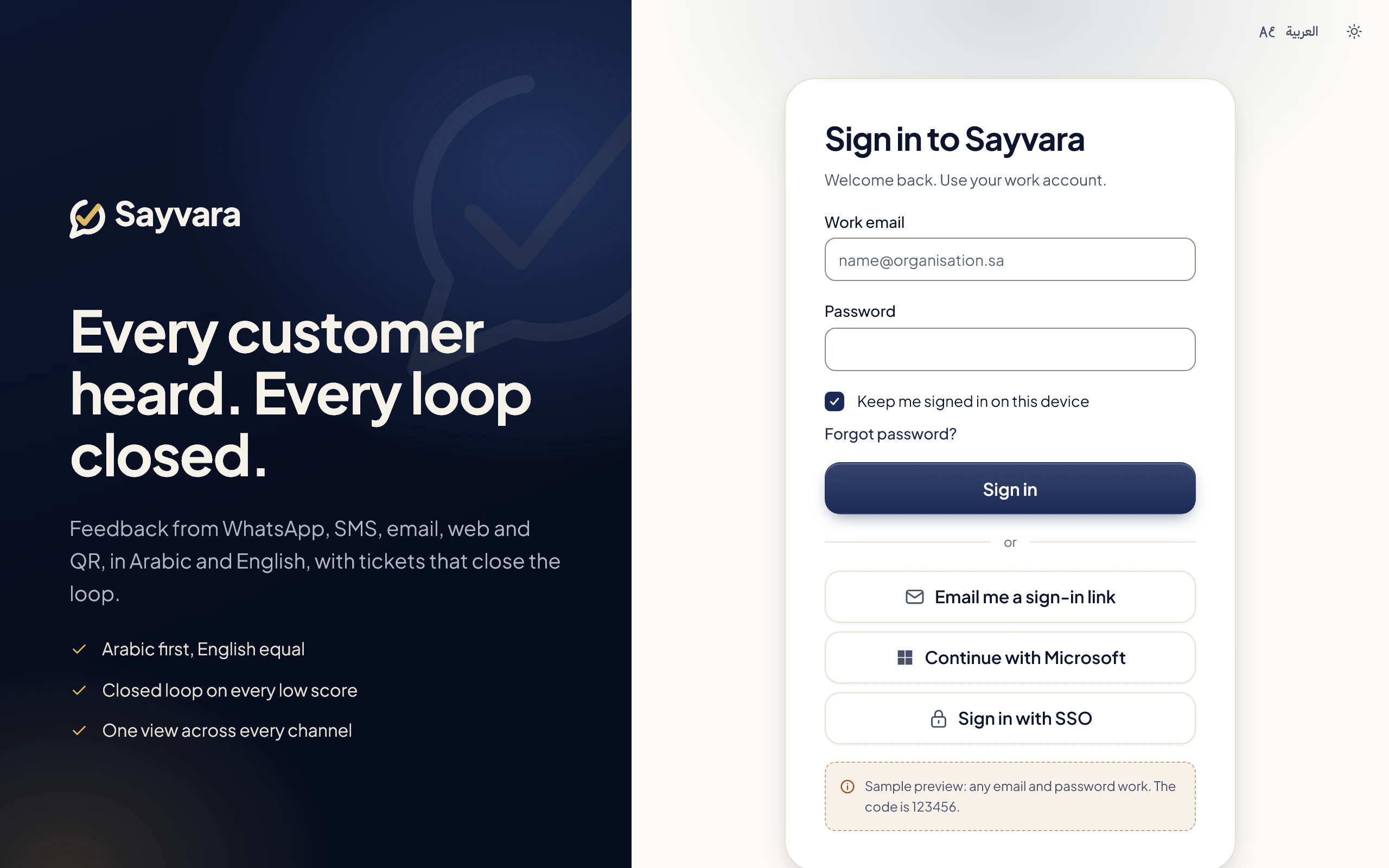
- Go to app.sayvara.ai.
- Enter your Work email and Password.
- To stay signed in on your own device, tick Keep me signed in on this device.
- Select Sign in.
Other ways to sign in
- Email me a sign-in link: enter your work email and select this button. We email you a link that works once and expires in 15 minutes.
- Continue with Microsoft: works when your organisation has turned on Microsoft sign-in for your address.
- Sign in with SSO: enter your work email and select Continue. Sayvara sends you to your organisation's own sign-in page, if your organisation has set one up.
If a way is not set up for you, the app tells you and you can use your email and password instead.
Two-step verification
If your account uses two-step verification, Sayvara asks for a code after your password.
- Open your authenticator app and find the 6-digit code for Sayvara.
- Enter it in Verification code.
- Select Verify and continue.
No authenticator app at hand? Select Send the code on WhatsApp instead to get the code on WhatsApp.
Forgot your password?
- On the sign-in page, select Forgot password?
- Enter your work email and select Send reset link.
- Open the link in the email. It works once and expires in 30 minutes.
- Enter a New password of at least 12 characters, repeat it, and select Save the new password.
When you change your password, Sayvara signs you out everywhere. Sign in again with the new password.
If sign-in does not work
| Message | What to do |
|---|---|
| That email and password do not match. | Check both, or reset your password. |
| Confirm your email first: open the link we sent you. | Open the confirmation email, then try again. |
| Too many attempts. Wait a minute and try again. | Wait one minute before the next try. |
| This link is invalid, was already used or has expired. | Ask for a new link. |
Still stuck? See Getting help.
Was this page helpful?
Thanks. Need more help? Email support@sayvara.com