Data export and deletion
Download an archive of all your organisation's Sayvara data, or ask for the whole organisation to be deleted, and follow each request.
The Your data page lets you get a copy of your organisation's data, or ask for the organisation to be deleted. Select Your data in the side menu.
Only owners and admins manage the organisation's data. Only the owner can ask to delete the organisation.
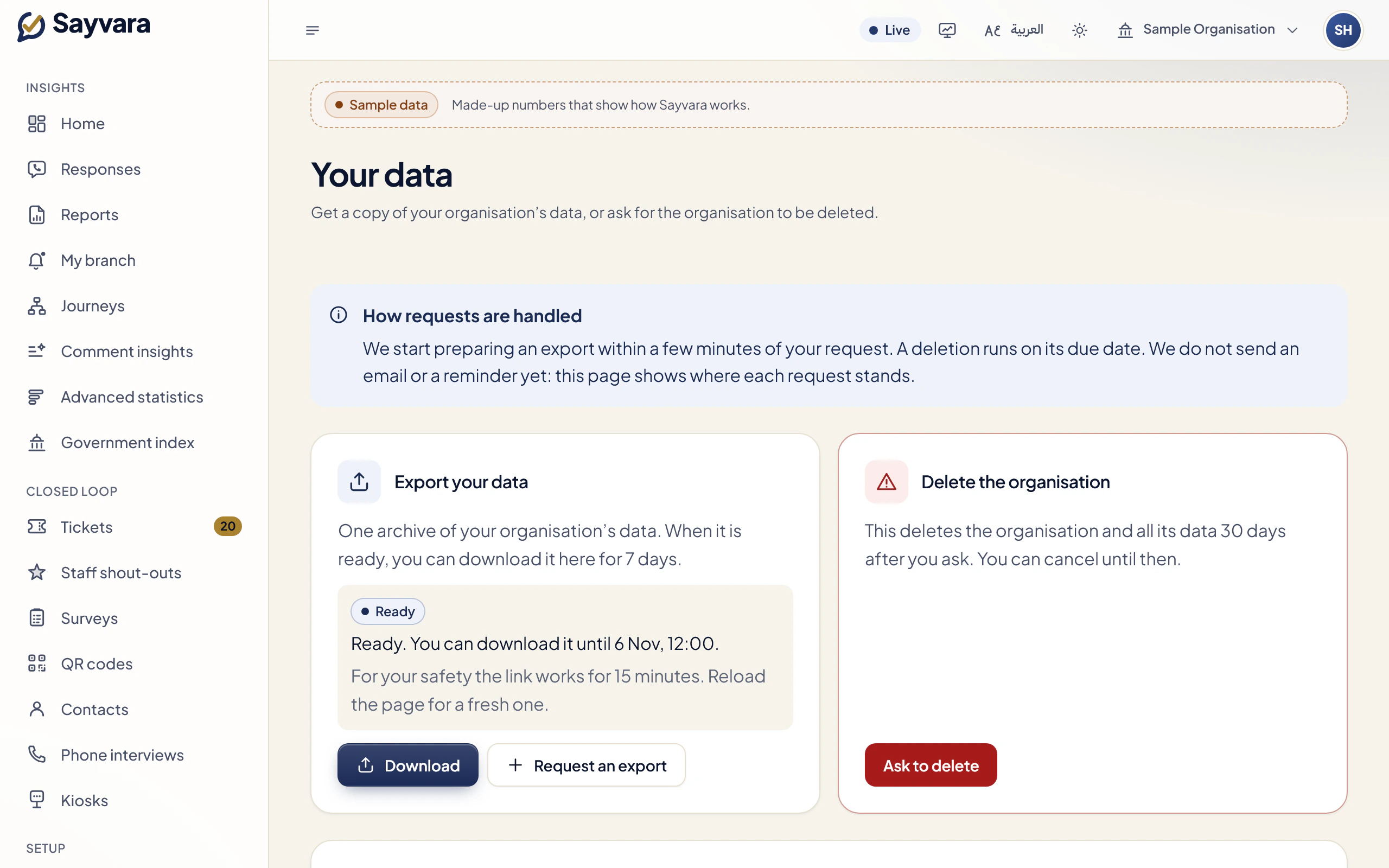
How requests are handled
- We start preparing an export within a few minutes of your request.
- A deletion runs on its due date.
- You follow every request on this page: the Requests table shows where each one stands, and the status updates when you reload the page.
Export your data
One archive of your organisation's data.
- On Your data, under Export your data, select Request an export.
- Optionally type a Reason (optional), only for your own records.
- Confirm in the window Request a data export?.
- Come back to the page after a few minutes. Reload it to see the progress.
- When the status says Ready, select Download.
The archive can be downloaded for a limited number of days, shown on the page. For your safety each download link works for a few minutes only. Reload the page for a fresh link.
Good to know:
- Only one export can be open at a time.
- Data export may not be in your plan. The page then says Data export is not in your current plan. and links to See your plan.
- To export only answers, use Export CSV on Responses. See Responses and exports.
Delete the organisation
This deletes the organisation and all its data a number of days after you ask, shown on the page. You can cancel until then.
Everything goes: surveys, answers, tickets, contacts, members and settings.
- Sign in as the owner.
- On Your data, under Delete the organisation, select Ask to delete.
- In the window Delete the whole organisation?, read the date it will be deleted.
- Type the organisation's short name, exactly as shown.
- Select Ask to delete.
The page then says The organisation is due to be deleted on and the date.
Cancel a deletion
- Select Cancel the deletion.
- Select Cancel the request.
The organisation will not be deleted. Everything stays as it is.
Once the deletion has started, it can no longer be cancelled.
Follow your requests
The Requests table lists every export and deletion request with its Status, when it was asked, and details.
| Status | Meaning |
|---|---|
| Requested | We start on it within a few minutes |
| Processing | Being prepared now |
| Ready | The export can be downloaded until the date shown |
| Link expired | The download window has closed. Ask for a new export |
| Completed | Done |
| Cancelled | Withdrawn |
| Failed | Could not be completed. Our team is told and can run it again |
Select Cancel on an open request to withdraw it.
Related pages
Was this page helpful?
Thanks. Need more help? Email support@sayvara.com