QR codes
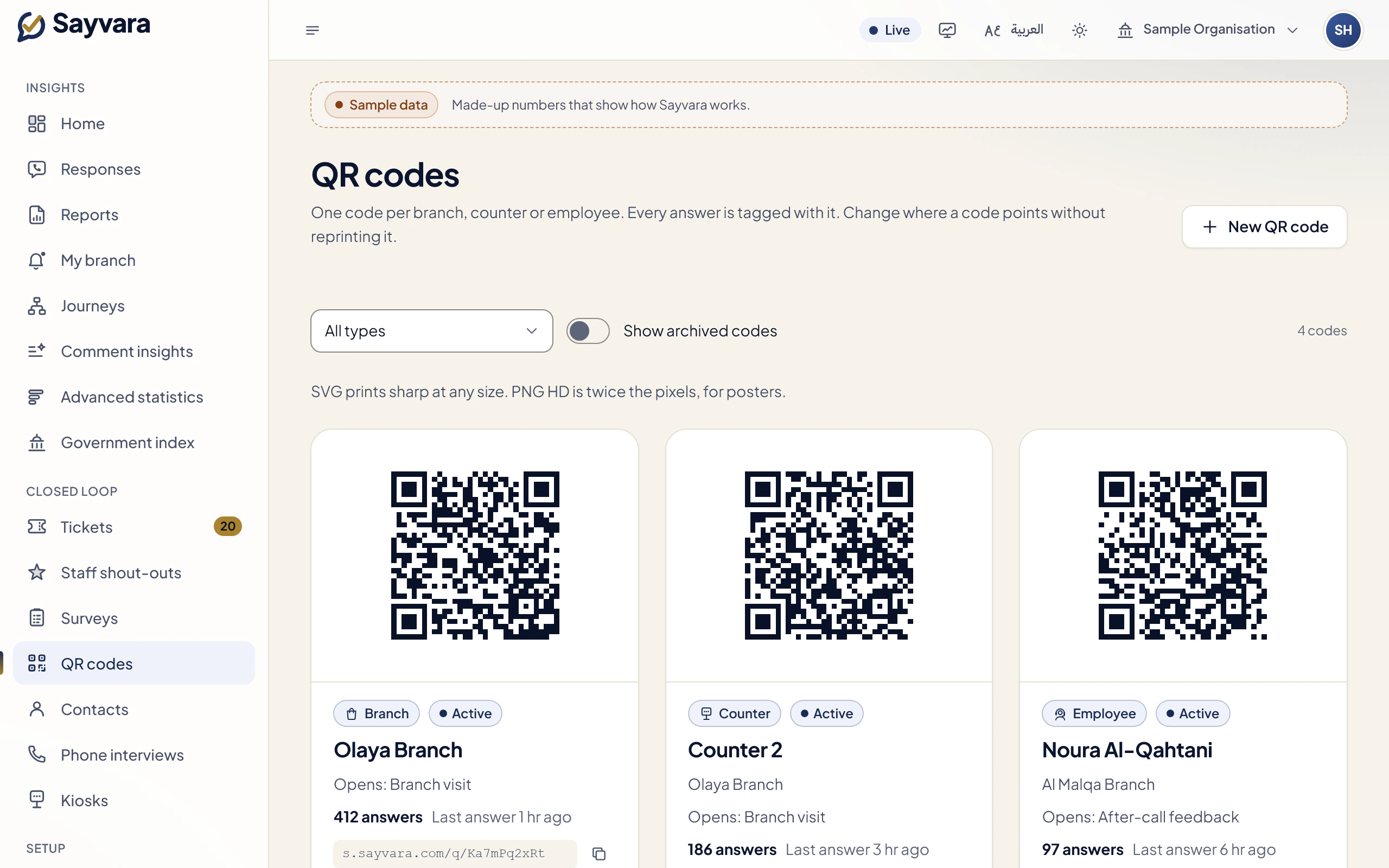
Make a QR code per branch, counter or employee, print it with the print kit, change where it points and see answers per code.
A QR code opens a live survey on the customer's phone. Every answer through it is tagged with the code, so you see which branch, counter or employee did well. You can change where a printed code points without reprinting it.
Owners, admins and managers can make and change codes. Everyone else can view and download them.
Make a QR code
- Go to QR codes and select New QR code.
- Under What is it for?, choose:
- Branch: one code for the whole branch, for the door or the table.
- Counter: one code per counter or desk, so you see which one did well.
- Employee: one code per staff member, for name badges and receipts.
- Choose the Branch or unit.
- For a counter or employee, type the Counter name or Employee name or number, for example "Counter 3". It is shown on reports.
- Choose the Survey it opens. Only live surveys are listed.
- Choose the First language of the page: Arabic or English. Customers can switch on the page.
- Select Make code.
You see Code ready. Download it and print it.
Download and print
Each code's card has Download with three formats:
| Format | Use it for |
|---|---|
| SVG | Printing at any size; it stays sharp |
| PNG | Screens, documents and messages |
| PNG HD | Posters; twice the pixels |
The print kit
For ready-made artwork with your code:
- Select Print kit on the code's card.
- Choose a Layout: A4 poster, A5 flyer, Table tent (A4, fold in half) or Sticker (90 × 90 mm).
- Choose the Artwork language: Arabic or English.
- Choose the File: PDF for print, PNG or PNG HD. PDF and PNG HD are 300 dpi, for print shops.
- Check the preview, then select Download.
Copy the link in the code
Under Link in the code, select Copy link to share the same survey as a web link. Answers through the link count for this code.
Change a code without reprinting
- Select Change on the code's card.
- Choose a new Survey it opens or Branch or unit.
- Select Save.
The printed code keeps working: from now on it opens the new survey or counts for the new unit.
Pause or archive a code
In Change, set the Status:
- Active: the code works.
- Paused: the code stops until you turn it on again.
- Archived: the code stops working and cannot be turned on again.
Tick Show archived codes to see archived codes in the list. Use Type to show only branch, counter or employee codes.
Open the survey once per device a day
Use this when one person should not answer the same code many times a day, for example on a table or a receipt.
- In New QR code or Change, turn on Open the survey once per device a day.
- Select Make code or Save.
The code's card then shows Opens once per device a day.
What a customer sees:
- The first scan of the day opens the survey as usual.
- Any other scan in the same browser that day shows a short note instead of the survey: This code was already opened on this device today. You can scan it again tomorrow.
- The day ends at midnight Riyadh time. After that, the same browser opens the survey again.
The rule counts browsers, not answers. A private window, another browser or cleared browser data opens the survey again. The switch is off when you make a new code.
The Busy alert on a code
If a code gets an unusual number of scans in one minute, its card shows Busy with a line such as At least 120 scans in one minute and when it happened. A note at the top of the page says how many codes had unusual scan volume in the last 24 hours.
The alert shows for 24 hours. Archived codes never show it. A code is never blocked for its scan volume alone. If the code is not in a busy place, check that the printed code is the one you made.
See answers per code
- On a code's card, select View answers to open Responses filtered to that code, or Report for its numbers.
- On Home, the card Where answers come from shows answers and scores per QR codes, Branches, Counters and Employees. Select Show only this on a row to narrow the dashboard to it.
Tips
- Use employee codes on name badges to collect praise for named staff.
- Put the branch code on the door and counter codes at each desk to compare service points.
Related pages
Was this page helpful?
Thanks. Need more help? Email support@sayvara.com