Reply and link a ticket
Link a survey comment or direct message to the customer's ticket in the Sayvara inbox, reply through a ticket and use saved replies.
In the inbox, every answer to a customer goes through a ticket, so it is on the ticket's timeline.
- A ticket has its own conversation with the customer. You add notes there, and reply.
- A survey comment or direct message is linked to a ticket of the same customer. You then reply through that ticket.
- A review is answered in public in Reviews. It cannot be linked to a ticket.
A complaint email your organisation forwards to Sayvara appears in the inbox on the Email channel, and as a ticket once Sayvara opens one for it. Replies go through that ticket, by WhatsApp or SMS; email replies are not available. The ticket shows This customer wrote by email. Replies go by WhatsApp or SMS; email replies are not available. Survey answers from an email invitation also show on the Email channel; the customer answered a survey page, so they do not show this sentence.
Link a conversation to a ticket
A survey comment or direct message has no conversation of its own in Sayvara. To answer the customer, link it to a ticket of the same customer:
- a survey comment: a ticket of the same contact, or the ticket opened from that survey answer;
- a direct message: a ticket of the contact the message is matched to. A direct message with no contact cannot be linked.
- Open the conversation. You see Link this conversation to a ticket to reply to the customer.
- In Linked ticket, select Choose a ticket. The list shows up to 50 open tickets, the most recently active first, with their number and customer. A ticket marked done or snoozed in the inbox does not show there.
- Select Link. You see Linked to ticket and the ticket's number. Select it to open the ticket.
If the ticket belongs to another customer, or the conversation has no customer contact, nothing is linked. A message says so and asks you to choose a ticket of the same customer.
If there is no ticket to choose, you see There is no open ticket to link.
To remove the link, select Unlink. You see Ticket unlinked.
Only owners, admins, managers and agents can link, unlink and reply.
A review shows A review is answered in Reviews. It has no customer contact, so it cannot be linked to a ticket.
Reply on a ticket
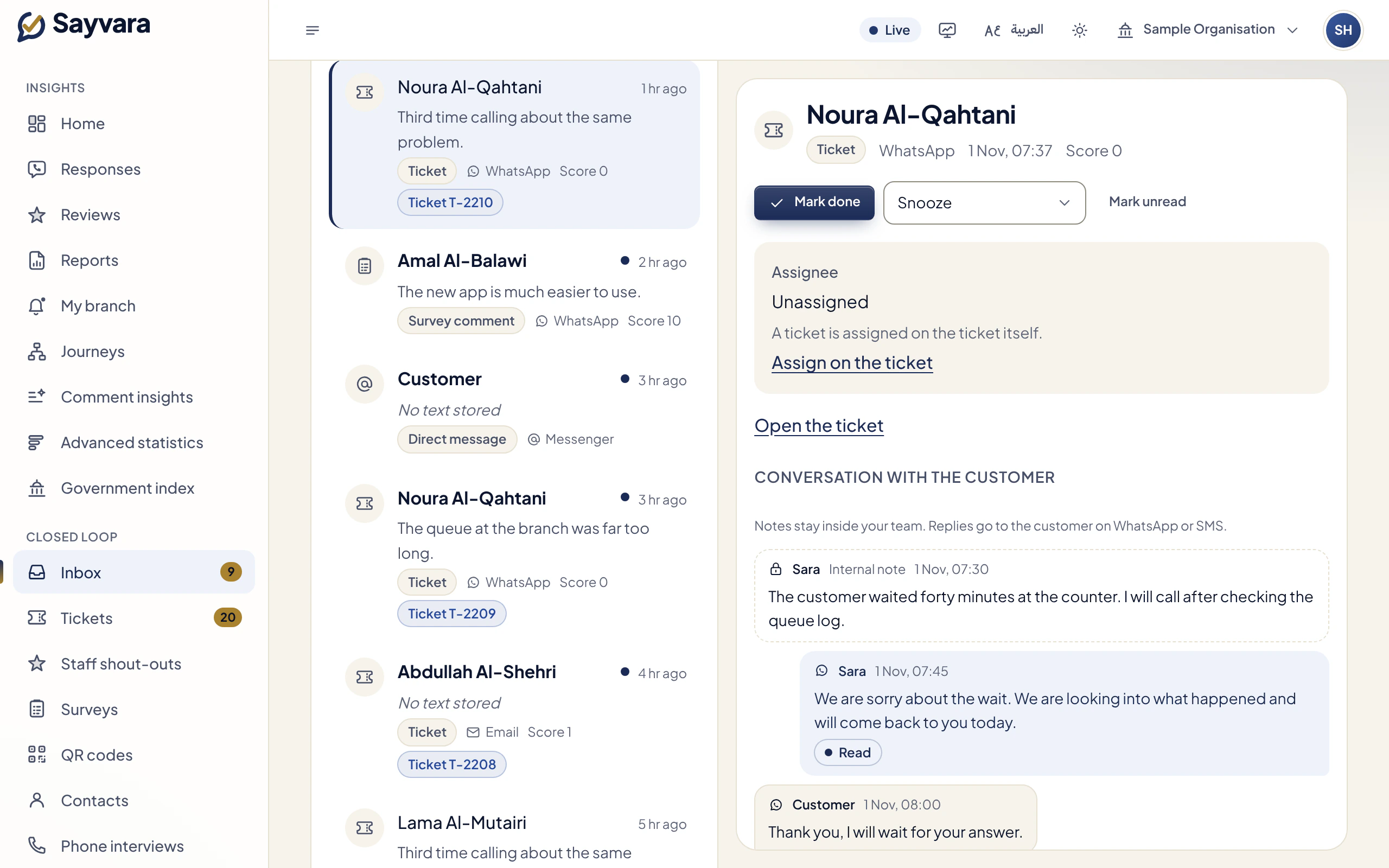
- Open the ticket in the inbox. Under Conversation with the customer you see your team's notes, your replies and the customer's answers.
- Under What to write, choose Reply to customer.
- In Send on, choose WhatsApp or SMS.
- Type in Message to the customer (up to 1,000 characters).
- Select Send reply. You see Reply queued, and the reply shows in the conversation with its delivery status: Queued, Sent, Delivered, Read or Not delivered.
To write something only your team sees, choose Internal note instead, type in Note for your team and select Add note.
To change the ticket's status or assignee, select Open the ticket. See Work a ticket.
WhatsApp's 24-hour rule
WhatsApp allows a reply only within 24 hours of the customer's last message. Under Send on you see how it stands:
| Message | What it means |
|---|---|
| WhatsApp is open until a time | The customer wrote in the last 24 hours. Your reply goes out as it is |
| WhatsApp is closed: the customer has not written in the last 24 hours. Reply by SMS, or wait for them to write. | Choose SMS, or wait for the customer |
SMS messages wait for your quiet hours. A WhatsApp reply inside the 24 hours goes out at once.
When you cannot reply
| Message | What it means |
|---|---|
| The customer opted out of messages. You can still add notes. | The customer asked not to get messages. Add a note, or reach them another way |
| This customer has no phone number, so there is nothing to reply to. | Add the customer's phone number to reply |
| This ticket is closed. Reopen it to reply to the customer. | Reopen the ticket on the Tickets page first |
| Replies to customers are off for your organisation. Notes work. | Replies are not switched on for your organisation. Add a note. To have replies switched on, contact Sayvara support |
Reply on a linked conversation
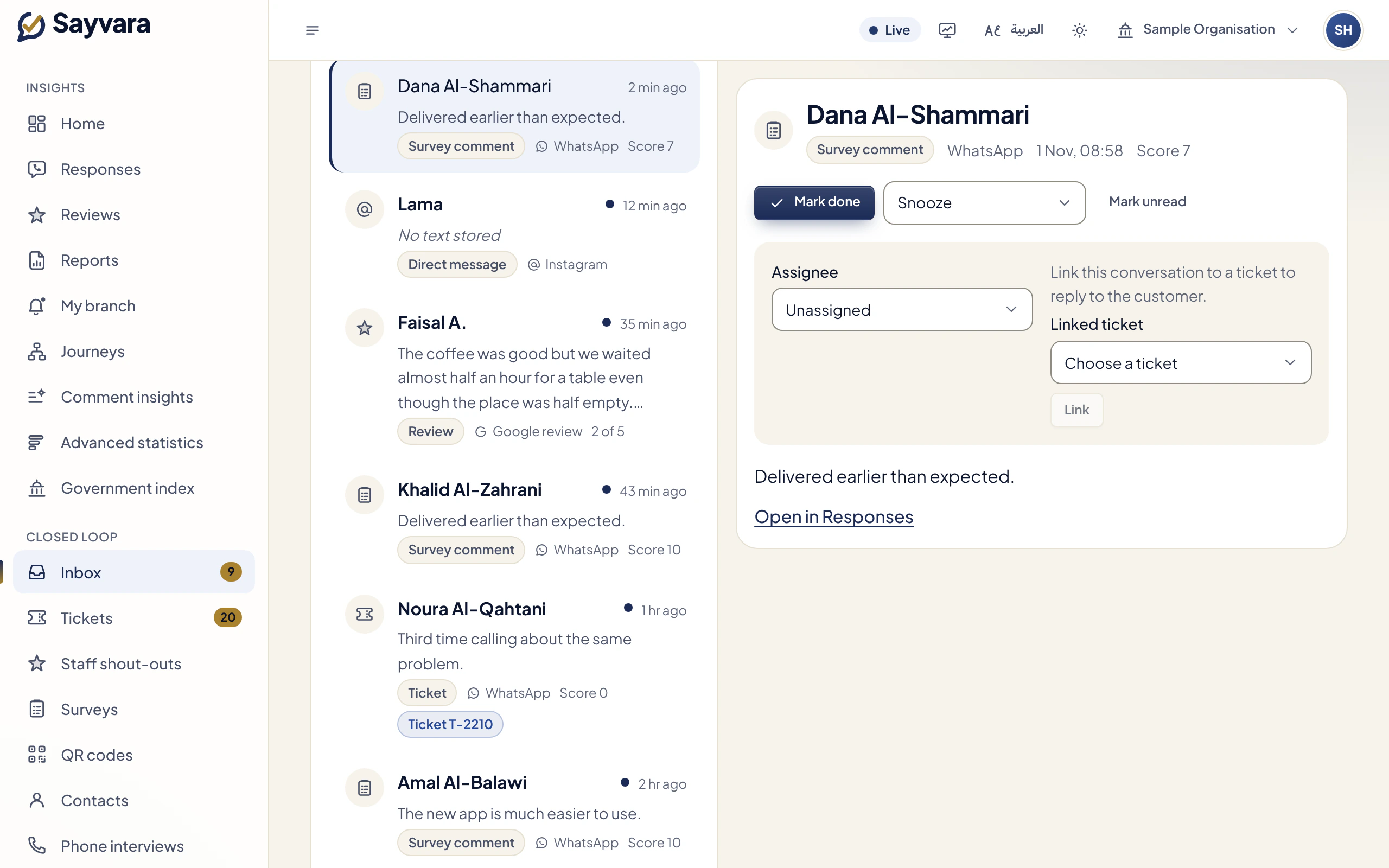
When a survey comment or direct message is linked to a ticket, Reply to the customer shows under it.
- Type your reply (up to 1,000 characters). The counter shows how many characters you have used.
- Select Send reply.
- You see Reply sent and It shows on the ticket once it is delivered.
The reply goes to the ticket's customer by WhatsApp, or by SMS when the ticket came from a survey answer sent by SMS. When that channel is not possible, the other one is used. For example, when the customer has not written in the last 24 hours, WhatsApp is not possible, so the reply goes by SMS. The customer's opt-out always applies, and SMS waits for your quiet hours. The reply is written on the ticket's timeline under your name. It is never posted on Instagram or Messenger.
If the reply is not sent
| Message | What to do |
|---|---|
| Link this conversation to a ticket before you reply. | Link a ticket first. See Link a conversation to a ticket |
| The linked ticket now belongs to another customer, so nothing was sent. Link a ticket of this customer. | Select Unlink, then link a ticket of this customer |
| This ticket is closed. Reopen it on the ticket to reply. | Reopen the ticket on the Tickets page |
| There is no phone number for this customer, so no message can be sent. | Add the customer's phone number |
| This customer wrote by email and has no phone number. Replies go only by WhatsApp or SMS, and email replies are not available, so nothing was sent. | Add the customer's phone number, or answer them another way |
| This customer asked not to receive messages, so nothing was sent. | Do not message the customer. Add a note on the ticket instead |
| Replying from the inbox is not switched on for your organisation. | To have replies switched on, contact Sayvara support |
| The message could not be sent. Try again, or answer the customer another way. | Try again, or call the customer |
| You are sending replies too quickly. Wait a moment and try again. | Wait a minute, then send again |
| Replies are not available right now. Try again in a few minutes. | Try again in a few minutes |
| The reply was not sent. Try again. | Try again |
If the connection drops, select Send reply again with the same text. The customer never gets the same reply twice.
Saved replies
Saved replies are your organisation's own texts for answers you give often, such as a thank-you or an apology for a wait. They help you start a reply; they never send anything.
- In Reply to the customer, select Saved replies.
- Find the reply in the list. Search saved replies finds a title or words in the text.
- Select Insert. The text goes into the reply box: alone when the box is empty, or after what you typed, with a blank line between. You see the English text when the app is in English and the Arabic text when it is in Arabic. A saved reply written in one language only shows English text only or Arabic text only, and that text is inserted.
- Read and change the text as you need, then select Send reply.
Nothing goes to the customer until you select Send reply. The same rules apply as for any reply: the customer's opt-out, WhatsApp's 24-hour rule and your quiet hours.
Manage saved replies
Owners and admins see Manage saved replies at the top of the inbox. There you:
- select Add a saved reply, give it a Title (up to 80 characters) and an English text, an Arabic text or both (up to 1,000 characters each), and select Save;
- select Edit to change a saved reply, or Delete and then Delete again to remove it.
Each title is used once in your organisation, whatever its capital letters: another reply with the same title shows Another saved reply has this title. Choose a different one. Your organisation keeps up to 200 saved replies. The people who reply (owners, admins, managers and agents) can insert them; people who only read the inbox, such as analysts, cannot. Only owners and admins see Manage saved replies. Each change is kept in the audit log by the saved reply's id, never with its text.
Related pages
Was this page helpful?
Thanks. Need more help? Email support@sayvara.com