Check, publish and versions
Run the pre-launch check, publish a survey version, restore an earlier version and get a shorter survey from real answers.
Publishing turns your working copy into a numbered version that customers can answer. Before you publish, let Sayvara check the survey for you.
Check before launch
- Select Save changes. The check reads the saved working copy.
- In Check and improve, select Check before launch.
- The result shows Ready to launch or Fix the errors before launch, with a count of errors, warnings and notes.
The check looks at texts in both languages, logic, chat length, consent and opt-out, WhatsApp templates, the send window and your plan. Each finding says which channel it concerns. Select Go to question to jump to the problem.
| Level | Meaning |
|---|---|
| Error | Something will not work, for example a missing Arabic text |
| Warning | It works, but could be better, for example a question too long for chat |
| Note | Information only |
After fixing things, save again and select Check again.
Publish
- Select Publish.
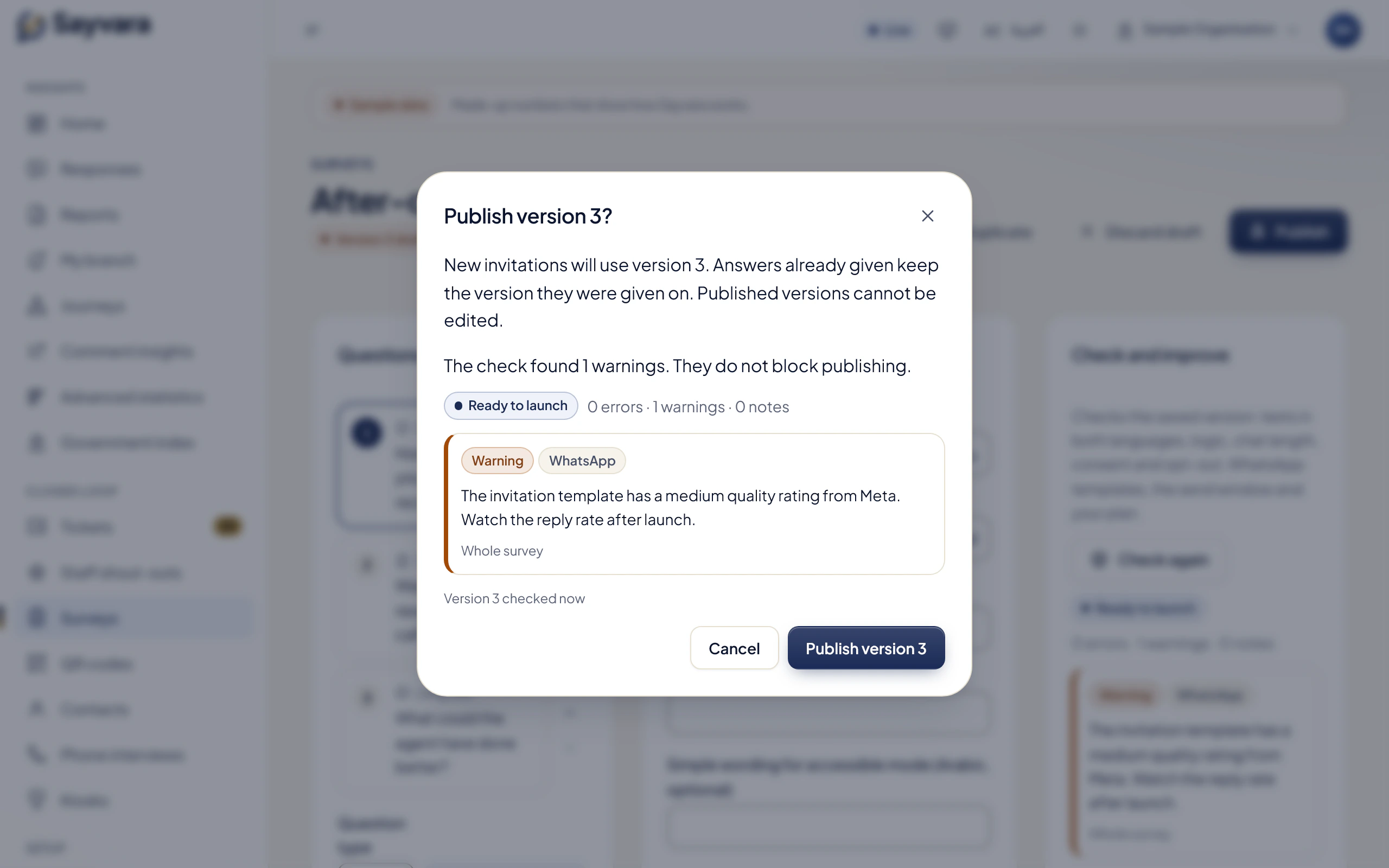
- The window Publish version opens. Sayvara runs the check once more and shows the result.
- Select Publish version to confirm.
You see Version and its number is live.
What publishing means:
- New invitations use the new version.
- Answers already given keep the version they were given on.
- Published versions cannot be edited. To change a live survey, edit it: you get a new working copy, and the live version keeps running until you publish again.
If the check found errors, the button says Publish anyway. You can still publish, but people may get a survey that does not work.
Version history
Version history (the Versions tab on a phone) lists every version with:
- Published and who published it, or Edited for the working copy.
- The number of questions and responses.
To go back to an earlier version, select Restore into working copy on it. Its questions are copied into the working copy. Publish to make it live. You can only restore when you have no unsaved changes.
Suggest a shorter survey
Once a survey has answers, Sayvara can suggest which questions to drop.
- In Check and improve, select Suggest a shorter survey.
- The window A shorter survey reads the answers to the live version and shows:
- Suggested to drop: questions where almost everyone gives the same answer, or that tell you little beyond the main score.
- Where people quit: the questions where people stop.
- Predicted finish rate now and with the shorter survey.
- Select Remove to take the suggested questions out of the working copy. Undo brings them back.
- Save and publish the working copy.
Sayvara never suggests dropping the main score, the main "why" question, questions your logic uses or required questions. With few answers, the suggestion may change as more come in.
Shorten the survey for each respondent
Instead of removing questions for everyone, you can let each respondent skip them.
- In the window A shorter survey, tick Shorten the live survey for each respondent.
- Save the working copy, then publish it. The change takes effect only after you publish.
Once it is live:
- Each respondent skips the questions under Suggested to drop.
- A respondent who rushes, or gives the same answer every time, also skips other questions that tell you little.
- Required questions and questions your logic uses are always asked.
- The questions a respondent skipped are recorded with their response.
It works on the survey page and in WhatsApp and SMS surveys. To ask every question again, clear the tick box, then save and publish.
Messages you may see
| Message | What it means |
|---|---|
| There is no working copy to publish or discard. | Edit something first. |
| The working copy is the same as the published version. | Nothing changed since the last publish. |
| This survey is archived. | Archived surveys cannot change. |
Related pages
Was this page helpful?
Thanks. Need more help? Email support@sayvara.com