Work in more than one organisation
One Sayvara account can belong to several organisations. See where you are a member and switch between them.
Some people work for more than one organisation: an agency that runs feedback for several clients, or a group with separate companies. You do not need a second account. Accept each invitation with the same email address and every organisation is added to your one account.
Join another organisation
- Open the invitation email from the new organisation.
- If you are not signed in, select Sign in to accept and sign in with your existing password.
- The page says that you already have a Sayvara account with that address. Select Accept and continue.
The new organisation now appears next to your first one.
Switch organisation from the top bar
When you belong to two or more organisations, a switcher appears in the top bar.
- Select the organisation name in the top bar (Switch organisation).
- Choose the organisation you want to work in.
The app reloads with that organisation's data. Your role can be different in each organisation, for example an admin in one and a viewer in another.
Switch from Settings
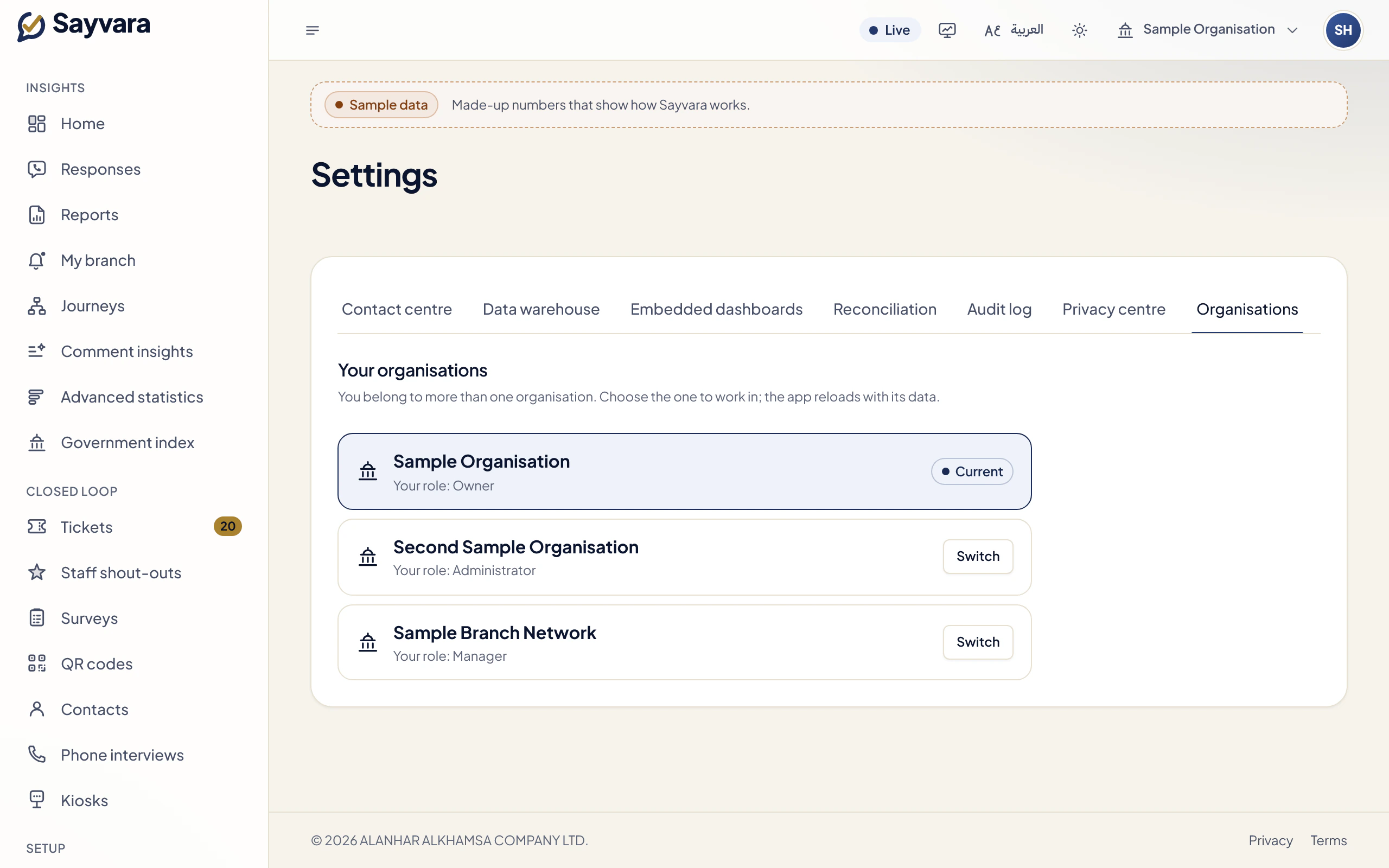
- Go to Settings > Organisations.
- The page Your organisations lists each one with Your role. The one you are in is marked Current.
- Select Switch next to the one you want.
If you belong to only one organisation, the page says You belong to one organisation.
Good to know
- Data never mixes. Each organisation has its own surveys, answers, tickets, contacts and settings.
- Your language and theme stay the same when you switch.
- Signing out signs you out of every organisation on that device.
- To leave an organisation, ask one of its owners or admins.
If an organisation is missing
If an organisation you expect is not on the list:
- Check that you accepted its invitation. Each invitation is for one email address.
- Check that you signed in with the email address the organisation invited.
- Ask an owner or admin of that organisation to invite you again if the invitation ran out.
Related pages
Was this page helpful?
Thanks. Need more help? Email support@sayvara.com