Survey look and access
Add your logo and accent colour, choose the standard or government theme, turn on accessible mode and protect a survey.
Two cards in the builder control how survey pages look and who may open them: Survey look and Who may open the survey.
Survey look
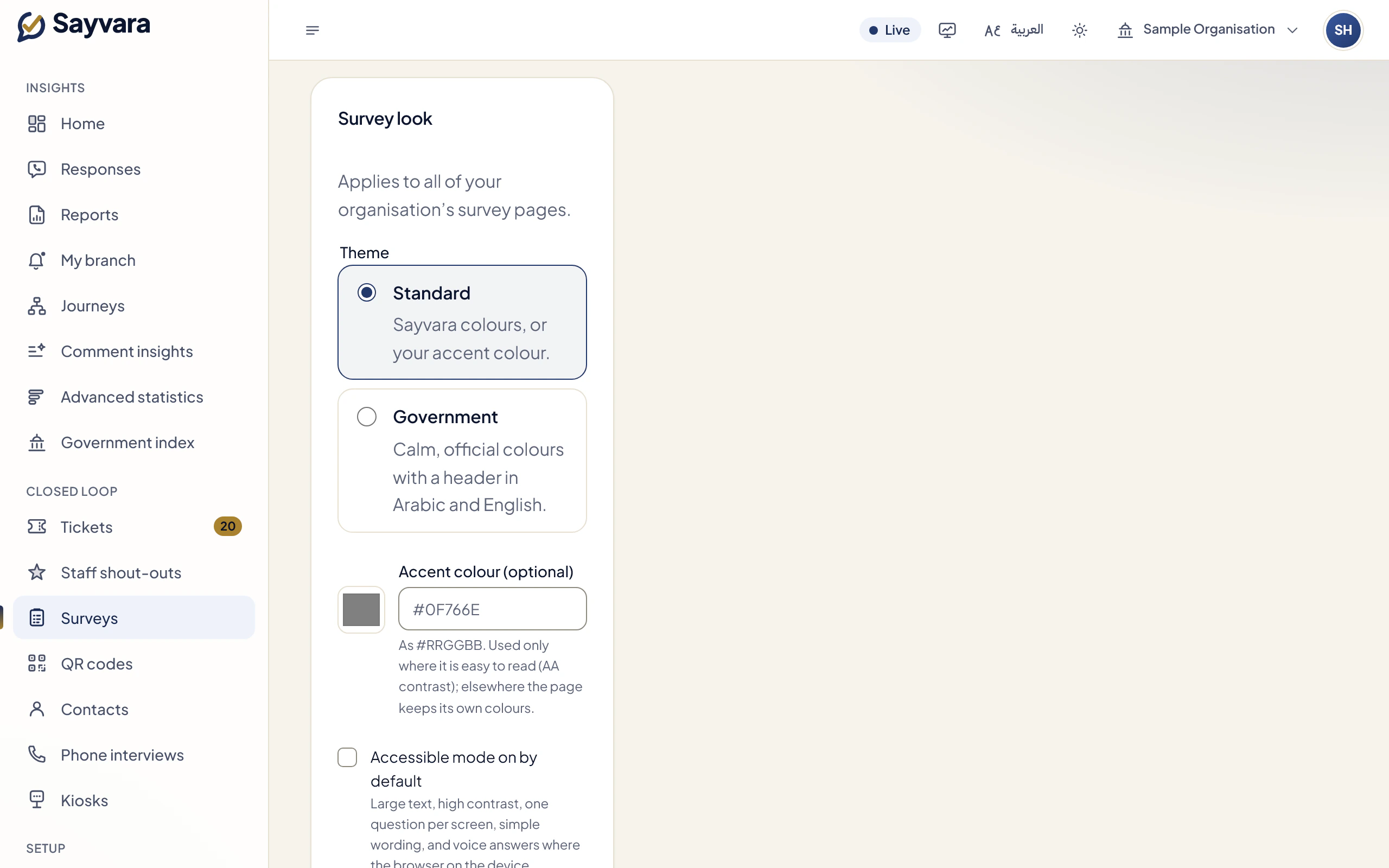
Survey look applies to all of your organisation's survey pages, not only the survey you have open.
Choose a theme
Under Theme, choose:
- Standard: Sayvara colours, or your accent colour.
- Government: calm, official colours with a header in Arabic and English.
Set an accent colour
- In Accent colour (optional), type a colour as #RRGGBB, for example #1A6B4F, or use Pick the accent colour.
- Select Save survey look.
Sayvara uses your colour only where it is easy to read. Elsewhere the page keeps its own colours, so every survey stays readable. Use Clear colour to go back to Sayvara colours.
Add your logo
- Under Logo, select Choose a file. Use a PNG, JPEG or WebP image of up to 48 KB.
- Describe the logo in both languages in What the logo shows (English) and What the logo shows (Arabic). People who use a screen reader hear this text.
- Select Upload logo.
To take it off, select Remove logo. SVG files are not accepted.
Accessible mode
Tick Accessible mode on by default to open every survey page in accessible mode: large text, high contrast, one question per screen, simple wording, and voice answers where the browser on the device supports them. People can still switch it off.
Even when it is off by default, every survey page offers accessible mode to the people who need it. Write Simple wording for accessible mode on each question to help them. See Question types.
Who may open the survey
Who may open the survey applies to every link of this survey, including QR codes.
Protect a survey with a password
Use this for internal or invitation-only surveys.
- Type a Password (optional) of at least 6 characters.
- Select Save access settings.
The card shows Password on. Share the password with the people who should answer. It is stored securely and cannot be shown again. To change it, type a New password (optional). To remove it, select Remove password.
Ask for a quick human check
Tick Ask for a quick human check to stop automated answers. It is a short check in the browser, with no third party and no tracking. Use it for surveys shared publicly, for example on social media.
Your sender name and the Sayvara mark
The name customers see on survey pages, and whether the "Powered by Sayvara" mark shows, are set in Settings > Branding. See Branding.
Related pages
Was this page helpful?
Thanks. Need more help? Email support@sayvara.com