Create a survey
Start a new Sayvara survey from a ready template such as NPS or CSAT, or let AI write one from a short brief.
Every new survey starts as a working copy. Nothing is sent to anyone until you publish it.
Start from a ready survey
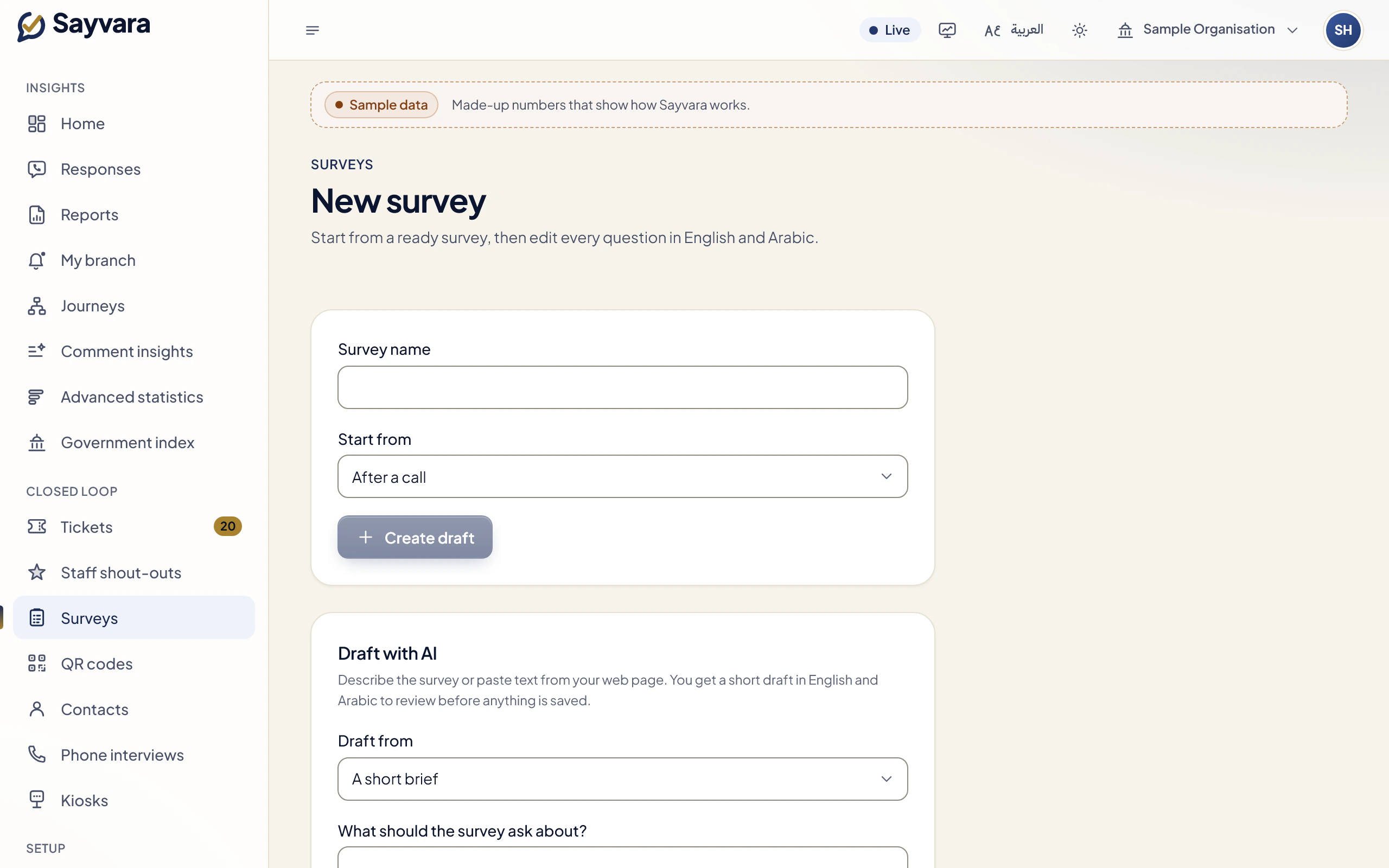
Go to Surveys and select New survey.
The page New survey opens. Type a Survey name. Only your team sees this name.
Under Start from, choose a template:
Template Use it for NPS How likely customers are to recommend you Satisfaction (CSAT) How satisfied customers are, from 1 to 5 Effort (CES) How easy it was, from 1 to 7 After a call Feedback after a phone call After a ticket Feedback after a support ticket After a visit Feedback after a branch or store visit After a problem was solved Checking that a fix worked Select Create survey.
The survey builder opens with the template's questions in English and Arabic. Edit every question as you like. See The survey builder.
Start from a patient experience template
Hospitals and clinics can start from four ready patient surveys. In the Start from list they come after the templates above:
| Template | Use it for |
|---|---|
| Patient experience: Inpatient | Patients after a hospital stay |
| Patient experience: Outpatient clinics | Patients after a clinic visit |
| Patient experience: Emergency department | Patients after an emergency visit |
| Patient experience: Primary care | Patients after a primary care visit |
When you choose one, a note under the list says:
- These surveys are based on published sector practice. They are not an official or accredited survey. Check the questions with your quality team.
- The survey also comes in Urdu, Hindi, Tagalog (Filipino) and Bengali. These are machine translations that need a native speaker's review before patients see them. See Languages and translation.
Then select Create survey as usual.
If you see The survey was created, but the template could not be added to it, select Create survey again. No second survey is made. You can also select Open the survey to open the one that was made.
Write a survey with AI
Below the form on the New survey page is Write the survey with AI. You describe the survey and get a short survey in English and Arabic to review before anything is saved.
- Under Write the survey from, choose:
- A short brief: type what the survey should ask about, for example "after a branch visit, ask about waiting time, staff and cleanliness".
- Text from a web page: copy the text of a page and paste it (at least 20 characters).
- A link to a web page: a public page that starts with https://. Sayvara reads only this page.
- Choose the Main score: NPS (recommend), Satisfaction (CSAT) or Effort (CES).
- Choose how many Questions you want.
- Select Write the survey.
- Read the Survey to review. Each question shows where it came from: Core question, From the question bank or Suggested by AI.
- Select Use this survey to open it in the builder, or Start over.
If AI is off for your organisation, or does not answer, the questions come from Sayvara's templates and question bank instead, and a note tells you so. If your text looks like instructions to the AI, Sayvara uses the question bank instead, for safety.
If a page cannot be read from its link, for example because it is private, Sayvara tells you why. Select Paste the page text instead and paste its text.
Copy an existing survey
To start from a survey you already have:
- Open the survey from the Surveys list.
- Select Duplicate.
- Confirm. A copy named "(copy)" is created as a new survey. It is not sent until you publish it.
What to do next
- Add and edit questions: The survey builder
- Check the Arabic texts: Languages and translation
- Publish it: Check, publish and versions
Was this page helpful?
Thanks. Need more help? Email support@sayvara.com