Organisation and units
How Sayvara organises your company into regions, branches and teams, and how units limit what each person sees.
Sayvara arranges your organisation as a tree of units. Dashboards, reports, tickets and access all follow this tree, so a branch manager sees their own branch and a regional manager sees every branch in the region.
See your units
Go to Settings > Organisation. The card Organisation units shows the tree.
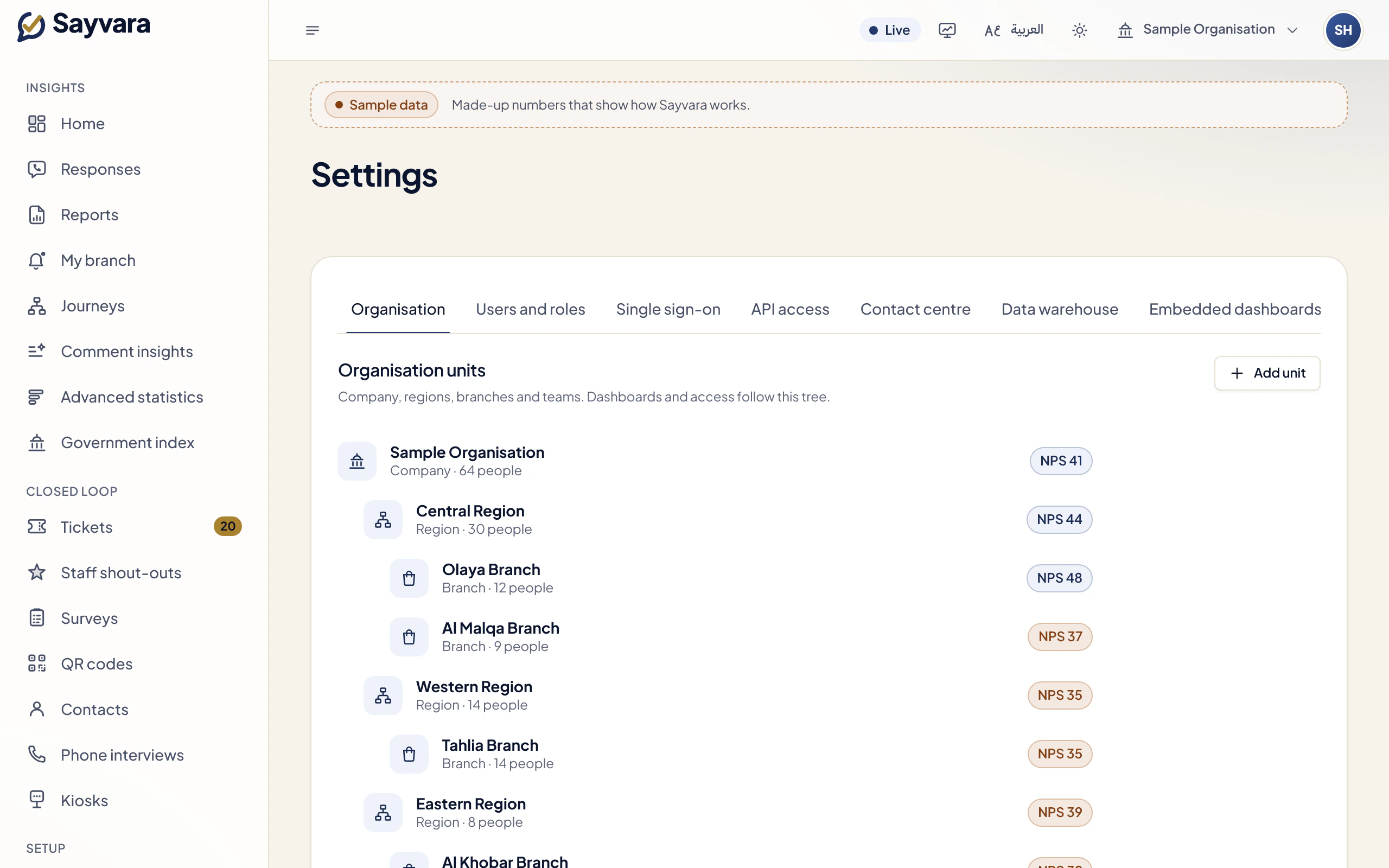
Each unit shows:
- Its name.
- Its type: Company, Region, Branch or Team.
- How many people belong to it, for example 12 people.
- Its NPS, when it has answers.
Units further down the tree are indented under the unit they belong to.
The four unit types
| Type | Typical use |
|---|---|
| Company | The top of the tree: your whole organisation |
| Region | A group of branches, for example "Central region" |
| Branch | One store, clinic, office or site where customers are served |
| Team | A group inside a branch or the head office, for example "Contact centre" |
Add or change units
To add, rename or move a unit, write to support@sayvara.com with the unit's name, its type and the unit it belongs under. We set it up for you.
How units limit what people see
When you invite someone, you choose their Scope:
- Whole organisation: they see everything their role allows.
- One unit: managers, agents, analysts and viewers are limited to this unit and everything under it.
Owners and admins always see the whole organisation.
So a manager with the scope "Riyadh region" sees every branch in that region, but not the branches of another region.
The scope applies everywhere:
- Home and the reports count only the units the person can see.
- Responses and its CSV export hold only answers from those units.
- Tickets shows only tickets from those units.
- Shared dashboard links made by the person count only the units they can see.
See Invite teammates and Roles and permissions.
Units and surveys
Answers are linked to the unit they came from, for example the branch of a QR code or a kiosk. That is how dashboards can compare branches. When you make a QR code or pair a kiosk, choose the branch it belongs to. See QR codes and Kiosks.
Units in filters
Many pages have a Branch or unit filter, for example Responses. It lists the units you can see. Choose All branches and units to see everything in your scope.
Plan limits
Your plan may limit the number of Locations. Settings > Plan shows how many you use. See Plan and limits.
Good practice
- Build the tree the way your managers are responsible, not the way the buildings are laid out.
- Keep unit names short and clear. They appear in filters, reports and on wall screens.
- Give each wall-screen account the scope of its own branch. See TV mode.
Related pages
Was this page helpful?
Thanks. Need more help? Email support@sayvara.com