Work the inbox
Filter, sort and save views, tag conversations, see due times, mark, snooze and assign, act on several at once, use suggested replies, notes and keys.
This page shows how to go through the inbox: find the conversations that need you, handle each one and clear it from your list.
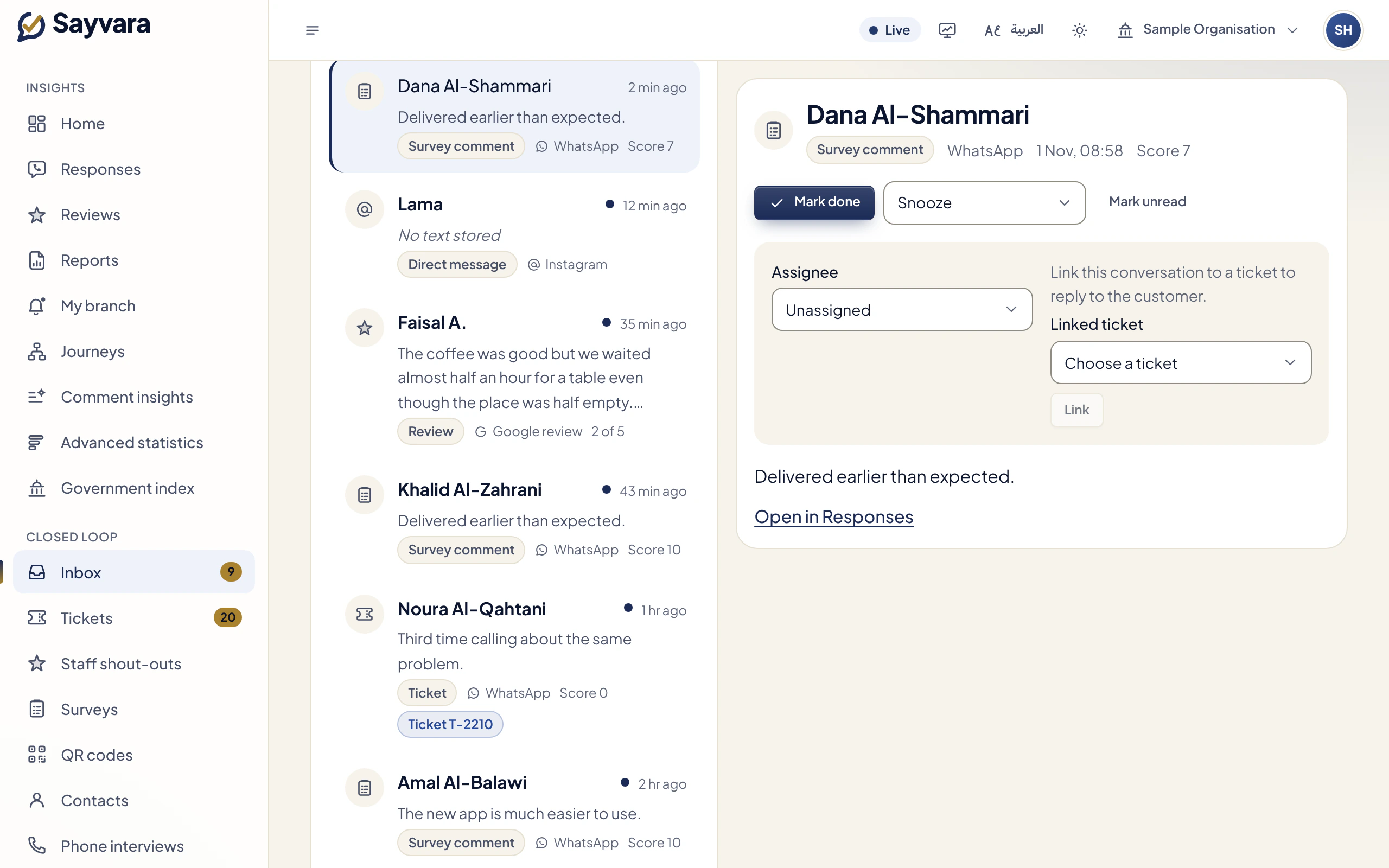
Find the conversations that need you
In the side menu, select Inbox. The list shows Open conversations, newest first.
Use the three buttons at the top of the list. Next to them you see Open, last 90 days: each button counts the open conversations with activity in the last 90 days (from 100 up it shows 99+):
- Unread: those you have not read;
- Mine: those given to you;
- Unassigned: those given to nobody.
Select a button to show only those conversations, from the same 90 days. Select it again to show all of them.
To look for a person or a word, type in the search box (Name or words). The list updates as you type.
Select Load more at the bottom of the list to see older conversations.
On a phone or a small tablet, select Show filters to see the other filters, and Hide filters to fold them away. On a wider screen they are always shown.
The other filters
| Filter | Choices |
|---|---|
| Order | Newest first, or Due soonest first: conversations with a ticket due time come first, the most overdue at the top. See Ticket due times below |
| State | Open, Snoozed, Done or All |
| Type | All types, Ticket, Survey comment, Review, Direct message |
| Channel | All channels, or one channel such as WhatsApp, SMS, Google review or Instagram |
| Branch | All branches, or one branch and everything under it. Shown when your organisation has two or more branches |
| Assigned to me | Only conversations given to you |
| Unread only | Only conversations you have not read |
| Has a ticket | Survey comments and direct messages that are linked to a ticket. Tickets always stay in the list |
| Overdue only | Only conversations whose ticket is past its due time |
Select Clear filters to go back to the open conversations with no filter.
When nothing matches, the list says Nothing here.
Saved views
A saved view keeps a set of filters under a name, so you can come back to it with one click. The views sit in the Saved views row above the search box. If they cannot be loaded, the row says so; select Try again.
- Set the filters and the search words you want. Save view appears above the search box.
- Select Save view, type a Name (up to 60 characters) and select Save view again. You see View saved. and the new view is selected.
- Next time, select the view's name. The list shows its filters at once. Select the same name again to show all conversations.
Owners and admins also choose Who sees it: Only me, or Everyone in my organisation. A view for everyone shows Shared next to its name, and everyone who reads the inbox sees it at the start of the row. Only owners and admins change or delete it.
A view keeps the filters, not the conversations: each person still sees only the conversations their role and scope allow. A view of a branch shows nothing to someone who does not work with that branch.
The first six views show as buttons; the others are in the More views list. To rename, reorder or delete views, select Manage views. Use Move up and Move down to change the order: a view moved up comes first in the row. You keep up to 30 views of your own, and your organisation up to 50 views for everyone. The live demo login sees the shared views but cannot save or change them.
If another view has the same name, you see Another view has this name. Choose a different one.
Tags
Tags are your organisation's own labels for conversations, for example VIP, Refund or Delivery. A tag works on every kind of conversation, tickets too, and shows its name on its colour in the list (up to three per row, then + and the number of the others) and at the top of an open conversation. Tags belong to the inbox: a tag on a ticket shows here and does not change the ticket.
To put tags on a conversation, open it and select Tags under its name. Tick a tag to put it on, untick it to take it off; each tick is saved at once and you see Tag added. or Tag removed. Select Done to close the list. A conversation takes up to 10 tags.
To see only the conversations with one tag, select Show filters and choose it under Tag. A saved view keeps the tag too. If the tag has since been deleted, the filter shows This tag was deleted and the list is empty.
Owners and admins manage the tags with Tags at the top of the inbox: Add tag with an English name, an Arabic name or both (up to 40 characters each) and a Colour, then Change or Delete a tag. People who use Sayvara in Arabic see the Arabic name, others the English one; a tag with only one name shows it in both. Your organisation keeps up to 100 tags, each name different from the others. Deleting a tag takes it off every conversation that has it.
Ticket due times
A ticket has a due time, set by your organisation's service targets. The inbox shows it on every conversation that has a ticket: the ticket itself, and a survey comment or direct message that is linked to one. The words are the same as on the Tickets page:
| You see | Meaning |
|---|---|
| 2 h left (for example) | The ticket is due in that time |
| Overdue 3 h (for example) | The ticket is past its due time |
| Paused, 5 h left or Paused | The ticket waits on the customer, so its clock is stopped. A paused ticket is never overdue |
Open the conversation to see the exact due time: it shows next to the badge, as Ticket due and the date and time. A screen reader reads it with the badge on the list too. A resolved or closed ticket shows no due time, and neither does a conversation without a ticket.
To work the most urgent conversations first, set Order to Due soonest first, and select Overdue only to see only the late ones. See Work a ticket.
Open a conversation
Select a row. The conversation opens next to the list on a wide screen, or over the list on a phone. Select Back to the list to return.
At the top you see the customer's name (or Customer when Sayvara has no name), the type, the channel, the date, the score or star rating and, when the conversation has a ticket, its due time. Below that:
- a survey comment shows the customer's words and Open in Responses;
- a review shows its title and text, the business's Public reply when there is one, and Open in Reviews, where you answer it;
- a direct message shows Instagram and Messenger messages are not stored in Sayvara. Open the conversation in the app it came from to read it.;
- a ticket shows Open the ticket and the Conversation with the customer. See Reply and link a ticket.
If a review has no text, you see The customer left no words.
Read and unread
Opening a conversation marks it read for you. The dot goes away and the Unread count and the number on the Inbox menu item go down.
To come back to a conversation, select Mark unread. You go back to the list and the dot comes back.
Read and unread are yours alone: your colleagues each have their own. A conversation with no new activity for 90 days no longer counts as unread.
Mark done, snooze and reopen
| Button | What happens |
|---|---|
| Mark done | The conversation leaves the Open list. You see Marked done |
| Snooze | Choose For 3 hours, Until tomorrow, 9:00 (by your device's clock) or For a week. The conversation leaves the Open list and comes back by itself at that time. You see Snoozed |
| Reopen | Shown on a done or snoozed conversation. It goes back to the Open list. You see Reopened |
Done and snoozed are shared: the whole team sees the same state. To find them again, set State to Done or Snoozed.
A done or snoozed conversation comes back to Open by itself when something new happens, for example when the customer writes again or someone changes the ticket.
If a change does not save, you see That did not work. Try again.
Give a conversation to a person
Owners, admins and managers see in the Assignee field who handles the conversation, and change it:
- Survey comments, reviews and direct messages: choose a person in Assignee, or Unassigned. You see Assignee saved.
- Tickets: the inbox shows the ticket's assignee and A ticket is assigned on the ticket itself. Select Assign on the ticket to open the ticket and change it there. See Ticket assignment.
Agents and analysts do not see the assignee's name in the inbox and cannot change it. On a ticket, agents see Assign on the ticket, which opens the ticket. To find the conversations given to you, use Mine or Assigned to me.
You can give a conversation only to someone who can see it: an owner, admin, manager, agent or analyst whose scope holds the conversation's branch. Reviews and direct messages can go only to people who see the whole organisation. If you choose someone else, you see That did not work. Try again. See Who sees what.
Suggested replies
Suggested replies appear on ticket conversations only. A ticket conversation shows Suggested by AI with the ticket's Suggested replies. They are the same suggestions as on the ticket page, and the same rules apply:
- Choose the Reply language, Arabic or English, and select Suggest a reply. Each suggestion counts towards your AI allowance. When the AI cannot write one (for example, your plan or your organisation's AI policy does not allow it), you get a reply from a template and the reason.
- Read the suggestion. Select Edit to change it, then Save edit, or select Discard.
- Select Approve and send. The confirm step shows the exact text, the Channel and the Language. Select Send to customer to send it, or Cancel.
A suggestion is never sent by itself: a person always reads it, chooses Send to customer and sends it. Owners, admins, managers and agents suggest and send replies; other roles see the suggestions only. Survey comments, direct messages, reviews and unmatched messages show no suggested replies, even when they are linked to a ticket. To use a suggestion for one of them, open its linked ticket and work it there. See Reply and link a ticket.
Team notes
Survey comments, reviews, direct messages and unmatched messages have Team notes under the conversation. A ticket keeps its notes on its own conversation, as on the ticket page.
Only your team sees notes. They are never sent to the customer or shown on a public page, such as a review's public reply.
- In Add a note, type the note (up to 2,000 characters).
- Select Add note. You see Note added. The note shows with its writer's name and the time.
Notes show oldest first. Owners, admins, managers and agents add notes; analysts read them and see You can read notes. People who handle conversations add them. To delete a note, select Delete, then Delete again. You delete your own notes; owners and admins delete any note. A conversation holds up to 200 notes.
Who sees a conversation sees its notes: a person who works with some branches sees the notes of those branches' survey comments, and notes on reviews, direct messages and unmatched messages show only to people who see the whole organisation. See Who sees what.
Work on several conversations at once
To do the same thing to many conversations, select them in the list and act on all of them together.
- Tick the box at the start of each conversation you want. To choose every conversation the list shows, tick Select all shown above the list. That includes the older conversations you loaded with Load more.
- A bar appears above the list with the number you chose, for example Selected: 3. It stays in view while you scroll.
- Choose an action in the bar:
| Action | What happens |
|---|---|
| Mark done | The conversations leave the Open list |
| Reopen | Done or snoozed conversations go back to the Open list |
| Assign to | Choose a person, or Unassigned. Tickets keep their assignee: a ticket is assigned on the ticket itself |
| Snooze | Choose For 3 hours, Until tomorrow, 9:00 or For a week |
| Add tag and Remove tag | Choose a tag in Choose a tag, then select Add tag or Remove tag: it is put on, or taken off, every selected conversation |
| Mark read and Mark unread | For you alone, as when you open a conversation |
| Clear selection | Unticks every box. Nothing changes |
Each conversation is changed with the same rules as when you open it and use its own buttons. When every one of them changed, you see Changed: and the number, and the boxes are cleared.
When some could not be changed, a message says how many changed and why the others did not, for example:
- Not found, or outside your access: the conversation is gone, or it is outside the branches you see;
- Tickets, which are assigned on the ticket itself: open the ticket to change its assignee;
- The chosen person cannot be given these: that person does not see these conversations;
- Already carrying 10 tags, the most allowed: take a tag off those conversations first;
- The tag was deleted meanwhile: choose another tag;
- Not tried because the service was busy. Try these again in a few seconds: the service stopped part way, so the rest were left as they were. Wait a few seconds and choose the same action again.
The conversations that did not change stay ticked, so you can see them in the list. Select Close this message to hide the message. If nothing could be changed at all (for example, your connection dropped), you see That did not work. Nothing was changed. Try again.
Everyone who can read the inbox can Mark read and Mark unread. Owners, admins, managers and agents also see Mark done, Reopen, Snooze, and Add tag and Remove tag when your organisation has tags. Assign to is shown to those who also see the list of people: owners, admins and managers. When you change a filter, the selection is cleared. The live demo login can look at the inbox but not change it, so it shows no boxes and no bar.
Work with the keyboard
On a computer you can go through the inbox with single keys. They work while you are in the conversation list or the open conversation: select a conversation, click in the list, or move there with Tab. Elsewhere on the page, for example in the side menu or the top bar, the keys do nothing, so a stray key press or a voice command cannot act on a conversation. They also do nothing while you type in a box, or while a window such as this list is open. Press ? or select Keyboard shortcuts at the top of the inbox to see them.
| Key | Action |
|---|---|
| j | Next conversation in the list |
| k | Previous conversation in the list |
| Enter or o | Open the conversation |
| Space | Tick or untick the conversation that j or k reached in the list (see Work on several conversations at once above) |
| a | Go to the assignee of the open conversation: the Assignee field, or Assign on the ticket on a ticket |
| e | Mark the open conversation done (Mark done) |
| r | Go to the reply box of the open conversation |
| ? | Show this list |
j and k follow the order of the list, from top to bottom, in English and in Arabic. On a phone or small tablet, where an open conversation covers the list, they open the next or previous conversation. While you edit a suggested reply there, they do nothing, so your changes stay: save or cancel first. On an Arabic keyboard, press the keys in the same places. A key does nothing when its button or field is not there for you, for example e on a conversation that is already done.
a, e and r act on the open conversation only. If j or k took you to another conversation in the list, the first press of a, e or r opens that conversation and does nothing else; press the key again to act on it.
Related pages
Was this page helpful?
Thanks. Need more help? Email support@sayvara.com