Profile, language and theme
Switch Sayvara between Arabic and English, choose a light, dark or system theme, and use your account menu.
Sayvara is Arabic first and English equal. Every screen works in both languages, in light and dark, on a phone, a tablet, a computer or a wall screen.
Switch between Arabic and English
The quickest way is the language button in the top bar:
- In English, the button shows العربية. Select it to switch to Arabic.
- In Arabic, it shows English. Select it to switch back.
The whole screen turns around for Arabic: menus move to the right and text reads right to left. Numbers, dates and times follow the language you choose.
Choose a theme
The theme button in the top bar cycles through three choices: Light, Dark and System. Hover over it, or focus it with the keyboard, to see the current theme.
System follows the setting of your computer or phone, so the app turns dark when your device does.
Your preferences page
All of these choices are also on one page:
- Select your initials in the top corner, then Settings. Or go to Settings > Preferences.
- The page Your preferences shows:
- Language: العربية or English.
- Theme: System, Light or Dark.
- Start with a compact sidebar: turn it on to keep the side menu narrow, with icons only.
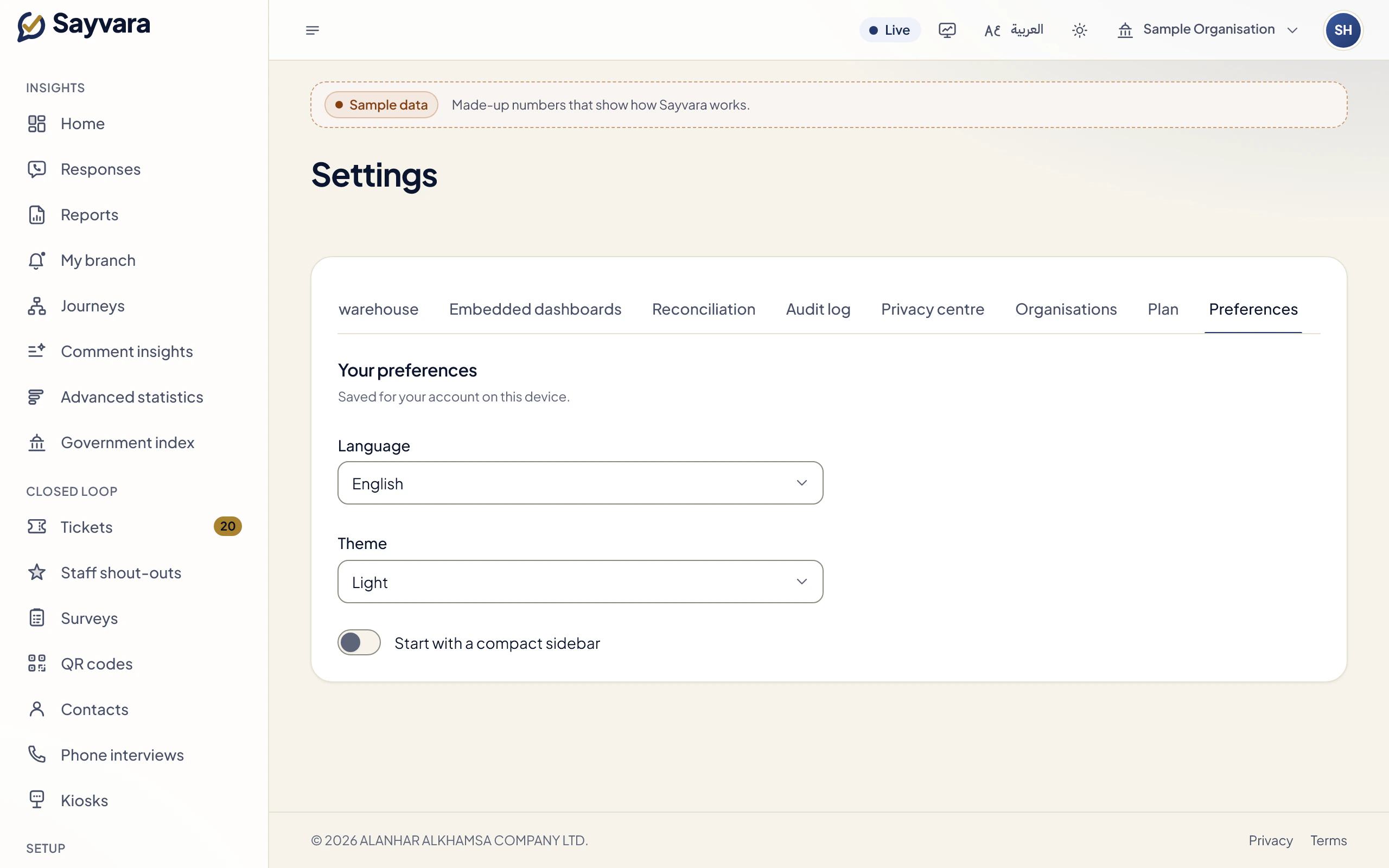
Your preferences are saved for your account on this device. On another device you can choose differently.
The side menu
The side menu has three groups:
| Group | What is in it |
|---|---|
| Insights | Home, Responses, Reports, My branch and other analysis pages |
| Closed loop | Tickets, Surveys, QR codes, Kiosks, Contacts and more |
| Setup | Channels, Integrations, Developer, Your data, Settings |
You only see the pages your role allows. Use Collapse sidebar and Expand sidebar at the bottom of the menu to make it narrow or wide.
On a phone, the menu moves to a bar at the bottom with Home, Responses, Tickets and Surveys. Everything else is under More.
Your account menu
Select your initials in the top corner. The menu shows:
- Your name and email address.
- Settings, which opens your preferences.
- Sign out.
Your name and email
Your name is the one you confirmed when you joined, and your email is the address you were invited with. Both show in your account menu. To correct your name or move to another email address, ask an owner or admin of your organisation to write to support@sayvara.com.
Related pages
Was this page helpful?
Thanks. Need more help? Email support@sayvara.com