Invite teammates
Owners and admins invite people to Sayvara by email with a role and a scope, then resend or revoke invitations.
Owners and admins bring people into the organisation with an email invitation. The invitation is bilingual (Arabic and English) and has a link that works once.
Send an invitation
- Go to Settings > Users and roles.
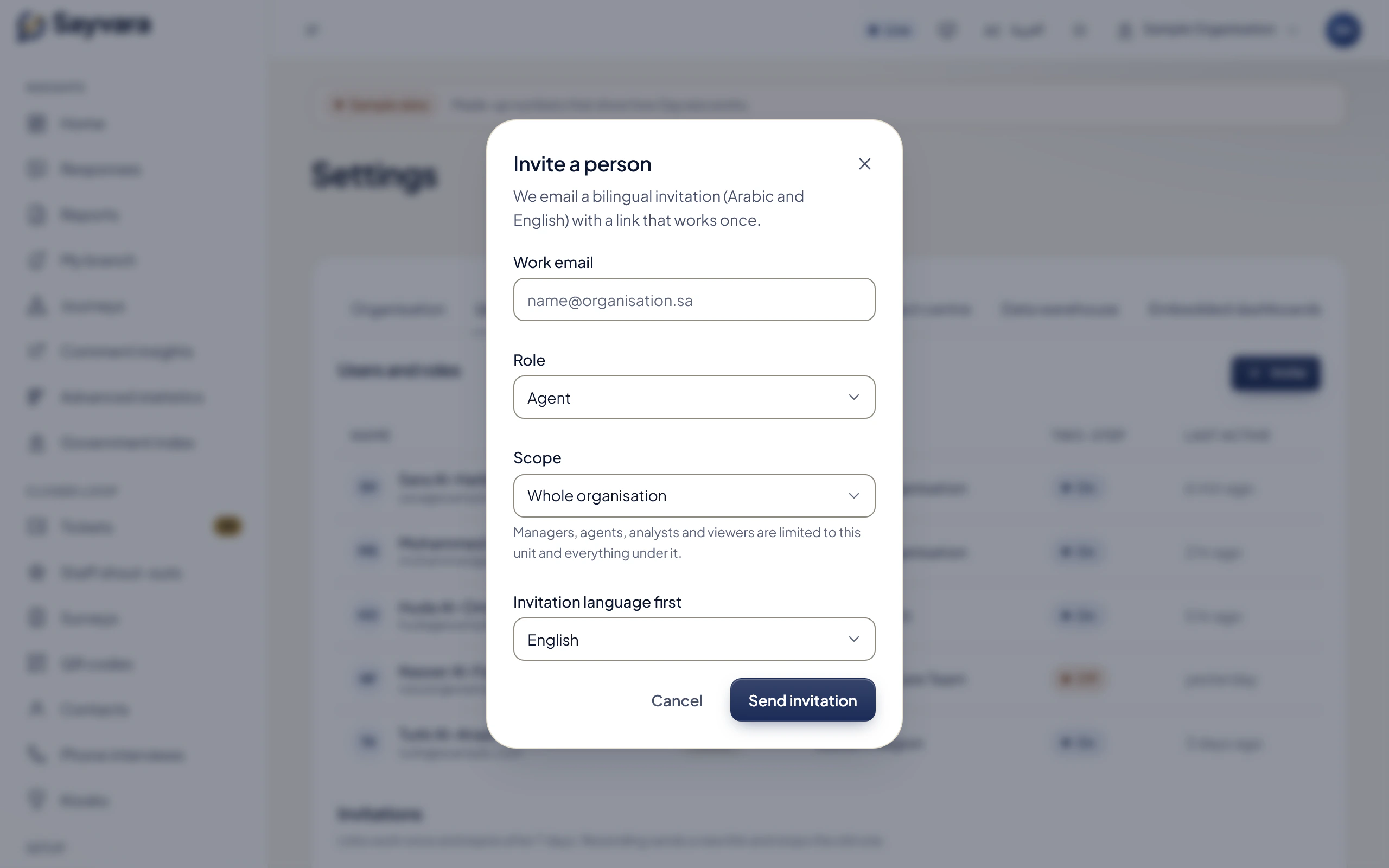
- Select Invite. The Invite a person window opens.
- Type the person's Work email.
- Choose a Role. See Roles and permissions if you are not sure.
- Choose a Scope: Whole organisation, or one region, branch or team. Managers, agents, analysts and viewers are limited to this unit and everything under it.
- Choose Invitation language first: Arabic or English. The email shows both languages; this one comes first.
- Select Send invitation.
You see Invitation sent to and the address.
What the invited person sees
The email has a link to Join your organisation. When they open it:
- New to Sayvara: they type Your full name, choose a password of at least 12 characters, and select Accept and continue.
- Already have a Sayvara account with that address: they sign in first, then accept. The new organisation is added to their account. See Work in more than one organisation.
- Signed in as someone else: the page explains that the invitation is for another address and offers Sign out and switch account.
Follow your invitations
Under the list of users, the Invitations table shows every open invitation:
| Column | Meaning |
|---|---|
| Who you invited | |
| Role | The role they will get |
| Status | Waiting, Expired, Joined or Revoked |
| Expires | Links expire after 7 days |
| Sent | When it was sent, and Invited by whom |
Resend an invitation
If the person lost the email or the link expired, select Resend on their row. A new link is sent and the old one stops working.
Revoke an invitation
If you invited the wrong address, select Revoke on the row and confirm. The link stops working at once.
Messages you may see
| Message | What it means |
|---|---|
| This person is already a member. | They are already in your organisation. |
| Only an owner can invite another owner. | Ask an owner to send this one. |
| Too many invitations at once. Try again in an hour. | There is a limit per hour. Wait and try again. |
Bring many people at once
If your organisation uses a directory such as Microsoft Entra ID, Okta or another SCIM 2.0 provider, an admin can create and remove users automatically. See Single sign-on.
Related pages
Was this page helpful?
Thanks. Need more help? Email support@sayvara.com