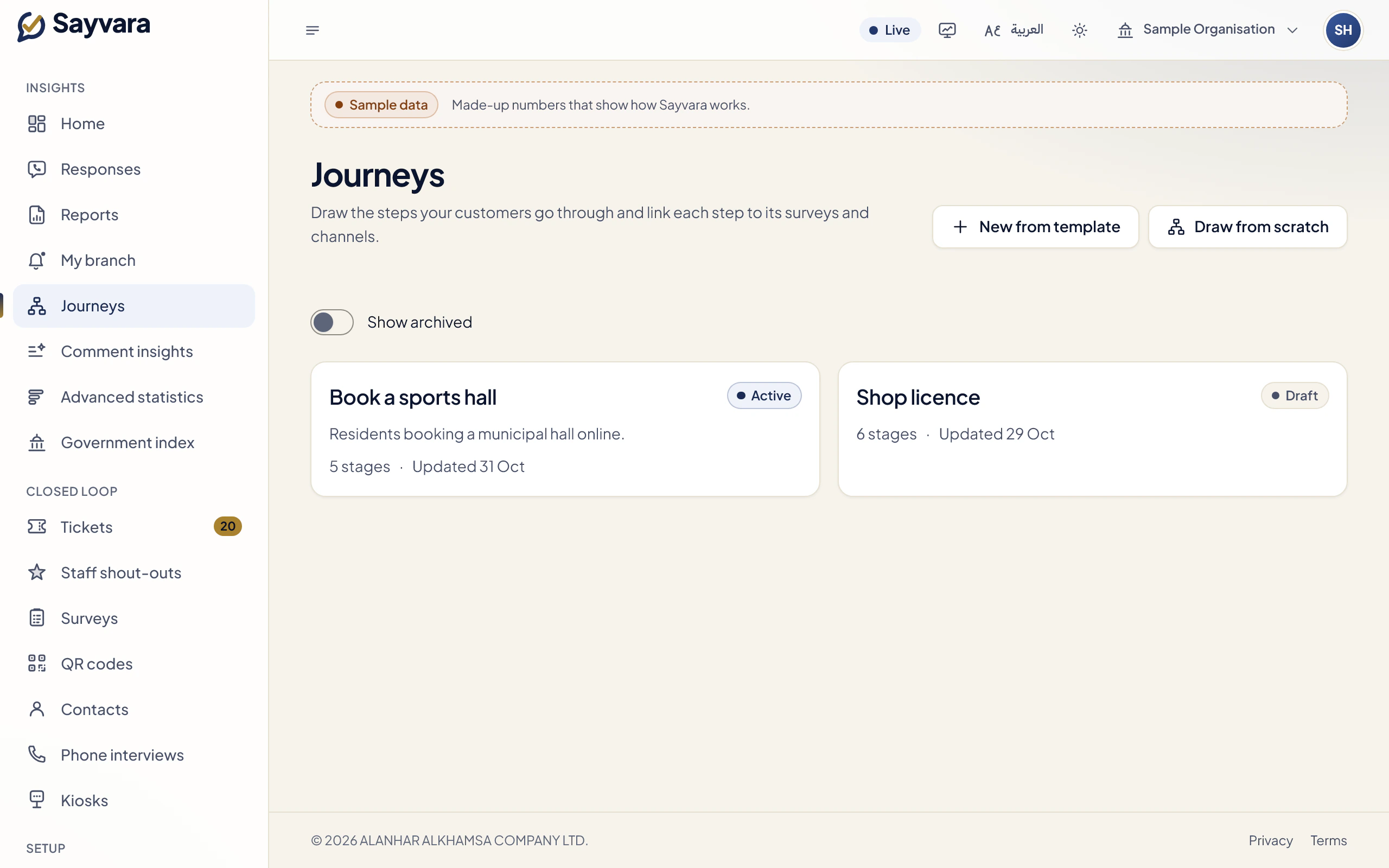
Journeys
Draw the steps your customers go through, link each step to its surveys, channels and branches, and follow stage drop alerts.
A journey map shows the steps, or stages, a customer goes through with you, for example "Book", "Visit", "Pay" and "Follow up". For each stage you write the customer's goal, list the touchpoints, pick an owner, and link the surveys, channels, branches and ticket types that tell you how the stage is going.
Open it from the side menu: Journeys, in the insights group.
In this section
- Create a journey map: start from a ready journey or draw your own.
- Edit stages: names, goals, touchpoints, owners and links.
- Activate, archive and save: the life of a map, and what happens when two people edit at once.
- Read the journey map: stage scores, tickets, live health, pain points and opportunities.
- Compare two branches: two branches, two periods or another journey, stage by stage.
- Stage drop alerts: turn alerts on and read the alerts panel.
- Customer timeline: one customer's answers, tickets, calls, reviews and messages.
- Improvement projects: group tickets into work with an owner and dates, and measure the change.
Who can do what
| You want to | You need |
|---|---|
| See journey maps | A role that can see dashboards |
| Create or change a map | The survey designer permission |
If you can only view, the canvas shows Read only and the list says You can view journeys but not create them. Ask for the survey designer permission.
Was this page helpful?
Thanks. Need more help? Email support@sayvara.com