Sample size and export
Check the margin of error per channel and how many more answers you need, and export scores as a labelled CSV or with SPSS syntax.
Do you have enough answers?
The Sample size tab shows how precise your score is per channel, and how many more answers reach your target.
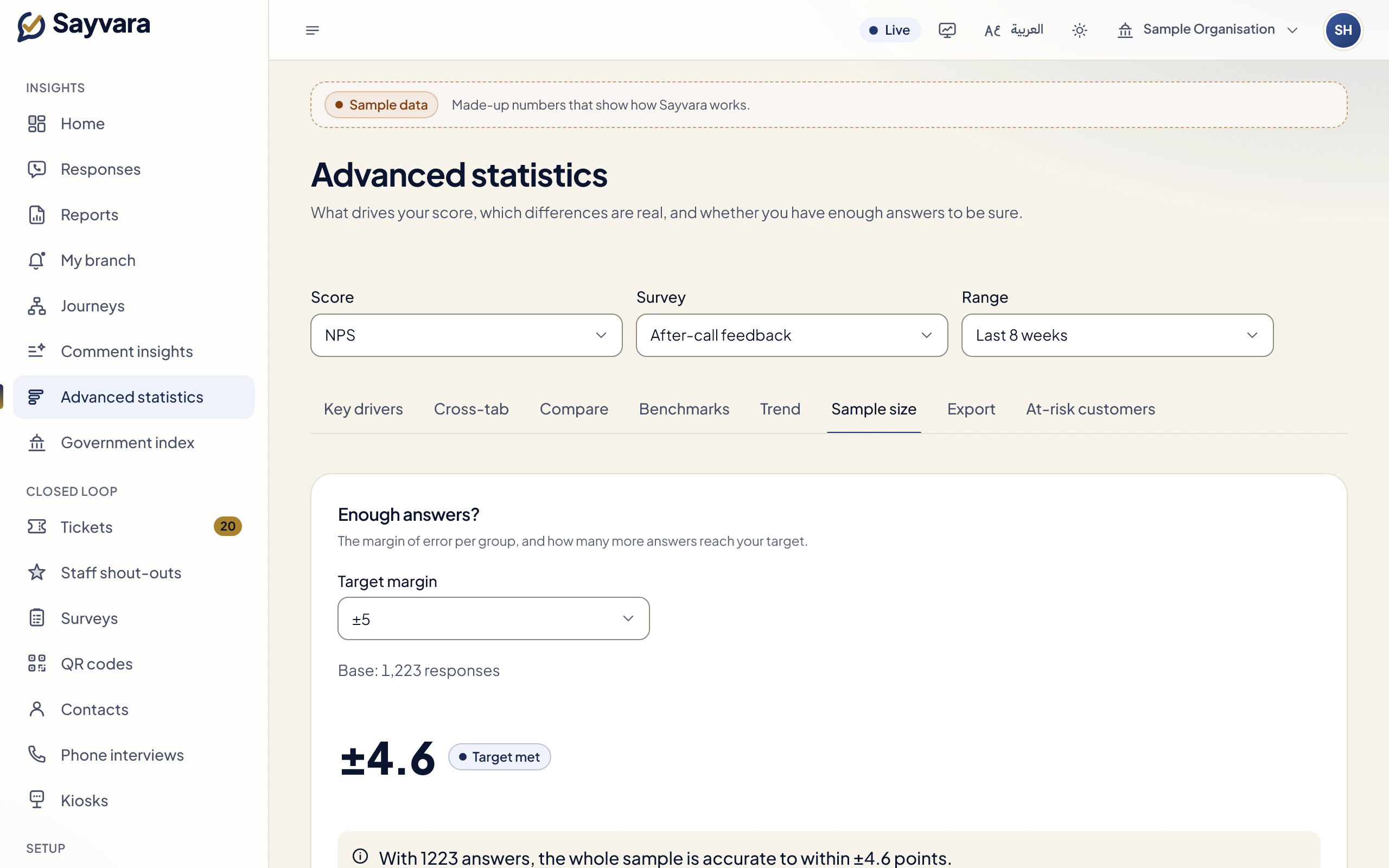
- Open Advanced statistics and select the Sample size tab.
- In Target margin, pick ±3, ±5 or ±10.
- At the top, the large figure is the margin of error for all your answers together, with its status.
- Read the table below it, one row per channel.
| Column | What it shows |
|---|---|
| Group | The channel. |
| Answers | How many answers you have. |
| Margin now | How far the true score could be from the one you see. |
| Needed | How many answers reach the target margin. |
| Still to collect | How many more you need. |
| Status | Target met or More answers needed. |
Export for analysts
The Export tab gives your analysts the scores per response as a file they can open in a spreadsheet or a statistics package.
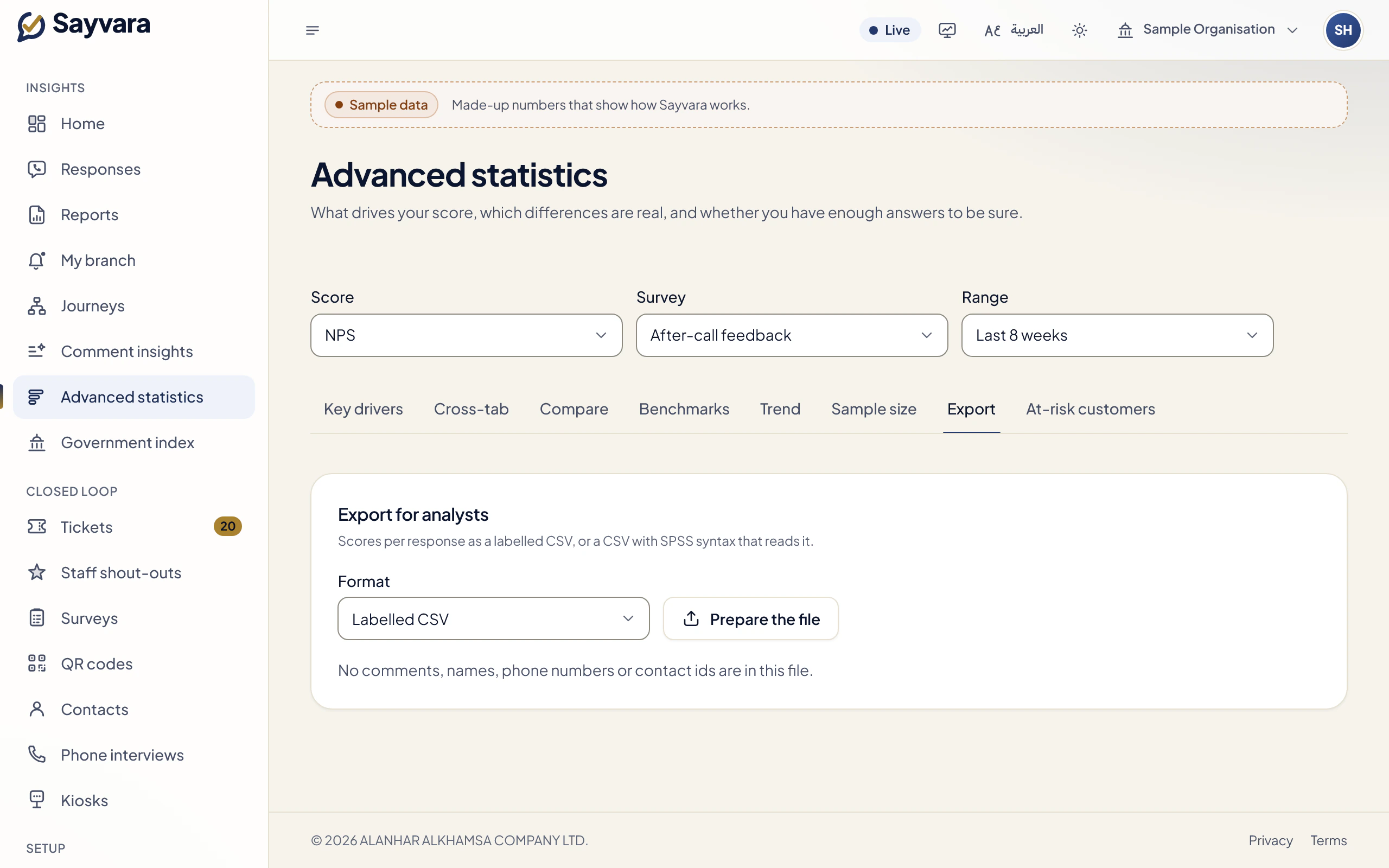
- Open Advanced statistics and select the Export tab.
- In Format, pick Labelled CSV or CSV and SPSS syntax.
- Select Prepare the file. Sayvara tells you how many responses and columns the file has.
- Select Download ... for each file.
The export uses the Score, Survey and Range you picked above the tabs.
Was this page helpful?
Thanks. Need more help? Email support@sayvara.com