Responses and exports
Filter every Sayvara answer by period, survey, branch, channel, score and ticket, read one in full and export a CSV or an Excel workbook.
Responses lists every answer from every channel, newest first. New answers appear without reloading.
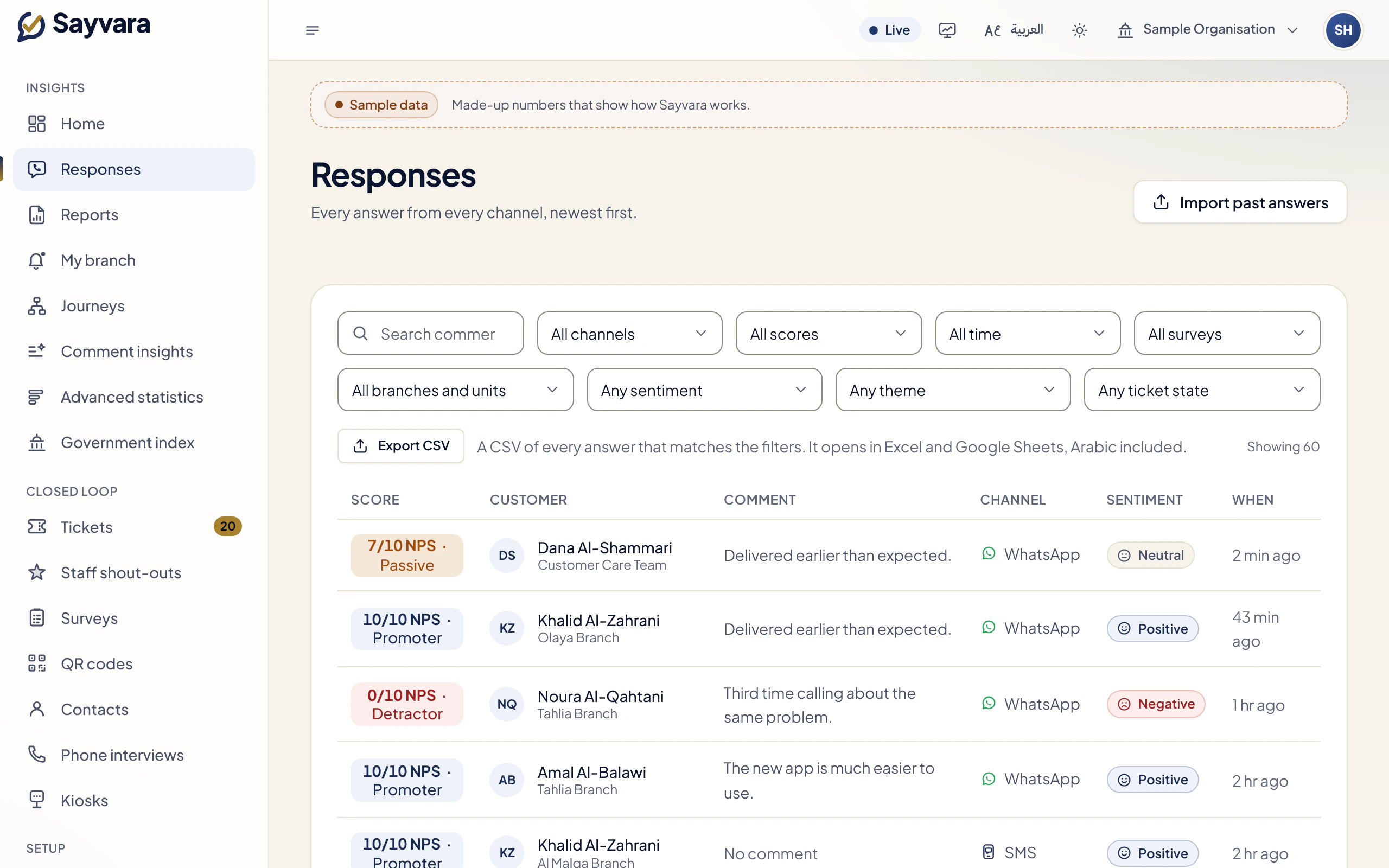
Find answers
Use the filters at the top:
| Filter | Choices |
|---|---|
| Period | All time, Last 7 days, Last 30 days, Last 90 days |
| Survey | All surveys or one survey |
| Branch or unit | All branches and units or one unit and the units below it |
| Channel | All channels or one channel |
| Score | All scores, Promoters (9–10), Passives (7–8), Detractors (0–6) |
| Ticket | Any ticket state, No ticket or a ticket state |
Type in Search comments and names to find words in comments or a customer's name. Select Clear filters to start again.
The list shows When, Customer, Channel, Score, Comment and Survey. Select Show more answers at the bottom to load more. That is every answer for these filters. means you reached the end.
Read one answer in full
Select an answer. The window Answer from the customer's name shows:
- Every question and the customer's Answers.
- Any AI follow-up question and reply.
- Open the ticket, if the answer opened one.
Answers through one QR code
From a QR code's card, View answers opens Responses filtered to that code. The page says Answers through one QR code. Select Show all answers to remove the filter.
Export a CSV
- Set the filters you want.
- Select Export CSV.
- When Your file is ready shows, select Download the file.
The CSV holds every answer that matches the filters. It opens in Excel and Google Sheets, with Arabic text shown correctly. The download link works until the date shown.
Good to know:
- Owners, admins, managers and analysts can export. Agents and viewers cannot.
- For some roles, phone numbers in the file are partly hidden. The page tells you: Phone numbers in the file are partly hidden for your role.
- There is a limit of exports per hour.
- A very large export can be refused. Pick a shorter period or one branch.
- Exports may not be in your plan. The page then says so. See Plan and limits.
Export an Excel workbook
Select Export Excel, next to Export CSV, to get the same answers as an Excel workbook. It uses the same filters, roles and hourly limit as the CSV.
- Set the filters you want.
- Select Export Excel.
- When Your workbook is ready shows, select Download the workbook.
The workbook has two sheets:
| Sheet | What it holds |
|---|---|
| Responses | One row per answer. Each choice or scale question has two columns: the code and the label. Free-text answers have one column. |
| Codebook | Every code with its question, its type and its label in English and Arabic. |
The workbook follows the app language. In Arabic, the sheets are named الإجابات and دليل الرموز and read right to left.
Large workbooks
A large workbook is prepared in the background. The page says This is a large workbook. When it is ready, a notice Your Excel export is ready appears wherever you are in the app, and you get an email. Select Open it in Responses in the notice, or the button in the email, to reach the download.
If the page says:
- Too many answers for one workbook: pick a shorter period or one branch.
- Too many questions for one workbook: choose one survey in the filters.
- This file is too large for one workbook: narrow the filters.
For some roles, phone numbers and email addresses in the workbook are partly hidden. The page tells you so.
Import answers from another tool
If you used another feedback tool before, owners and admins can bring past answers into Sayvara so your trends start earlier.
- On Responses, select Import past answers.
- Choose the Survey the answers belong to. Only published surveys are listed.
- Choose the Channel the old tool asked on, and optionally type the Name of the old tool (optional).
- Choose the CSV file. Columns read: date (needed), NPS, CSAT, CES, comment, name, phone, email and language. Up to 5,000 rows and 2 MB.
- Select Check file. Nothing is saved at this step: you see how many answers will be added and which rows have a problem.
- Select Import to add them.
Each answer is added at its own date. Past answers never open tickets or send alerts, and never mark anyone as opted in. Uploading the same file again adds nothing.
Related pages
Was this page helpful?
Thanks. Need more help? Email support@sayvara.com