The survey builder
Add, edit, reorder and remove survey questions, write the title and thank-you message, preview and save the working copy.
Open a survey from the Surveys list to edit it. You always edit the survey's working copy: your changes stay there until you publish them. The builder shows the survey name at the top, its state (for example Version 2 working copy · version 1 is live or Version 3 · Published) and the buttons Duplicate, Discard changes, Save changes and Publish.
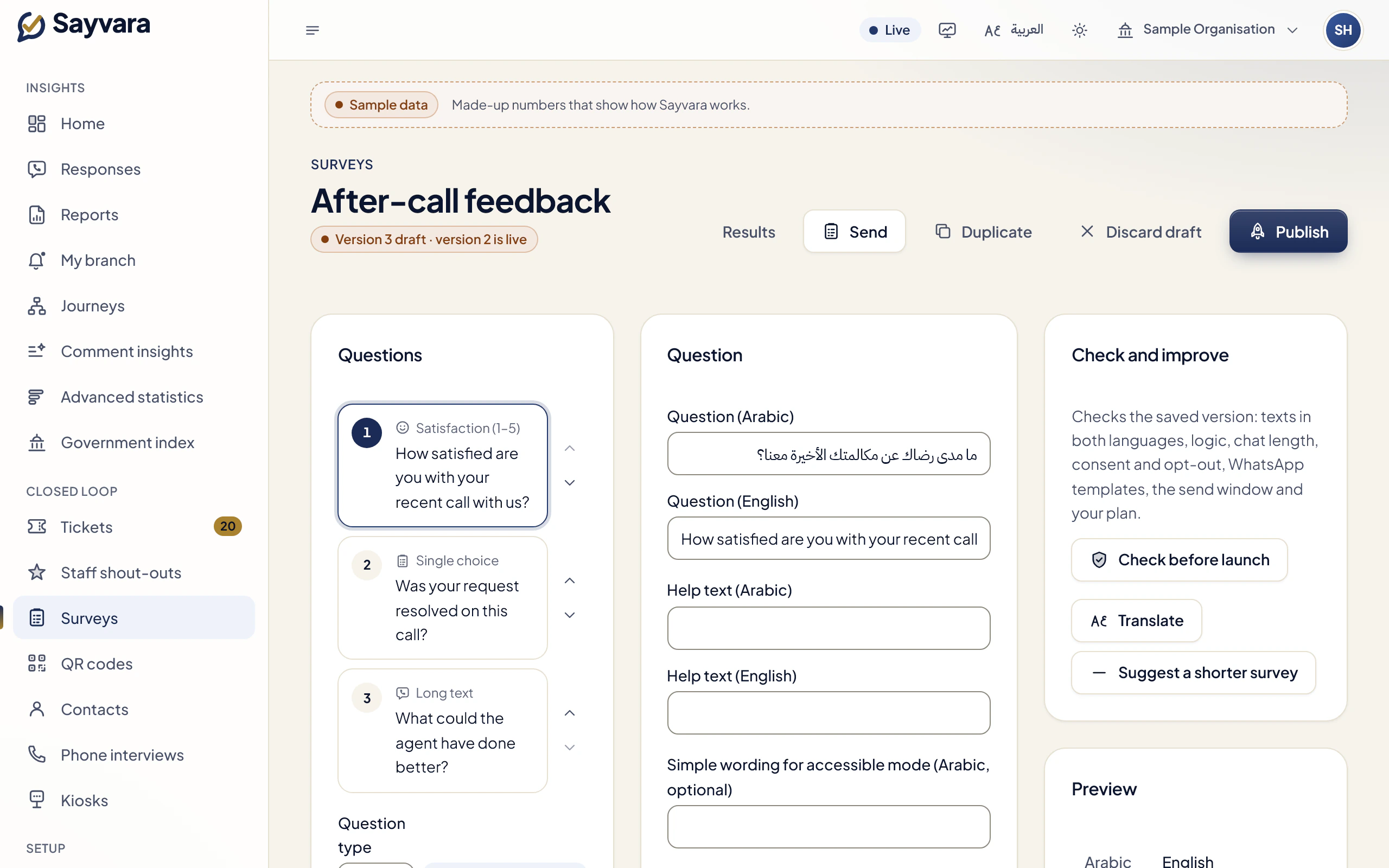
The layout
On a wide screen the builder has three columns:
| Column | What is in it |
|---|---|
| Left | Questions, Survey texts, Random order and quotas, Who may open the survey, Survey look |
| Middle | Question: the editor for the selected question |
| Right | Check and improve, Preview and Version history |
On a phone or tablet the same parts are in three tabs: Edit, Preview and Versions.
Add a question
- In Questions, choose a Question type. See Question types.
- Select Add question.
- The new question opens in the editor.
Edit a question
Select a question in the list. In the editor:
- Write Question (English) and Question (Arabic). Both are required.
- Add Help text (English) and Help text (Arabic) if people need a hint.
- Tick Answer required if people must answer before they continue.
- For choice questions, edit the Options. Use Add option and Remove option.
- The Question key stays the same across versions, so reports can compare them. You rarely need to change it.
Settings that belong to the question type appear below, for example Number of stars, Lowest and Highest, or Choose at least and Choose at most.
AI follow-up question
On score and text questions, the editor has AI follow-up. Tick Ask an AI follow-up question to add one extra "why" question after a low score or a short, vague answer, in the person's own language and dialect. Set AI follow-ups per response for the whole survey. Tick Sensitive question on a question that must never get a follow-up. When AI is off for your organisation, no follow-up is asked.
Follow-up interview
The Follow-up interview card lets the thank-you page invite people to answer a few short follow-up questions after they finish the survey. It is off by default: without a guide, people see the usual thank-you page only.
- Tick Choose an interview guide for this survey.
- Enter the Interview guide ID (36 letters, numbers and dashes).
- Select Save follow-up interview. The card shows Guide saved.
The setting is saved on its own and applies to every version and link of the survey. People are asked for consent first, and they can say no or stop at any time. Answers are masked before they are stored, and the guide's limits on questions and minutes apply.
Interview guides (the goal, the opening question and the limits) are created through the app's API by a signed-in user who can edit surveys. For help setting one up, write to support@sayvara.com.
Reorder and remove questions
- Use Move up and Move down next to a question in the list to change the order.
- To delete a question, select it and choose Remove question at the bottom of the editor. If other questions use it in their logic, the editor warns you first: removing it also removes those rules.
Survey texts
In Survey texts:
- Survey name: the name your team sees in Sayvara.
- Title (English) and Title (Arabic): the title customers see.
- Thank-you message (English) and Thank-you message (Arabic): shown when they finish.
Preview
The Preview shows the selected question as a customer sees it. Use Preview language to switch between English and Arabic.
Below it, How it shows in chat tells you how the question will look on WhatsApp and SMS:
| Shape | Meaning |
|---|---|
| WhatsApp: reply buttons | Up to three quick buttons |
| WhatsApp: a list to pick from | A list the person opens and picks from |
| Chat: the person types a number | The person replies with a number |
| Chat: a free-text reply | The person writes their answer |
| Too long for chat: opens the web page | The person gets a link to the web page for this question |
If you see Long for a chat. Consider fewer options., think about shortening the question.
Save your work
- Unsaved changes shows when you have edited something. Select Save changes.
- All changes saved means everything is stored.
- If the builder shows Fix these before saving, it lists the problems. Fix them, then save.
- If someone else saved the same working copy meanwhile, you see Someone else changed this working copy. Reload to see the latest. Select Reload.
Discard your changes
Select Discard changes to delete your changes since the last published version. Published versions stay as they are. The first working copy of a brand-new survey cannot be discarded.
Related pages
Was this page helpful?
Thanks. Need more help? Email support@sayvara.com