Use Advanced statistics
Pick the score, survey and date range for Advanced statistics, and read the plain-words explanation that comes with every result.
Advanced statistics answers three questions: what drives your score, which differences are real, and whether you have enough answers to be sure. You do not need to know statistics to use it: every result comes with a sentence in plain words.
Open Advanced statistics
- In the side menu, select Advanced statistics.
- The Key drivers tab opens first. Other tabs include Cross-tab, Compare, Trend, Sample size, Export, At-risk customers and Page funnel.
Pick what to analyse
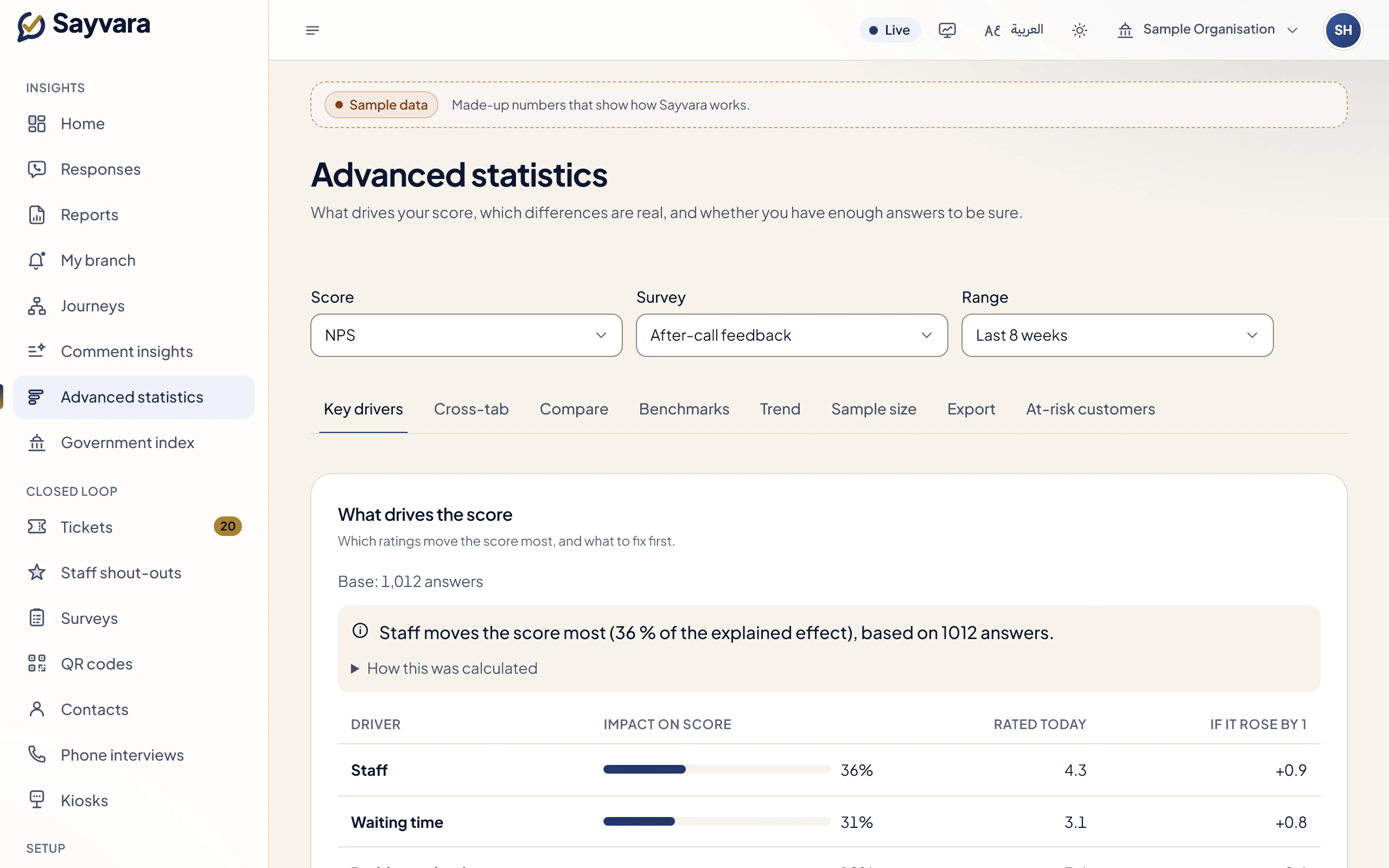
Three controls above the tabs apply to every tab:
| Control | Choices |
|---|---|
| Score | NPS, Satisfaction (CSAT) or Effort (CES) |
| Survey | One of your surveys. Key drivers come from that survey's rating questions. |
| Range | Last 7 days, Last 30 days, Last 8 weeks or Last 90 days |
Your choices are kept in the page address, so a bookmarked or shared link opens the same view.
Read the explanation
Each result starts with a short sentence that says what the numbers mean. Under it:
- cautions, marked with a warning sign, for example about a small base;
- How this was calculated opens the method, for readers who want the detail.
Small bases
Each table shows its base, for example Base: 240 answers. When a group has too few answers, you see Small base: the result is shown as an early hint and never called significant. A value that cannot be worked out shows a dash (—).
Page funnel
The Page funnel tab shows how people move through a page: how many reach each section, move on from it, or close the page there.
- Choose Survey pages to see a survey's pages, or Portal pages to see a public portal page.
- Under Portal pages, pick the Portal page: Public results page or Case status page. The survey you chose above does not apply to portal pages.
- Portal pages are counted only while portal page measurement is switched on for your app. The Case status page is counted only for workspaces listed for it that hold case references. When a portal page has no visits in the range, a note above the funnel says this.
- Only members who see the whole organisation can read the portal page funnel.
Tabs in this area
Was this page helpful?
Thanks. Need more help? Email support@sayvara.com