Create a journey map
Start a journey map from a ready journey or draw your own from scratch, then name it in English and Arabic.
You can start from a ready journey and change it, or draw your own from a blank map. Either way you need the survey designer permission.
Start from a ready journey
- In the side menu, select Journeys.
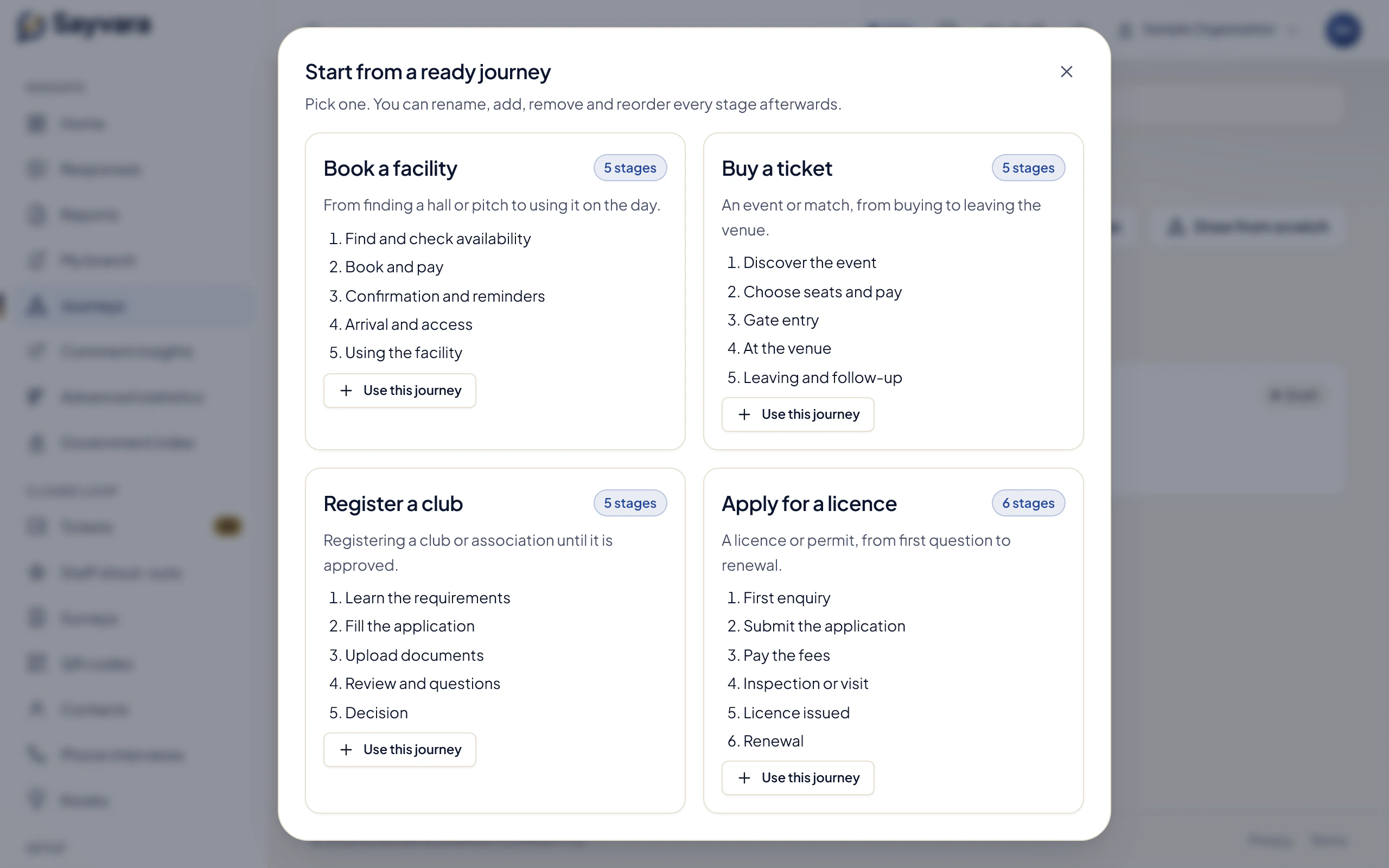
- Select New from template. The Start from a ready journey window opens.
- Each ready journey shows its name and how many stages it has. Select Use this journey on the one you want.
- Sayvara creates the map and opens it: Journey created. Add and edit its stages.
You can rename, add, remove and reorder every stage afterwards.
Draw from scratch
- In the side menu, select Journeys.
- Select Draw from scratch.
- Sayvara creates a map called New journey with one stage and opens it.
Name the map
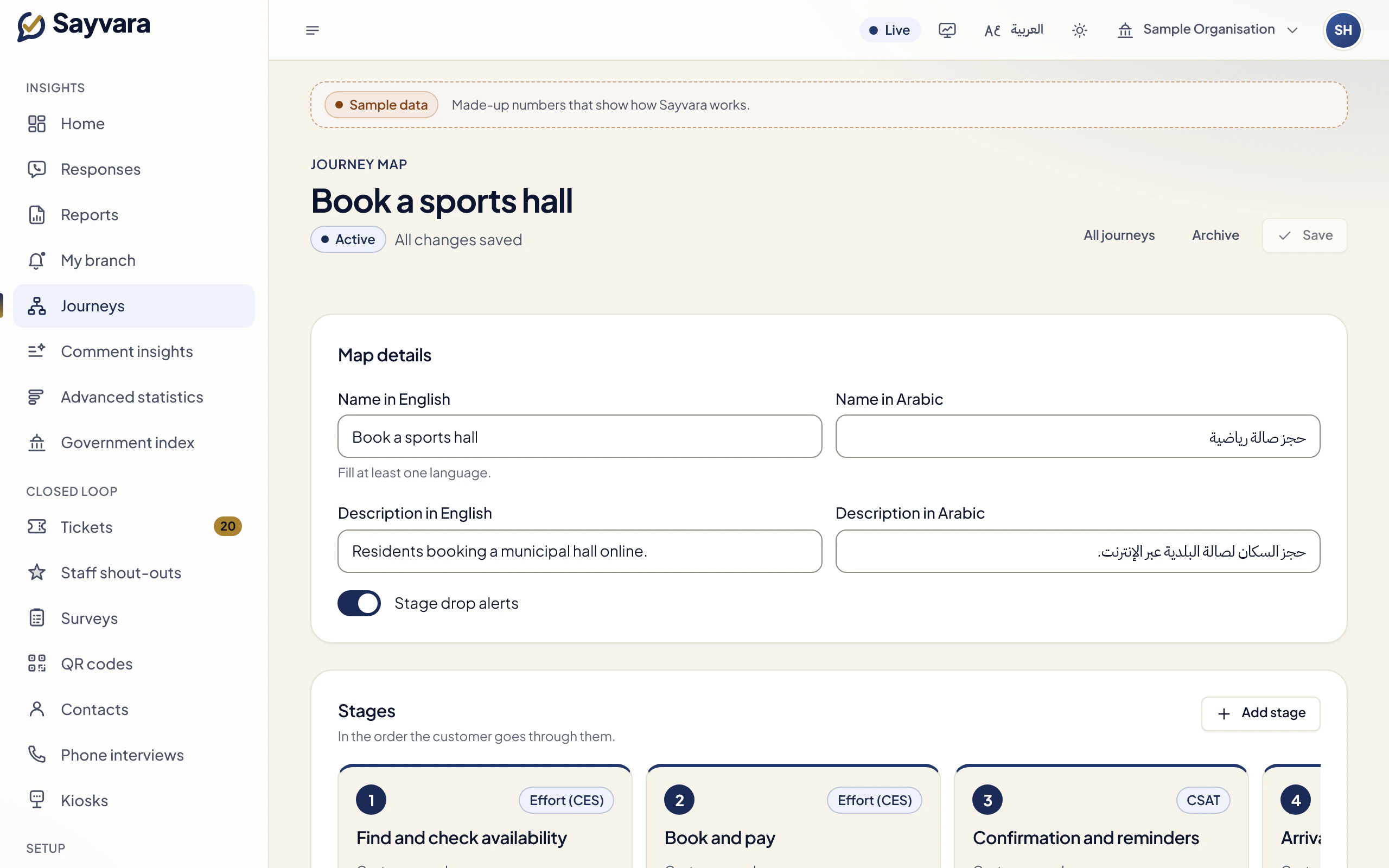
On the canvas, the Map details card holds:
- Name in English and Name in Arabic. Fill at least one language.
- Description in English and Description in Arabic (optional).
Select Save in the top right to keep your changes. The status next to the title says Unsaved changes or All changes saved.
Find your maps
The Journeys list shows every map with its status (In set-up, Active or Archived), its number of stages, and when it was last updated. Archived maps are hidden until you turn on Show archived.
Select a map's name to open it.
Next
Was this page helpful?
Thanks. Need more help? Email support@sayvara.com