Send and share a survey
How a live Sayvara survey reaches customers through QR codes, kiosks, web links, the website widget, in-app surveys and events from your own systems.
A survey must be published before it can reach anyone. QR codes, kiosks and connections only let you choose live surveys. If you see Publish a survey first, publish it. See Check, publish and versions.
Ways to reach customers
| Way | Best for | Where to set it up |
|---|---|---|
| QR code | Branches, counters, receipts, name badges | QR codes |
| Web link | Sharing on your website, in an email you send, or on social media | The link in a QR code (see below) |
| Kiosk | A tablet at the branch, even without internet | Kiosks |
| Website widget | A small prompt on your website, on chosen pages or after a task | Website widget |
| In-app survey | Signed-in users of your web or mobile app, after an event in the app | In-app surveys |
| Events from your systems | Sending a survey on WhatsApp, SMS or email after a visit, call, order or ticket | Integrations overview |
Share a web link
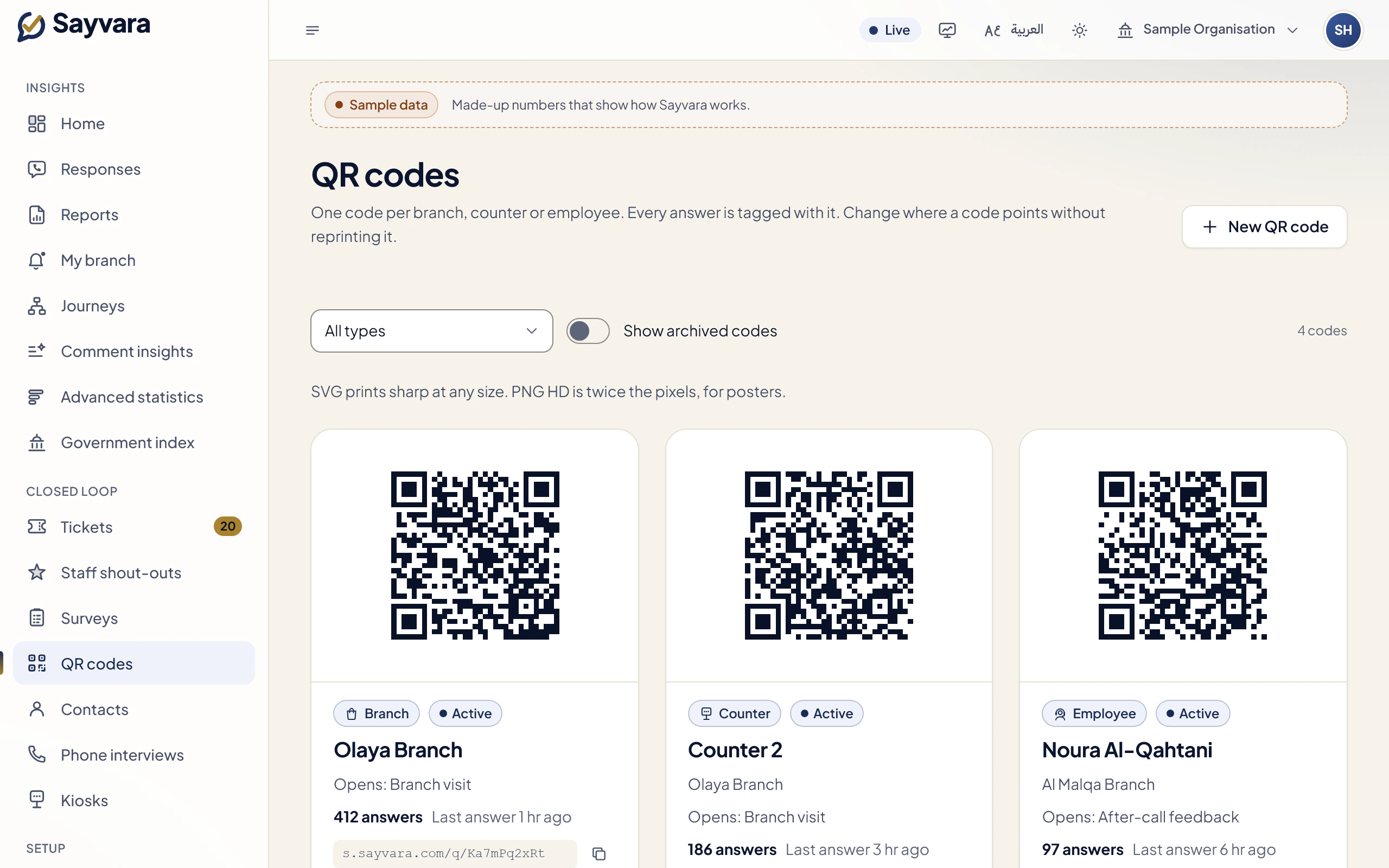
Every QR code holds a web link to its survey. You can copy that link and share it anywhere:
- Go to QR codes and make a code for the branch the link is for. See QR codes.
- On the code's card, under Link in the code, select Copy link.
- Paste the link in your email, website or message.
Answers through the link are tagged with that code and its branch, so you can see where they came from.
Send after a moment in your own systems
The most powerful way is to let your systems tell Sayvara when something happens: a branch visit, a delivered order, a closed ticket, a finished call. Sayvara then sends the right survey to the customer on WhatsApp, SMS or email.
- Ready connections: Five Rivers products (Telyzer, Telvory Desk), CRMs, help desks and contact centres. See Connectors.
- Your own systems: a developer creates an API key in Developer and sends events. See Integrations overview.
The survey goes out on WhatsApp where possible. If WhatsApp is not available for that customer, it can go by SMS or email. See Channels.
Rules Sayvara always follows
Before any invitation goes out, Sayvara checks:
- Opt-out: people who opted out never get a survey.
- Contact frequency: a person is not surveyed too often. See Contact frequency.
- Quiet hours and send window: messages wait for a suitable time.
- Your plan: monthly message limits. See Plan and limits.
When an invitation is held back, the reason is recorded, for example Opted out, Surveyed recently, Another survey went out recently, No way to reach them or Too late to send.
Prepare your contacts
Surveys on WhatsApp, SMS and email go to people in Contacts. You can import them from a CSV file. Importing never marks anyone as opted in. See Consent and opt-out.
Check that it works
- Scan your QR code or open the link on your phone.
- Answer the survey as a customer would.
- Open Responses. Your answer appears within seconds in the list and on the Live feed on Home.
Related pages
Was this page helpful?
Thanks. Need more help? Email support@sayvara.com