Your first survey in 10 minutes
Create a survey from a ready template, check it, publish it and share it with a printable QR code.
This guide takes you from an empty account to a live survey that customers can answer.
Step 1: Create the survey
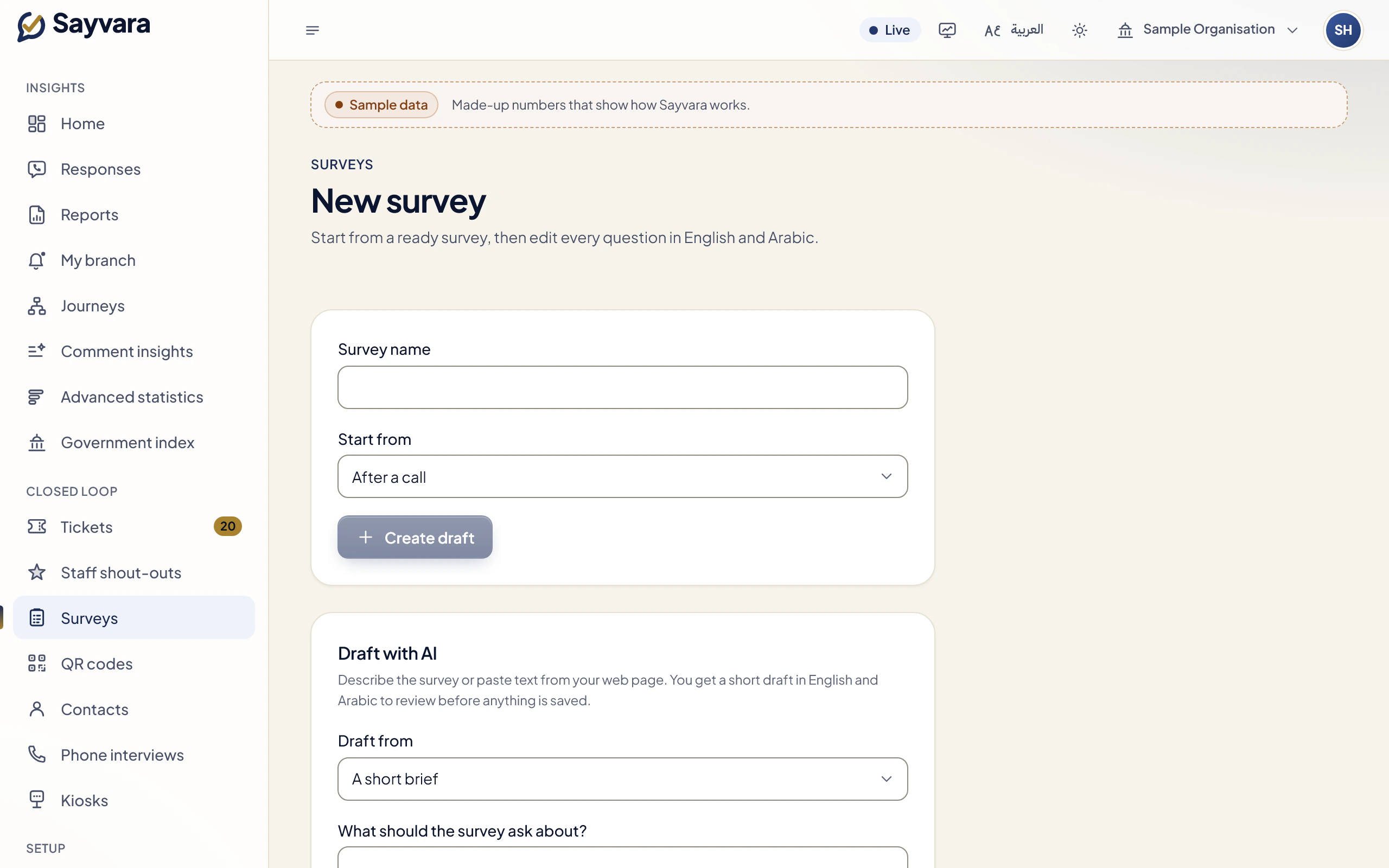
- In the menu, select Surveys.
- Select New survey.
- Enter a Survey name, for example "After a branch visit".
- Under Start from, choose a ready survey, such as NPS, Satisfaction (CSAT) or After a visit.
- Select Create survey.
Sayvara opens the survey builder with the questions of the template, in the survey's working copy. Nothing is sent to anyone until you publish.
Step 2: Edit the questions
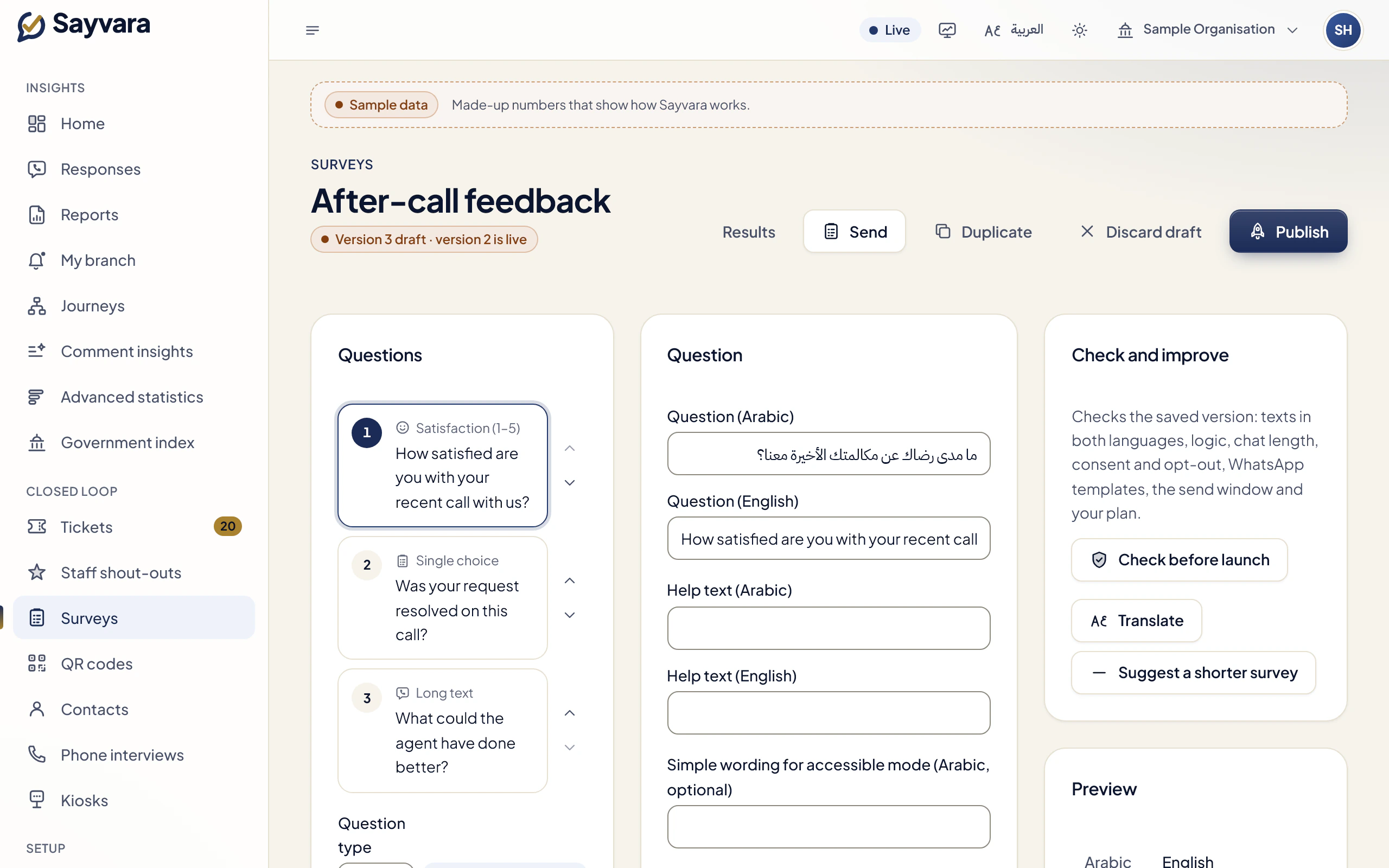
Every question has an English and an Arabic version. Customers see the one in their language.
- To change a question, edit Question (English) and Question (Arabic).
- To add a question, select Add question and pick a Question type.
- To make an answer mandatory, tick Answer required.
- To change the order, use Move up and Move down.
Select Save changes when you are done. The builder shows All changes saved.
Step 3: Check and publish
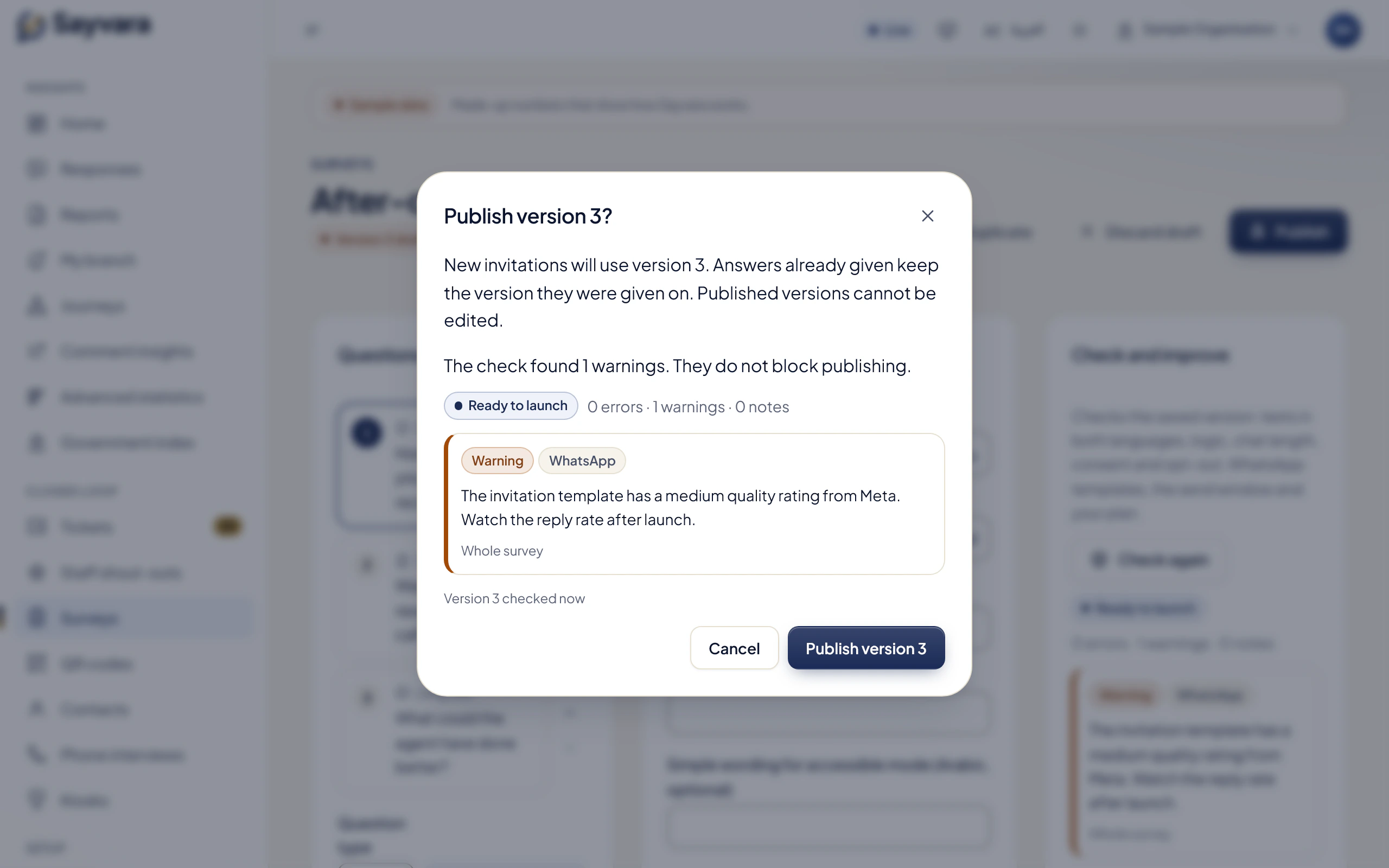
- Select Publish. Sayvara checks the survey before it goes live and lists anything to fix.
- Fix any errors it finds. Warnings do not block publishing.
- Confirm with Publish version 1.
The survey is now live. Published versions cannot be edited: each time you change the survey, you work on a new working copy and publish it as the next version. Answers already given keep the version they were given on.
Step 4: Share it with a QR code
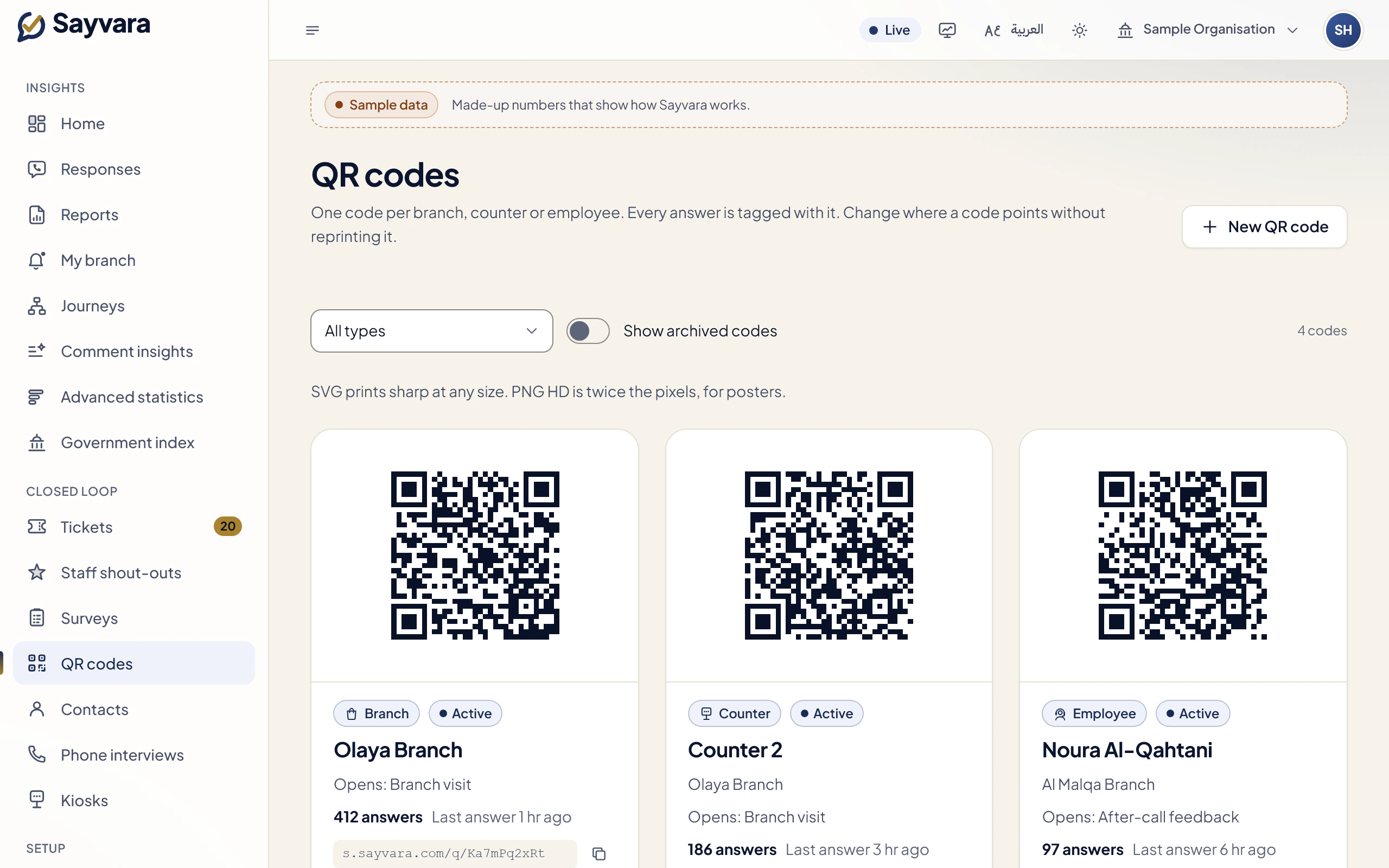
A QR code is the quickest way to collect your first answers, for example on a counter or a receipt.
- In the menu, select QR codes.
- Select New QR code.
- Under What is it for?, choose Branch, Counter or Employee.
- Choose the Branch or unit, and the Survey it opens.
- Choose the First language of the page: Arabic or English.
- Select Make code.
- Select Download and pick SVG (sharp at any size), PNG or PNG HD (for posters).
You can also select Copy link to share the survey link itself.
Step 5: See the answers
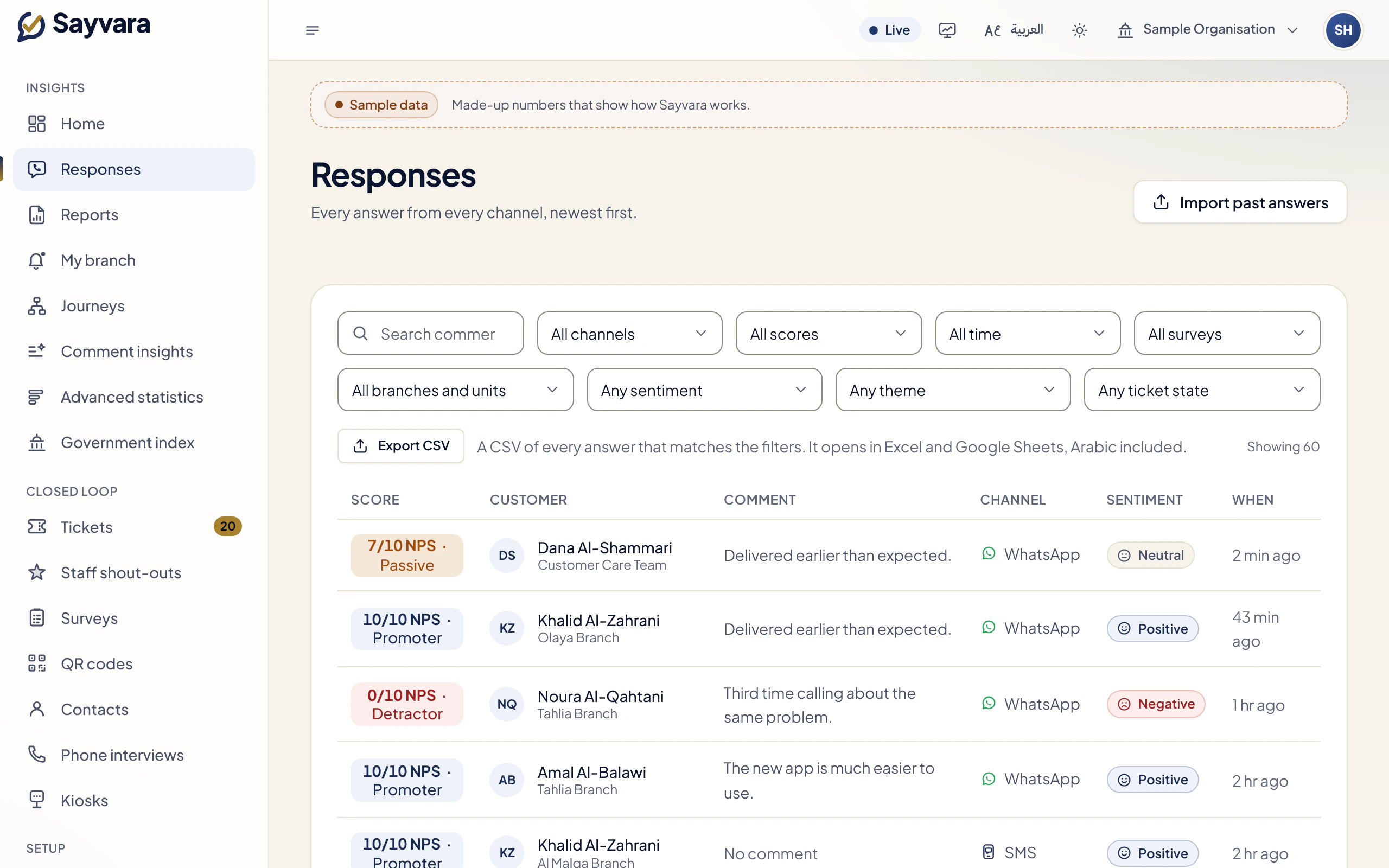
Scan your code with a phone and answer the survey once yourself. Then open Responses in the menu: your answer appears there. Low scores also open a follow-up in Tickets.
What next?
- To send surveys on WhatsApp, your organisation connects its number in Channels.
- Questions? See Getting help.
Was this page helpful?
Thanks. Need more help? Email support@sayvara.com