TV mode
Show your Sayvara dashboard on a wall screen with rotating panels, alternating Arabic and English, and a praise ticker.
TV mode shows your dashboard on a big screen in the branch, the contact centre or the office. Panels rotate on their own, and the screen updates live as answers arrive.
Open TV mode
- On a computer connected to the screen, sign in to Sayvara.
- Go to Home and select Open TV mode.
The dashboard fills the screen. It works on any screen shape, in portrait or landscape.
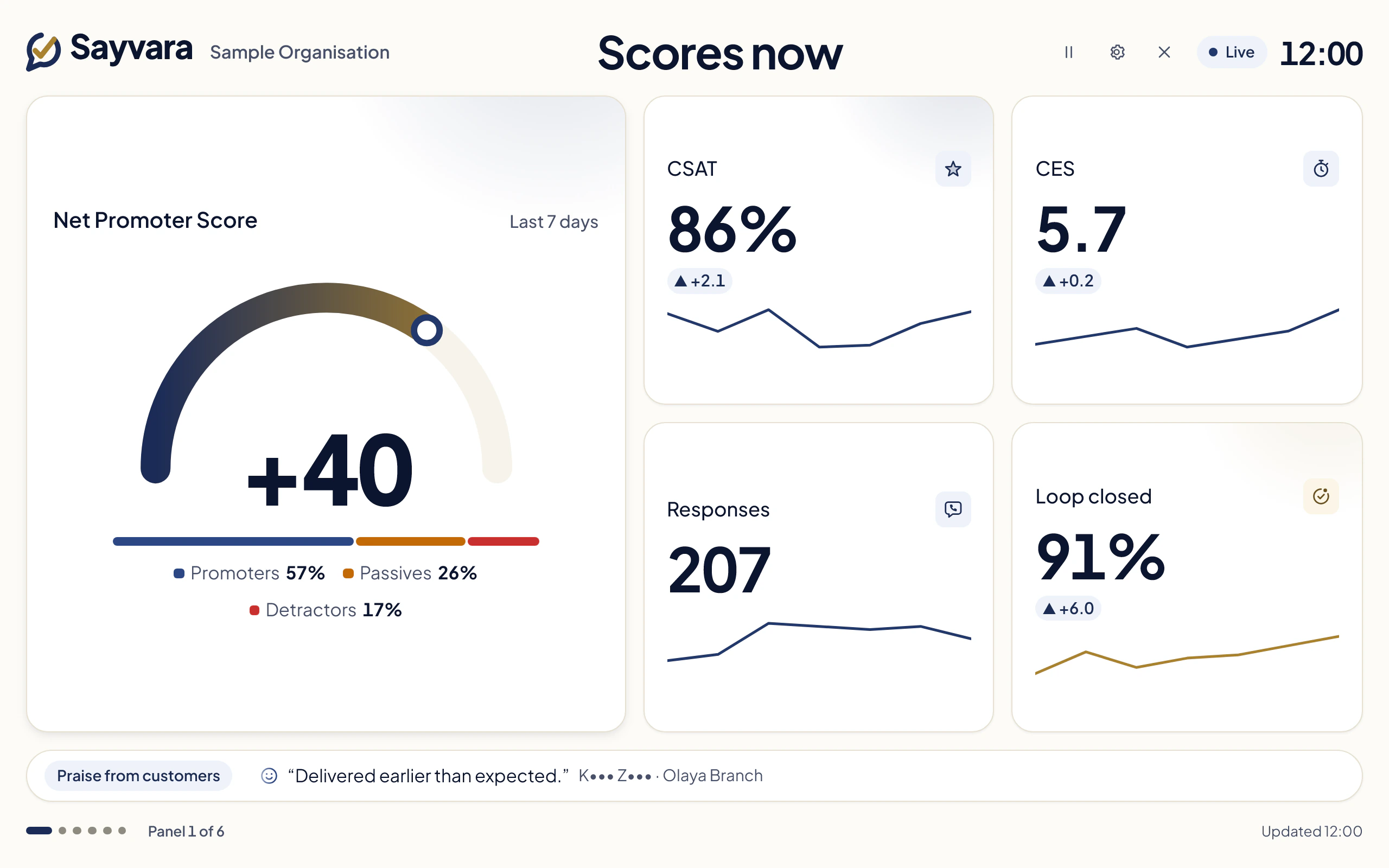
The panels
| Panel | What it shows |
|---|---|
| Scores now | Your main scores |
| Last 30 days | The score trend |
| What customers talk about | The top themes in comments |
| Recent praise | Kind words from customers |
| Unhappy customers waiting | Open tickets waiting for a reply |
| Latest answers | The newest answers |
| Staff shout-outs | Customers' praise of named staff |
| Branch stars | Each branch's star rating. Off until you turn it on. |
A wall screen is seen by anyone in the room, so it never shows a customer's full name or phone number, and phone numbers or email addresses inside comments are hidden.
Branch stars
The Branch stars panel shows your branches' star ratings on the wall, best rated first. Each card has the branch name, its stars from 1 to 5 in half stars, and its score. The panel also shows the period and how the stars are worked out. If not every branch fits on the screen, a line such as Plus 3 more branches counts the rest.
To show it, open Screen settings and tick Branch stars under Panels to show. It is not shown until you do.
Good to know:
- Only branches with enough answers and visits get stars. Branches below that level are left off the wall.
- The screen shows only the branches its account can see.
- The stars refresh every 15 minutes.
- The panel shows ratings only, never customer details.
- If no branch has stars, the panel is left out of the rotation. If it is the only panel, it says Branch stars appear here once branches have enough answers and visits.
Controls
The small buttons at the top of the screen are:
- Pause rotation and Resume rotation.
- Screen settings.
- Exit TV mode.
With a keyboard: the arrow keys switch panels, Space pauses, and Esc leaves TV mode.
Screen settings
Select Screen settings. The window TV mode settings has:
- Panels to show: tick the panels you want. Keep at least one.
- Change panel every: how many seconds each panel stays.
- Language: My language, Alternate Arabic and English, English only or Arabic only.
- Show the praise ticker: a line of recent praise at the bottom.
Select Done. The settings are saved on this screen only.
If the connection drops
TV mode keeps showing the last data with a banner: Connection lost. Showing data from a time. It picks up again on its own when the connection is back.
If the session ends, the screen keeps its last data and shows This screen was signed out. Select Sign in again to continue.
Good practice
- Use a dedicated account with the Viewer role for wall screens. Viewers see dashboards only, not individual answers. See Roles and permissions.
- Give that account the scope of the branch where the screen hangs, so it shows that branch only.
- Turn on Alternate Arabic and English where staff and customers speak both languages.
Related pages
Was this page helpful?
Thanks. Need more help? Email support@sayvara.com