Work a ticket
Open a Sayvara ticket, read the customer's answer and timeline, change status, assignee, priority and root cause, and resolve it.
A ticket is one unhappy customer to follow up. This page shows how to handle one from start to finish.
Find your tickets
- Go to Tickets.
- Use the tabs to filter by state: Open, In progress, Waiting and Resolved. Each tab shows a count.
- The list shows the Ticket number, Customer, Reason, Score, Assignee, SLA and Priority.
When a tab is empty you see Nothing here. Every loop is closed.
A new ticket also shows as a notice at the top of the app, New ticket: unhappy customer, with Open ticket.
Open a ticket
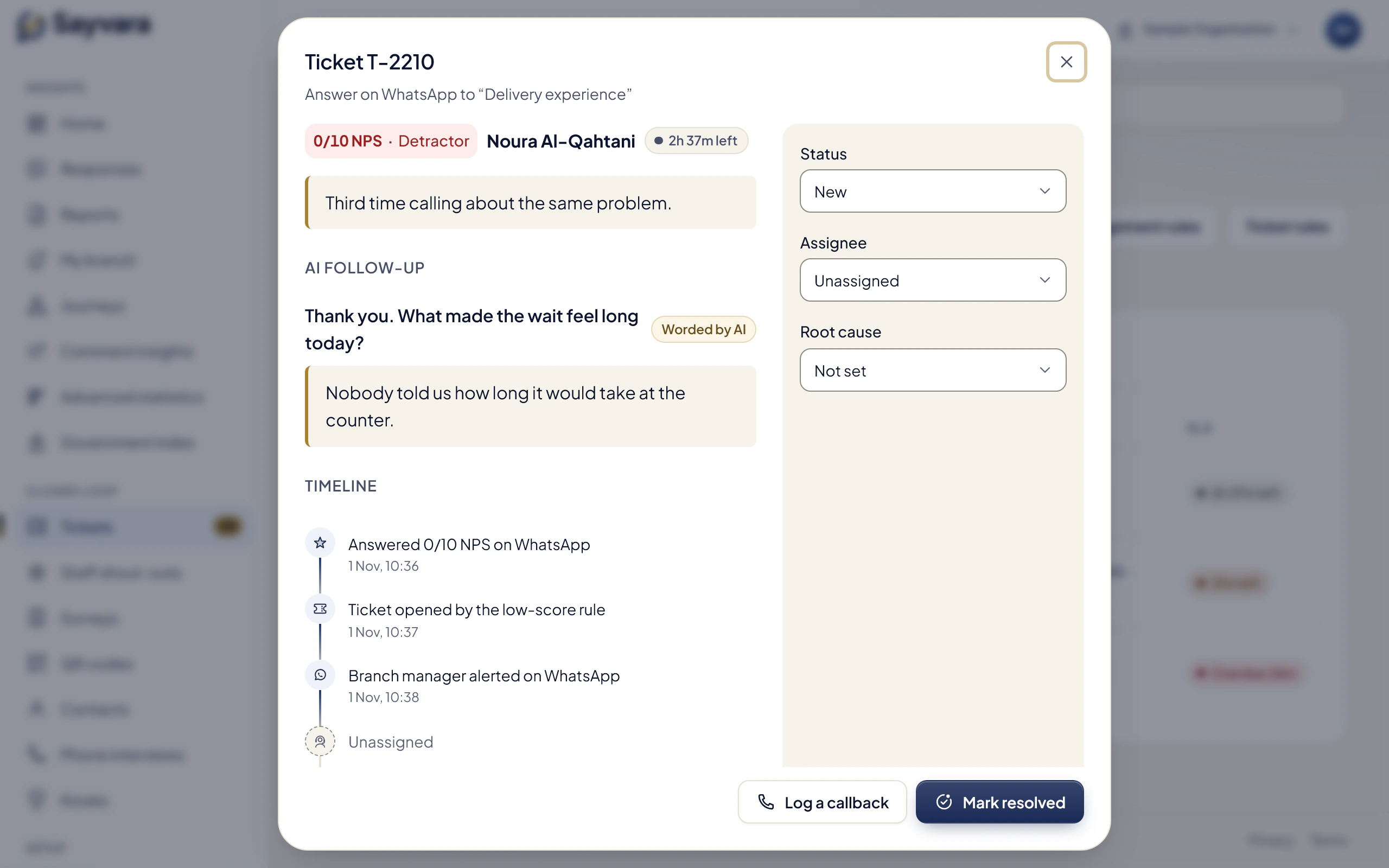
Select a ticket in the list. The ticket window shows:
- The title Ticket and its number, and where it came from, for example "Answer on WhatsApp to 'After a visit'".
- The customer's score and the SLA state.
- Any AI follow-up question and the customer's reply.
- The Timeline: every step taken on the ticket.
- Conversation with the customer: your team's internal notes. See Add an internal note.
- Parts for other teams. See Parts for other teams.
Change the ticket
On the side of the ticket window:
| Field | Choices |
|---|---|
| Status | New, In progress, Waiting for customer, Resolved |
| Assignee | A member of your team, or Unassigned |
| Root cause | Not set, Process, Staff, Product, System |
Each change is saved at once and added to the timeline. You see Ticket updated.
A typical follow-up
- Call the customer. Select Log a callback when you have reached them. The ticket moves to In progress.
- Write what you agreed as an internal note.
- Fix the problem, or hand parts to other teams.
- Set the root cause, so reports can show what goes wrong most often.
- Select Mark resolved.
Read the timeline
The timeline tells the story of the ticket, for example:
- Answered with the score and channel.
- Ticket opened by the low-score rule, or by a ticket rule.
- Manager alerted on WhatsApp, or why no alert was sent, for example No message sent: the manager has no phone or email on file.
- Assigned to a person, Status changed to, Priority changed to, Root cause set to, Note added.
Each step shows who did it and when.
Several anonymous answers in one ticket
Anyone can answer a shared link, a printed QR code or a kiosk. When one link has opened 3 tickets for anonymous answers within 30 minutes, further anonymous low scores from that link join its newest open ticket instead of opening a new ticket each. Answers from personal invitations and known contacts always get their own ticket.
Each joined answer adds a line to the timeline: Another anonymous answer from the same link joined this ticket, with its score. An urgent score raises the ticket to high priority. Handle the ticket once for the whole group of answers.
If the manager alert for a ticket went out in a summary message, the timeline says This alert was included in one summary message to the manager. See Notifications.
Add an internal note
Notes record what you did and agreed. Only people in your organisation see them. The customer never does.
- Open the ticket.
- Under What to write, choose Internal note.
- Type in Note for your team.
- Select Add note.
You see Note added, and the note appears in the conversation and on the timeline.
If a customer asks for their data to be removed, their messages show Removed at the customer's request. See Privacy and data.
Priority
Tickets have a High, Medium or Low priority. Low scores and ticket rules set it when the ticket opens. Work high-priority tickets first.
Related pages
Was this page helpful?
Thanks. Need more help? Email support@sayvara.com