Question types
Every question type in the Sayvara survey builder, from NPS and star ratings to matrices, MaxDiff and contact details.
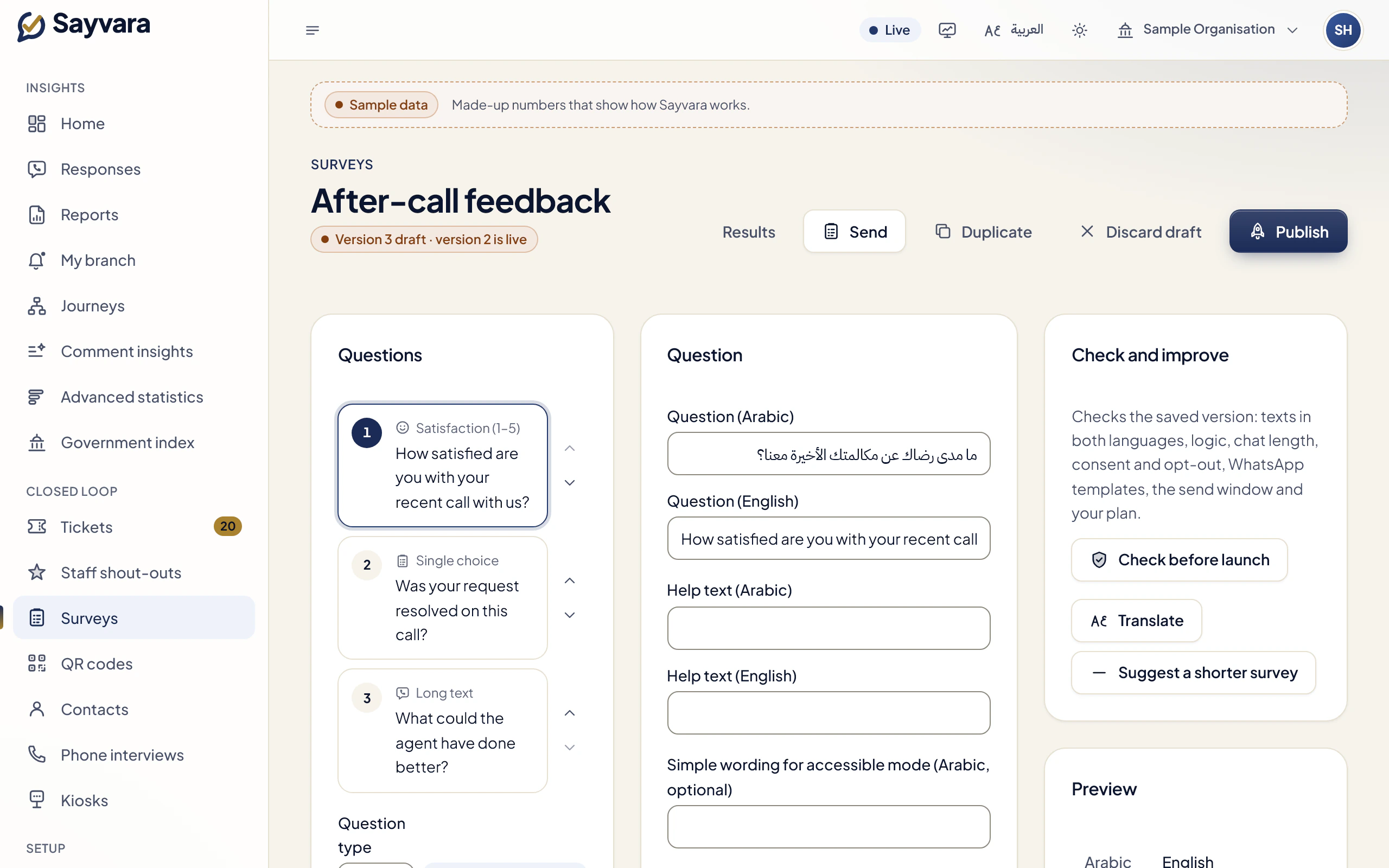
Choose the type in Question type before you select Add question. Every type works on the survey web page. Most also work in WhatsApp and SMS; the builder's How it shows in chat tells you how. See The survey builder.
Scores
| Type | What the customer does | Settings |
|---|---|---|
| NPS (0–10) | Picks 0 to 10 for "How likely are you to recommend us?" | - |
| Satisfaction (1–5) | Picks 1 to 5 | - |
| Effort (1–7) | Picks 1 to 7 for how easy it was | - |
| Star rating | Taps a number of stars | Number of stars |
| Emoji scale | Taps a face | Faces |
NPS, CSAT and CES answers feed the scores on Home and in reports.
Choices
| Type | What the customer does | Settings |
|---|---|---|
| Single choice | Picks one option | Options |
| Multiple choice | Picks several options | Options, Choose at least, Choose at most |
| Dropdown | Picks one option from a list | Options |
| Ranking | Puts options in order | Rank only the top (leave empty to rank them all) |
Text, numbers and dates
| Type | What the customer does | Settings |
|---|---|---|
| Short text | Writes a short answer | Longest answer (characters) |
| Long text | Writes a longer comment | Longest answer (characters) |
| Number | Types a number | Lowest, Highest, Whole numbers only |
| Date | Picks a date | Earliest date, Latest date |
| Slider | Drags a slider | Lowest, Highest, Step, words for each end |
Grids and research questions
| Type | What the customer does | Settings |
|---|---|---|
| Matrix (grid) | Rates several rows on the same columns | Rows, Columns |
| Side-by-side grid | Rates rows on several scales at once | Rows, Scales |
| Constant sum | Spreads a number of points across options | Points to spread |
| Semantic differential | Places themselves between two opposite words | Word pairs, Points on the scale |
| Most and least (MaxDiff) | In each set, picks the best and the worst item | Items, Items in each set, Number of sets |
In a chat, grids ask one row or scale per message, and MaxDiff asks one set per message.
Contact details and address
| Type | What the customer does |
|---|---|
| Contact details | Shares a Full name, Mobile number or Email, and ticks "I agree" |
| Saudi National Address | Types a short address (for example RRRD2929) or the full National Address |
For Contact details, tick only the Details to ask for that you need, and write What the person agrees to in English and Arabic: who will contact them and why. Nothing is kept unless the person ticks the box. Reports only count how many people shared their details. See Consent and opt-out.
For Saudi National Address you can also offer Share my location. Each part of the address is checked as the person types. In WhatsApp and SMS they reply with the short address or five lines.
Accessible wording
Every question also has Simple wording for accessible mode in English and Arabic. It is optional. People who use accessible mode see this simpler text. See Survey look and access.
Picture choice
A Picture choice question shows pictures that people tap to answer. Under Pictures, use Add picture for each option and give it a Name in English and Arabic.
- Use Upload picture (or Replace picture) on each option. Pictures must be PNG, JPEG or WebP, up to 2 MB.
- Fill in What the picture shows in English and Arabic. Screen readers read this text aloud.
- Tick Allow more than one picture to let people pick several.
- Survey pages show the pictures once the survey is published.
- Publishing is refused until every option has an uploaded picture: "Upload a picture for every option before publishing."
Choosing the right type
- Start with one score question (NPS, CSAT or CES) and one "why" question (Long text).
- Keep chat surveys short. Three to five questions work best on WhatsApp.
- Use Single choice with up to three options if you want WhatsApp reply buttons.
- Use grids and MaxDiff for research surveys sent as a web link, not for quick feedback.
Related pages
Was this page helpful?
Thanks. Need more help? Email support@sayvara.com