Services and transaction volumes
Import your monthly transaction volumes from a CSV file, then link each service to the survey that measures it.
The index weights each service by how many transactions it has. So you start by importing your volumes, and then tell Sayvara which survey measures each service.
Import transaction volumes
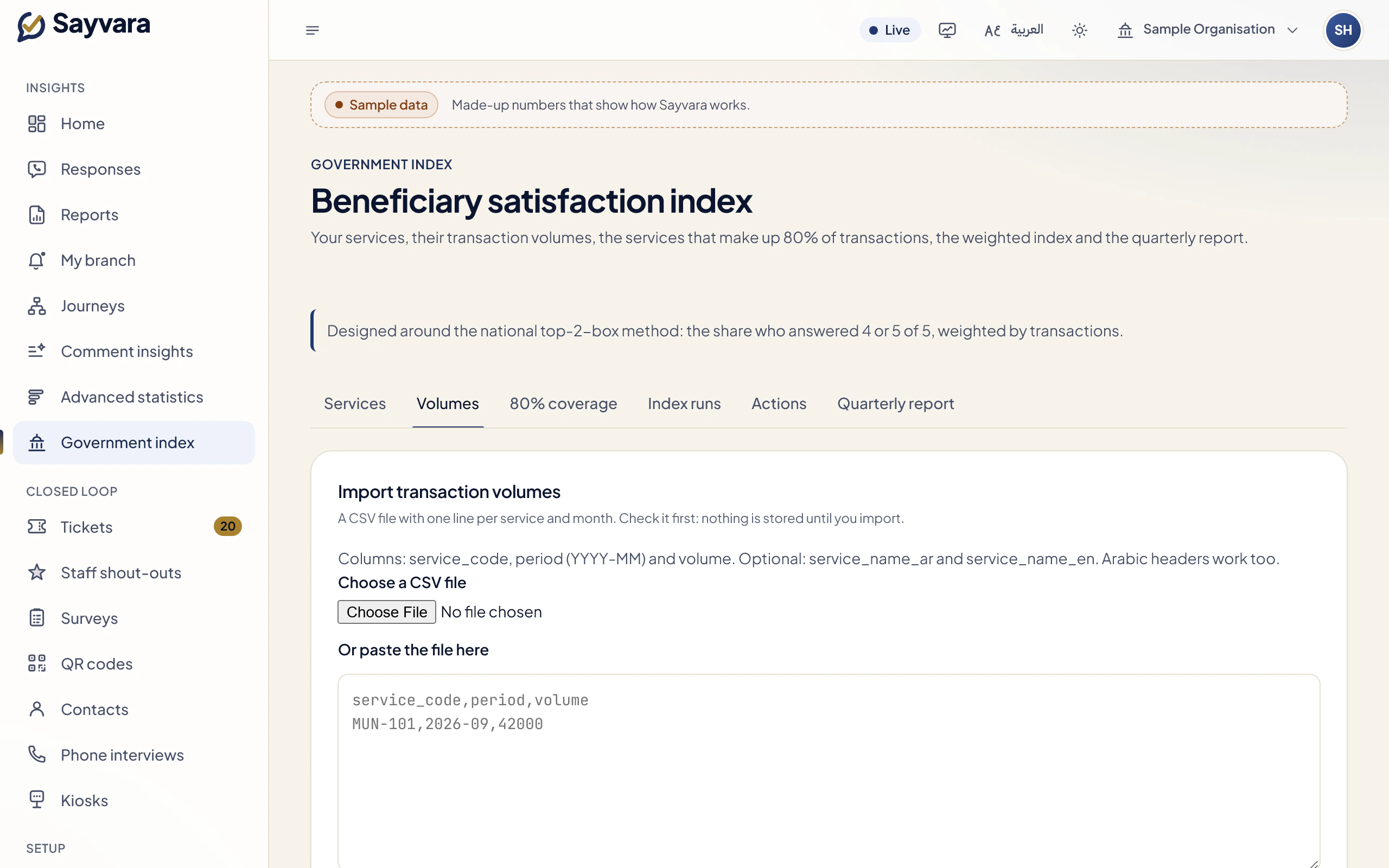
- Open Government index and select the Volumes tab.
- Prepare a CSV file with one line per service and month. Columns:
service_code,period(asYYYY-MM) andvolume(required);service_name_arandservice_name_en(optional). Arabic headers work too.
- Select Choose a CSV file, or paste the file into Or paste the file here.
- Select Check file. Nothing is stored at this step. The Check result shows:
- how many lines can be imported;
- how many lines have problems and will be skipped, each with its line, column and reason;
- which services these lines would select, and what share of all transactions they cover.
- Fix any problems in your file if you need to, then select Import.
- You see how many lines were imported, for which months, and how many new services were added.
Select Clear to start again.
service_code,period,volume,service_name_en,service_name_ar
LIC-01,2026-07,12450,Licence renewal,تجديد الرخصة
LIC-01,2026-08,11980,Licence renewal,تجديد الرخصةCommon problems
| Problem | Fix |
|---|---|
| The service code is not valid (letters, digits, - _ . up to 40 characters). | Use letters, digits, -, _ or ., up to 40 characters. |
| The month is not valid. Use YYYY-MM. | Write months like 2026-07. |
| The volume must be a whole number of 0 or more. | Remove decimals, spaces and negative numbers. |
| The same service and month appear twice. | Keep one line per service and month. |
Link services to surveys
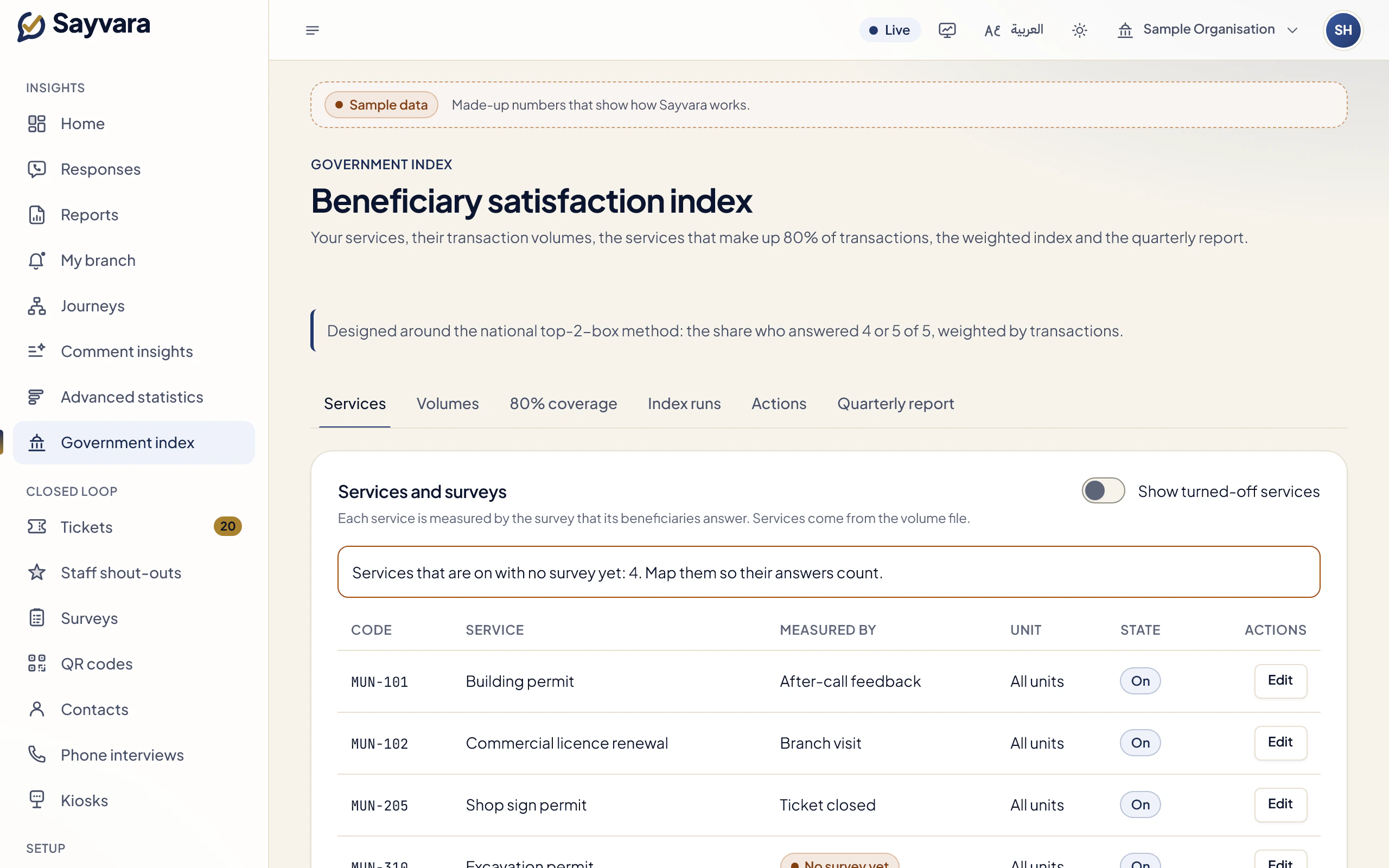
Every service code in your volume file appears on the Services tab.
- Select the Services tab. A note tells you how many services are on with no survey.
- Select Edit on a service. The Edit service ... window opens.
- Fill in Name in English and Name in Arabic.
- Under Surveys that measure this service, pick one or more surveys. Answers to these surveys count for this service.
- Optional: in Only answers from this unit, pick a unit if only one unit's answers should count.
- Keep Include this service switched on, or switch it off to leave the service out.
- Select Save.
A service with no survey shows No survey. Turned-off services are hidden until you turn on Show turned-off services.
Next
Was this page helpful?
Thanks. Need more help? Email support@sayvara.com