Branding
Set the sender name your customers see on Sayvara survey pages, and hide the Sayvara mark on the Enterprise plan.
The Branding tab controls how your organisation's name appears to customers on your survey pages. Only owners and admins see it. Others see Only owners and admins can change the branding.
For colours, logo and fonts of one survey, see Look, access and privacy.
Branding
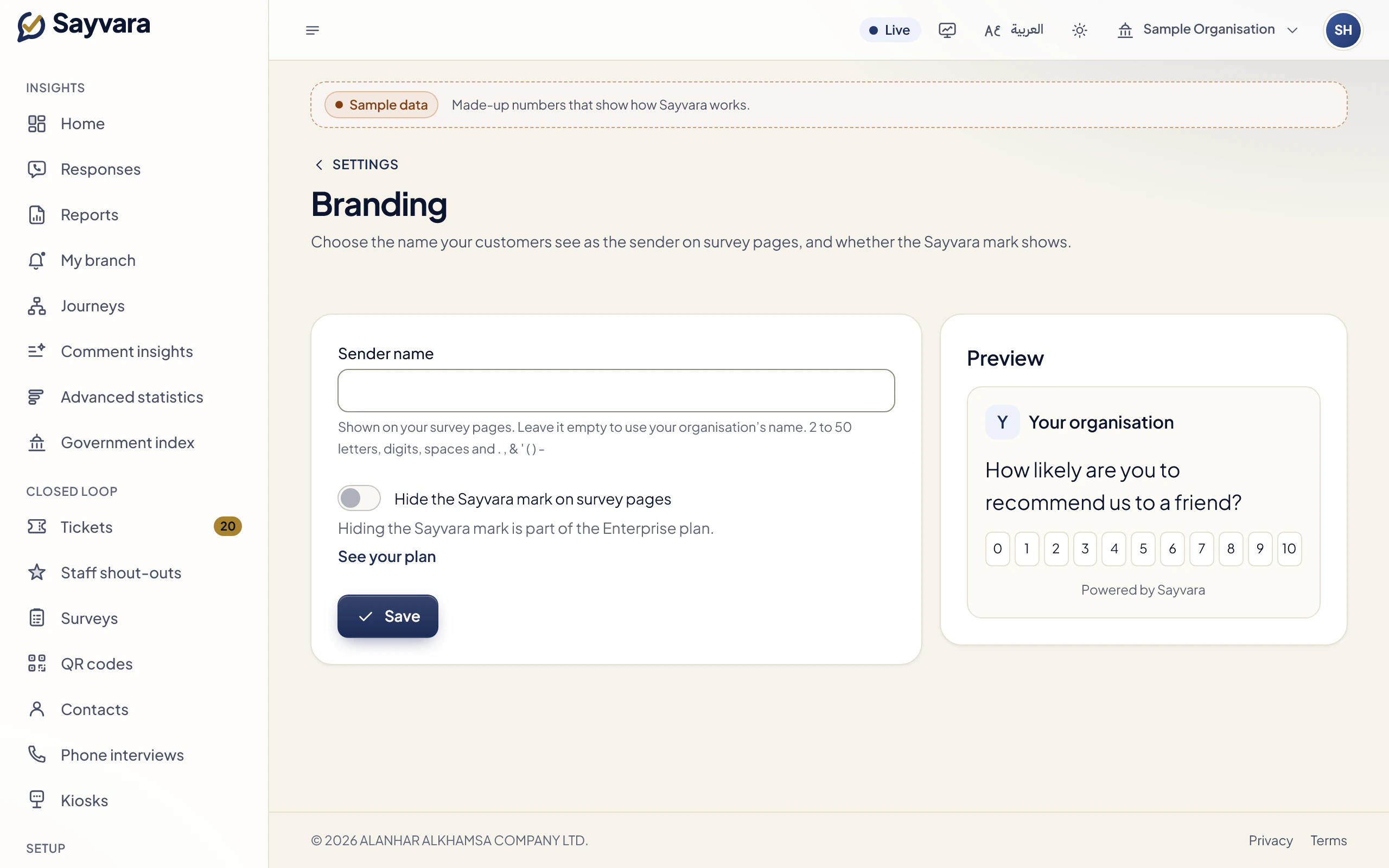
- Go to Settings > Branding and select Open branding settings.
- In Sender name, type the name customers see on your survey pages. Leave it empty to use your organisation's name. Use 2 to 50 letters, digits, spaces and . , & ' ( ) -.
- Optionally tick Hide the Sayvara mark on survey pages.
- Check the Preview.
- Select Save. You see Branding saved.
About hiding the Sayvara mark:
- It is part of the Enterprise plan. On other plans the option is locked and says so.
- Your customers then see only your name. The privacy notice still says that Sayvara processes the answers for you.
- If you asked to hide it but your plan does not include it, the page tells you the mark still shows.
Choose a good sender name
- Use the name your customers know you by, for example your brand or store name, not your legal company name.
- Keep it short. It must be 2 to 50 characters.
- Use your organisation's own name. A name that is not yours is refused: This sender name cannot be used. Use your organisation's own name.
- If you have several brands, set the sender name to the brand most customers know. Each survey can still show its own logo and colours.
What customers see
- Your sender name on each survey page.
- The line Powered by Sayvara, unless you hide the Sayvara mark on the Enterprise plan.
- A link to the privacy notice.
The Preview on the page shows a sample question with your name, so you can check it before you save.
Related pages
Was this page helpful?
Thanks. Need more help? Email support@sayvara.com