Logic, jumps and repeats
Show survey questions only when they matter, jump ahead, carry options forward and repeat questions for each answer.
Logic keeps a survey short. People only see the questions that matter to them. You set logic per question, in the Logic part of the question editor.
Show a question only when it matters
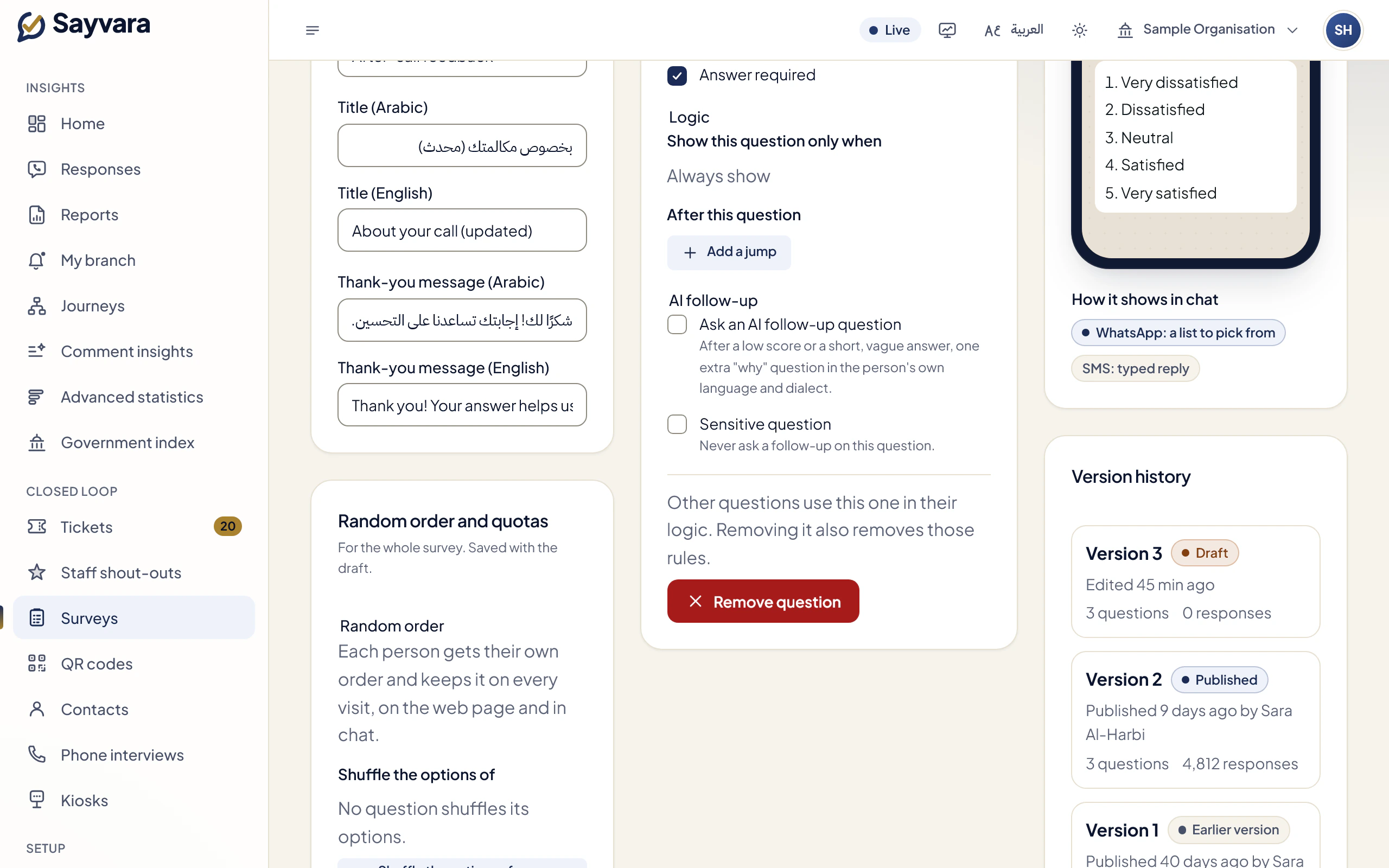
Example: ask "What went wrong?" only when the NPS score is 6 or below.
- Select the question "What went wrong?".
- Under Logic, select Show this question only when.
- In When, choose the earlier question, for example the NPS question.
- Choose the comparison and the value, for example is at most 6.
Without a rule, the question shows Always show. To remove a rule, select Always show.
Comparisons you can use
| Comparison | Use it with |
|---|---|
| is answered / is not answered | Any question |
| is / is not | Choices and numbers |
| is below / is at most / is above / is at least | Scores and numbers |
| includes | Multiple choice |
A rule can only look at questions that come before it.
If a survey has a rule that was made outside the builder, you see Advanced rule (kept as it is). It still works; the builder just does not edit it.
Jump ahead after a question
Example: if the customer says they did not visit a branch, skip the branch questions.
- Select the question.
- Under After this question, select Add a jump.
- Set When: the answer that should trigger the jump.
- Set Jump to: a question further on, or The end.
You can add several jumps to one question. Use Remove jump to delete one.
A jump to The end before the last question counts as "screened out" in the Quit and screen-out report.
Carry options forward
Example: "Which services did you use?" (multiple choice), then "Which one was best?" showing only the services they picked.
- Select the choice question that comes after it.
- In Options and repeats, under Options, choose Only those chosen in and the earlier question. Or choose Only those not chosen in for the opposite.
The options now come from the earlier question and follow its changes. Edit them there.
Repeat questions for each answer
Example: for each service the customer used, ask a rating and a comment.
- Select the first question that should repeat.
- In Options and repeats, select Repeat from this question for each answer.
- In For each option chosen in, choose the multiple-choice question.
- In Repeat up to and including, choose the last question of the repeated block.
Write {{loop}} in a question to show the option being asked about, for example "How was {{loop}}?".
To stop, select Stop repeating. The Question results report shows repeated questions round by round, one row per option.
Tips
- Keep logic simple. Two or three rules are easier to test than twenty.
- After adding logic, run Check before launch. It finds rules that point to removed questions. See Check, publish and versions.
- Questions in a random group cannot jump or depend on each other. See Random order and quotas.
- Use Preview to walk through the survey and test each path.
Related pages
Was this page helpful?
Thanks. Need more help? Email support@sayvara.com