Kiosks
Run a survey on a tablet at your branch, pair it with a one-time code, keep collecting answers offline, lock it with an exit PIN and revoke it safely.
A kiosk is a tablet at a branch that runs one survey. It keeps working without internet and sends the answers when it is back online.
Owners, admins and managers can add, pair and revoke kiosks. Everyone else can see the kiosks and how they sync.
Make a kiosk
- Go to Kiosks and select New kiosk.
- Type a Kiosk name, for example "Entrance tablet". It is shown here and on reports.
- Choose the Branch and the Survey. Only live surveys are listed.
- Choose What guests see:
- Smiley faces: one tap on five faces. Uses the first question of the survey.
- Full survey: the whole survey, one question per screen.
- Choose the First language on the tablet.
- Set Back to the start after (seconds): with no touch for this long, the tablet starts over for the next guest. Use 10 to 300 seconds.
- Optional: type an Exit PIN for staff (6 to 8 digits). Without one, staff cannot open the staff menu on the tablet. Easy PINs such as 123456 or 111111 are refused. See Exit PIN.
- Select Make kiosk.
You see Kiosk ready. Now pair a tablet.
Pair a tablet
- On the kiosk's card, select Pair a tablet.
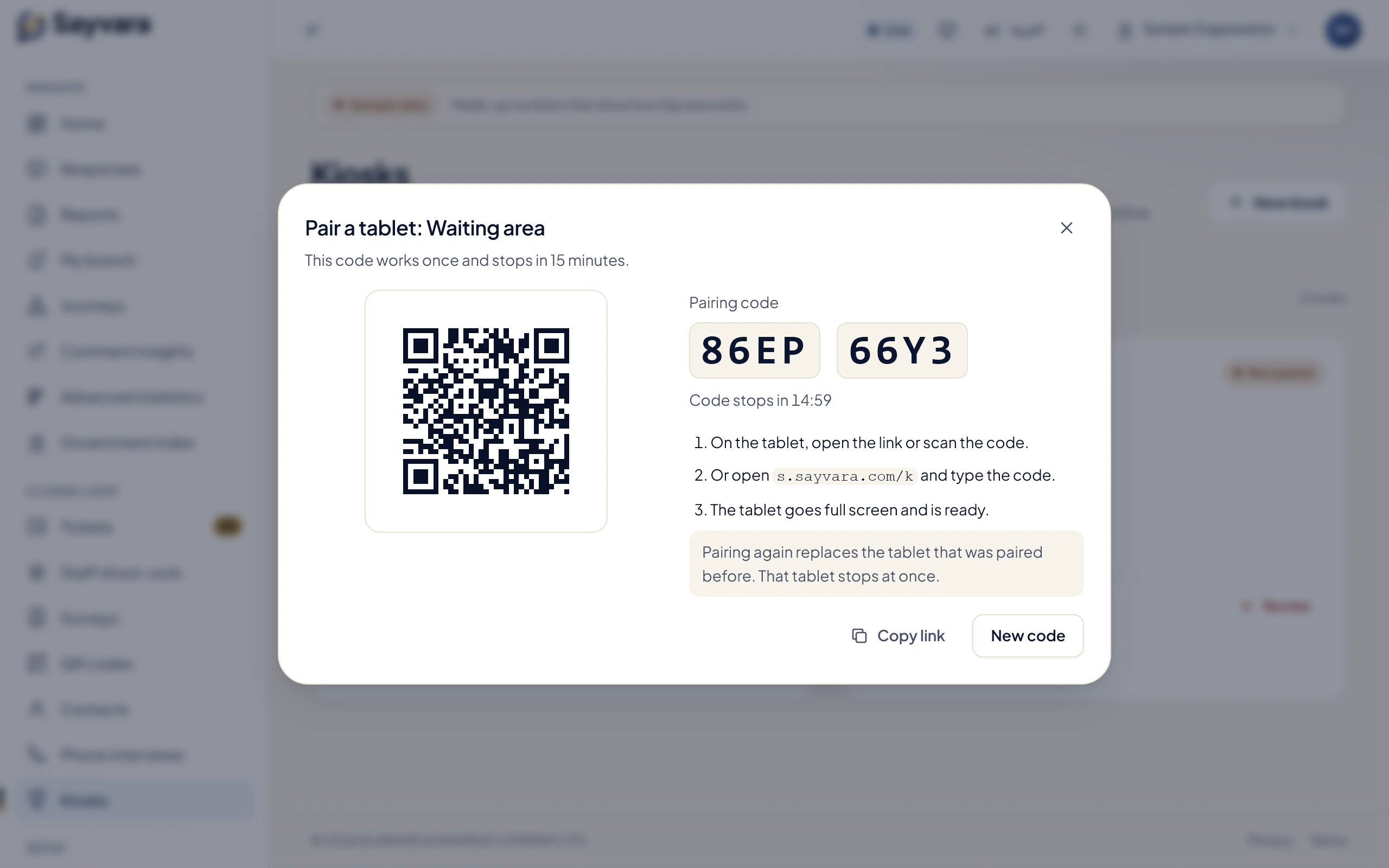
- A window shows a Pairing code and a QR code. The code works once and stops in 15 minutes.
- On the tablet, scan the QR code or open the link. Or open the address shown in the window and type the code.
- The tablet goes full screen and is ready.
If the code stops before you use it, select New code.
Watch your kiosks
Each kiosk card shows:
| It shows | Meaning |
|---|---|
| Paired, Not paired or Revoked | The kiosk's state |
| Last seen | When the tablet was last online |
| Last sync | When it last sent answers |
| answers waiting on the tablet | Answers collected offline that the tablet has not sent |
| answers in total | Everything collected to date |
| Exit PIN set or No exit PIN | Whether staff can open the staff menu on the tablet |
| Little free space on the tablet, No free space left on the tablet, Many answers waiting on the tablet, Too many answers waiting on the tablet or Answers have waited on the tablet for over 5 days | What the tablet's storage needs and what to do. See Storage on the tablet |
| Oldest answer on the tablet was given ... | An answer has waited on the tablet for more than a day |
| Restarted by itself after an error or a stopped screen ... | The tablet restarted the kiosk page after a problem in the last 24 hours |
| Last restart: ... | When the tablet last restarted the kiosk page after a problem. It shows only with the line above |
| Exit PIN locked ... in the last 7 days ... | The exit PIN pad locked after 5 wrong tries in a row, at least once in the last 7 days |
The storage and restart lines come from the tablet each time it is online, and show only when something needs a look. A planned daily restart or a new version of the page shows no line. The PIN line also comes from the tablet and counts the locks in the last 7 days. The restart and PIN counts show only while the tablet's last report is less than an hour old; after that the card leaves them out until the tablet reports again. If the tablet cannot read its own records, the card keeps the last counts it sent.
If you see The tablet has not been online for over an hour. Check its internet connection., check the tablet's Wi-Fi. Its answers are safe on the tablet until it is back online.
Exit PIN
The kiosk page fills the screen and has no way back for guests. Staff use the exit PIN to reach the staff menu.
- On the tablet, hold the logo and name at the top for 3 seconds, or tap the small status mark at the bottom of the screen (in the corner on smaller screens, in the middle on larger ones) 5 times within 3 seconds. On a phone turned sideways, the status mark sits at the top of the screen.
- Type the exit PIN and select Open.
- The Staff menu shows how many answers are waiting, the storage and when answers were last sent. You can:
- Back to the kiosk.
- Send answers now.
- Leave full screen. Full screen comes back at the first touch after 5 minutes.
- Restart the kiosk.
- Forget this tablet. The tablet asks you to press again and tells you how many unsent answers will be lost.
The PIN pad and the menu close by themselves after 30 seconds without a touch.
The tablet checks the PIN itself, so it works without internet. After 5 wrong tries the pad locks for 1 minute. Each new lock in a row lasts twice as long, up to 15 minutes. The right PIN resets this. Restarting or reloading the page does not reset it.
To set, change or remove the PIN, select Change on the kiosk's card. The PIN is never shown again after you save it, and it never appears in the activity log. The tablet gets the new PIN the next time it is online. Revoking a kiosk removes its PIN.
When the tablet restarts
The kiosk restarts its page by itself to stay healthy for weeks without staff:
- once a day, between 3:00 and 3:30 at night on the tablet's clock, when it has been running for at least 6 hours and nobody has touched it for 2 minutes. If it is in use until about 6:00, it waits for the next night;
- after repeated errors, or when a screen stops responding;
- when a new version of the kiosk's offline helper is ready. The tablet looks for one each time it reads its settings, every 5 minutes.
A new version of the kiosk page itself arrives with the next restart.
Every restart (except the stopped-screen case below) waits for the first screen with nobody touching it, and no restart ever happens while an answer is being saved. So a guest who is answering is never cut off, and finished answers are always kept. A screen that stops responding is first started over for the next guest, as after the idle time. If that does not work, the page restarts once nobody has touched it for the idle time plus 30 seconds. Waiting answers stay on the tablet and are sent after the restart. If the tablet slept, it checks for changes and sends its answers when it wakes, without a restart.
After 5 restarts within an hour because of errors or a stopped screen, the page stops restarting and shows This kiosk stopped restarting by itself. Open the staff menu and select Restart the kiosk, or reload the page.
When you select Restart the kiosk, the menu says Saving the last answers, then restarting… and restarts once they are saved. If answers are waiting for room on the tablet because its storage is full, the menu says how many and does not restart, because a restart would lose them. They are saved once there is room: free some space on the tablet, then select Restart the kiosk again.
Storage on the tablet
Answers wait on the tablet, encrypted, until they are sent. The tablet asks the browser to keep this storage, checks its free space when it starts and every 5 minutes, and reports it to Sayvara when it is online.
The status mark, the staff menu and the kiosk's card say which of these it is:
- Storage low: less than 20 MB free, or the storage more than 80 % used. Free some space on the tablet.
- Many answers waiting: 4,000 or more answers waiting. Not sent for days: an answer waiting for more than 5 days. Connect the tablet to the internet.
- Storage full (less than 5 MB free) or Too many answers waiting (5,000 or more answers waiting). After the current guest, the tablet shows This kiosk is resting. and takes no new answers. When there is room again, because you freed space or it sent its answers, it starts again by itself.
The tablet never deletes waiting answers because of their age. An answer the tablet could not save is kept in memory and saved once there is room.
Change a kiosk
Select Change. You can change the name, survey, mode, language, idle time and exit PIN. The paired tablet picks up the changes the next time it is online. It does not need to be paired again.
Revoke a kiosk
If a tablet is lost or no longer used:
- Select Revoke on the kiosk's card.
- Read the warning. If the tablet still has unsent answers, the window tells you how many will be lost.
- Select Revoke kiosk.
The tablet stops at once and forgets the answers it has not sent. This cannot be undone. Tick Show revoked kiosks to see revoked kiosks in the list.
Tips
- Mount the tablet at eye level near the exit, where guests pass after the service.
- Use Smiley faces for a quick pulse and high response rates; use Full survey where guests have time.
- Keep the tablet charging. Answers are kept until it reconnects.
- Set an exit PIN on every kiosk and share it only with the staff who look after the tablet.
Related pages
Was this page helpful?
Thanks. Need more help? Email support@sayvara.com