Activate, archive and save a journey map
Move a journey map from set-up to active or archived, and handle the message you see when someone else saved the map first.
Every journey map has a status, shown next to its name:
| Status | Meaning |
|---|---|
| In set-up | You are still working on it. |
| Active | The map is in use. |
| Archived | The map is kept but cannot be changed. |
Activate a map
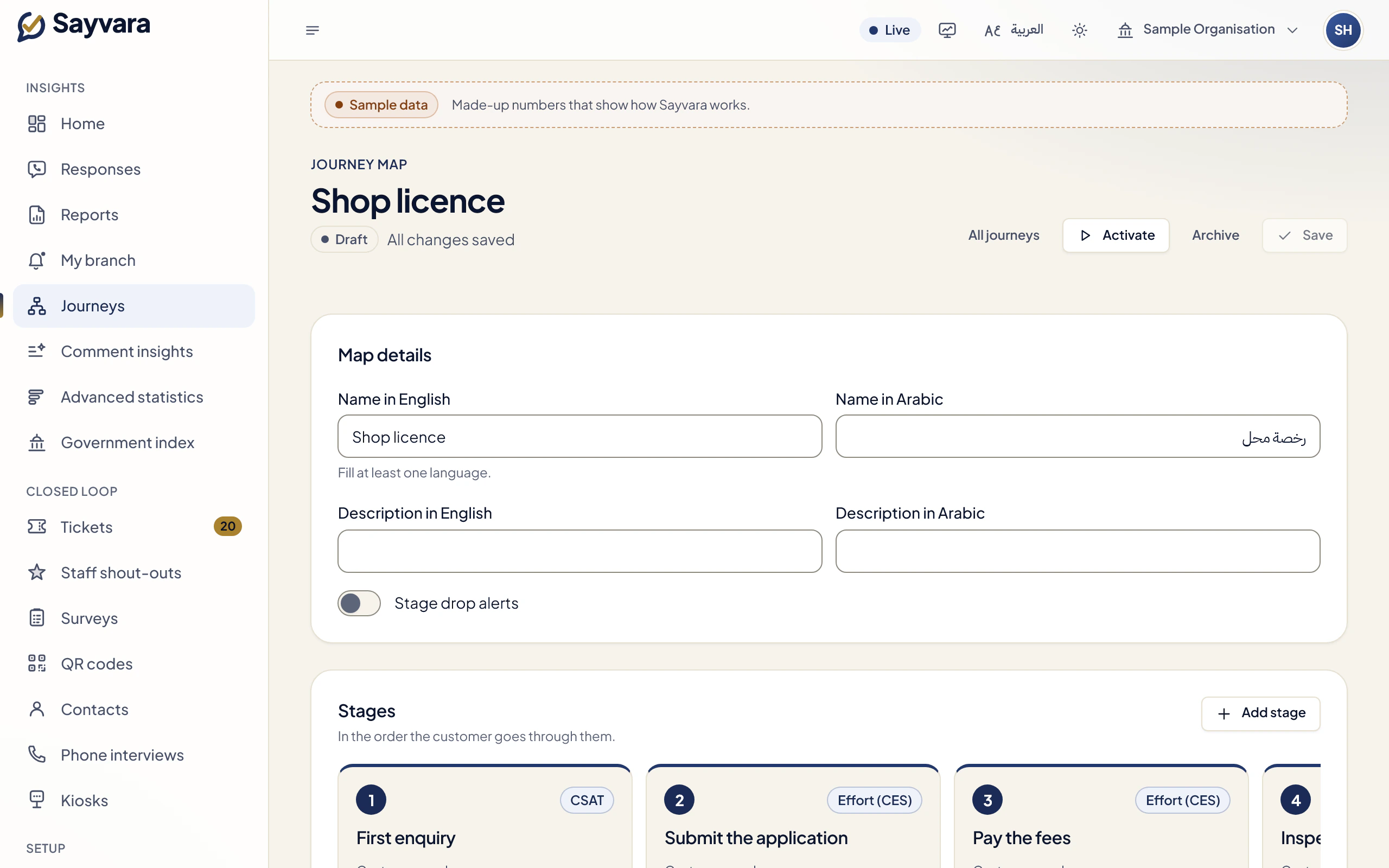
- Open the map and select Save if you have unsaved changes. Activate is only available once all changes are saved.
- Select Activate. You see The map is now: Active.
Archive a map, or bring it back
- Select Archive to archive the map. An archived map cannot be changed, and it is hidden in the list until you turn on Show archived.
- To edit it again, open it and select Back to set-up.
When someone else saved first
Two people can open the same map. If a colleague saves while you are editing, you see Someone saved this map since you opened it.
- Select Reload the map to see their changes.
- Make your edits again and select Save.
Common messages
| Message | What to do |
|---|---|
| Give the map and every stage a name, and keep at least one stage. | Fill a name in at least one language for the map and every stage. |
| A stage owner is no longer a member of this organisation. Pick another owner. | Edit the stage and pick a current member as Owner. |
| This map is archived and cannot be changed. | Select Back to set-up first. |
Was this page helpful?
Thanks. Need more help? Email support@sayvara.com